


Key Takeaways
- You can download the VT Markets app from the official VT Markets website, Apple App Store, or Google Play Store.
- You can register for a VT Markets account through the app using your email address or mobile phone number.
- Your country of residence must be selected accurately, as account availability may vary by region.
- Identity verification is required before you can fully access live account features such as deposits, withdrawals, and live trading.
- Residence verification may also be required to confirm your address and enable withdrawal access.
- To avoid delays, make sure your personal details match your identity document and that all uploaded documents are clear and valid.
Opening a VT Markets account through the app is straightforward. You can register with your basic details, create your login credentials, and complete account verification directly from your mobile device.
This guide explains how to download the VT Markets app, register an account, set up your trading account, complete identity and residence verification.
How to Download the VT Markets App
Before registering your account, download the VT Markets app on your mobile device.
You can download the app by visiting the official VT Markets website or searching for VT Markets on the Apple App Store or Google Play Store, depending on your device.
Once the app is installed, open it and select the option to sign up or create an account. You can then follow the steps below to complete your registration.
Step-by-Step Guide to Registering and Verifying Your VT Markets App Account
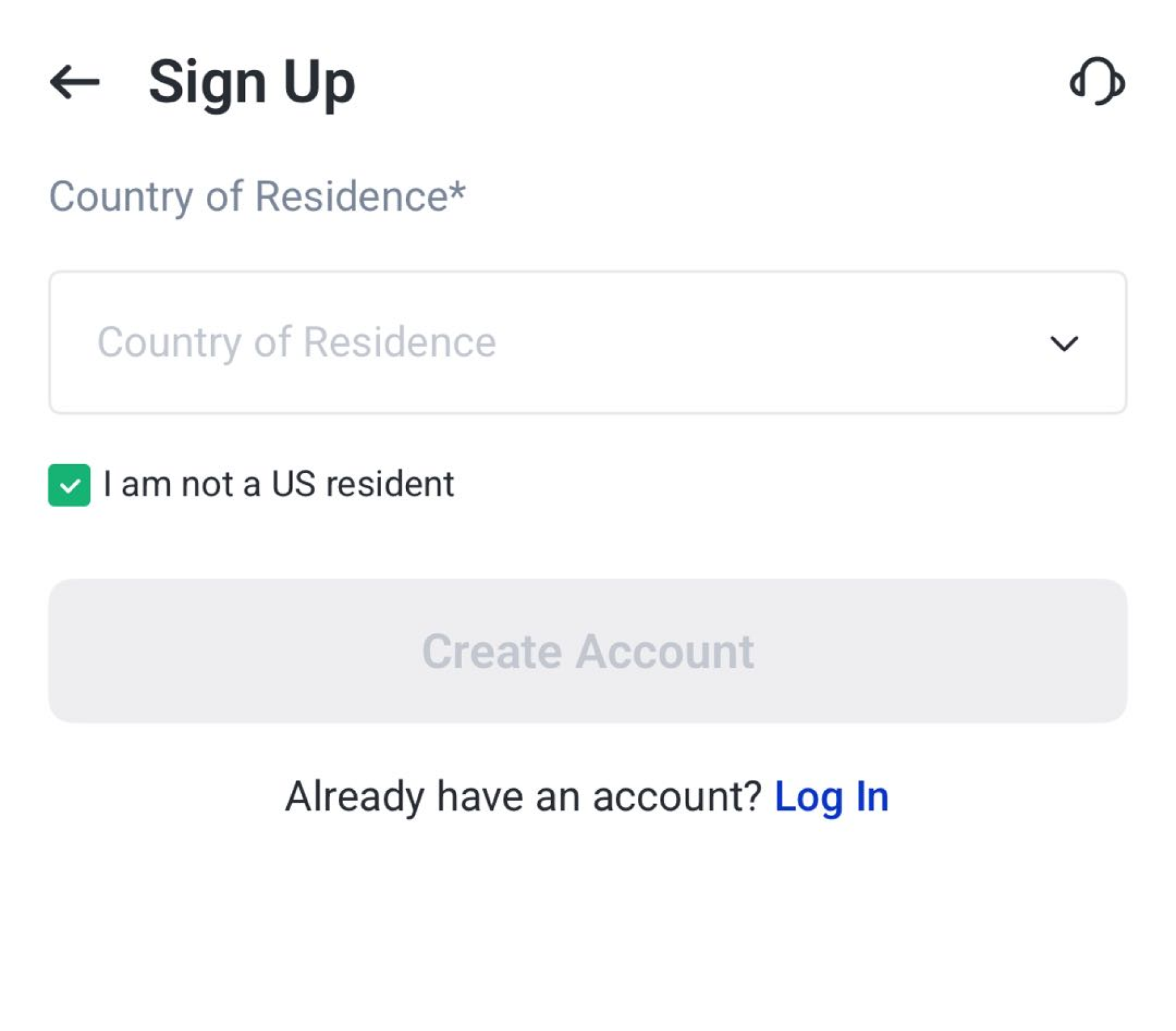
Step 1: Select Your Country of Residence
To begin, open the VT Markets app and select your country of residence.
Make sure the country you choose is accurate, as account availability and onboarding requirements may vary depending on your location.
Note: VT Markets does not offer services to residents of certain restricted jurisdictions. These may include, but are not limited to, the United States, North Korea, Singapore, jurisdictions listed by the Financial Action Task Force (FATF), or jurisdictions subject to international sanctions.
Step 2: Choose Your Sign-Up Method
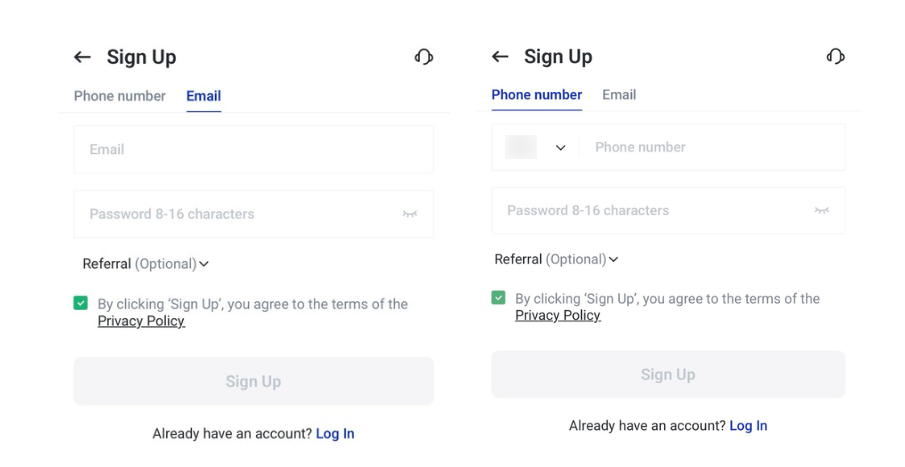
Next, choose how you would like to register. You can sign up using either your email address or mobile phone number.
Enter your details carefully, as VT Markets will use this information to send your verification code.
Before continuing, read and agree to the relevant terms, conditions, and privacy policy. Once you have reviewed the information, tick the agreement box and proceed with your registration.
Step 3: Continue to Account Verification
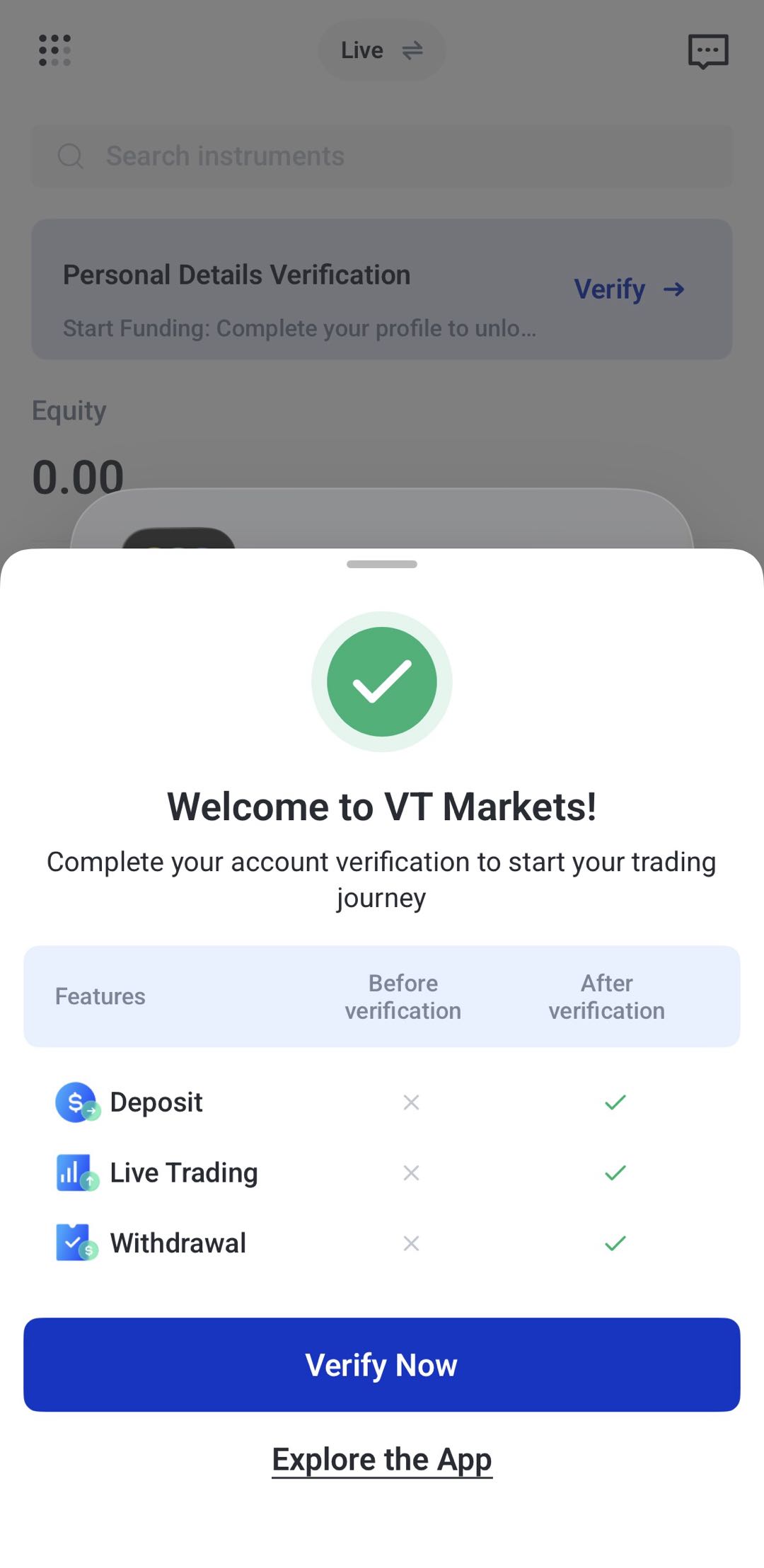
Once your sign-up is completed, you will be redirected to the Welcome to VT Markets screen.
Click Verify Now to continue with the account setup and verification process.
Step 4: Confirm Your Email or Phone Number
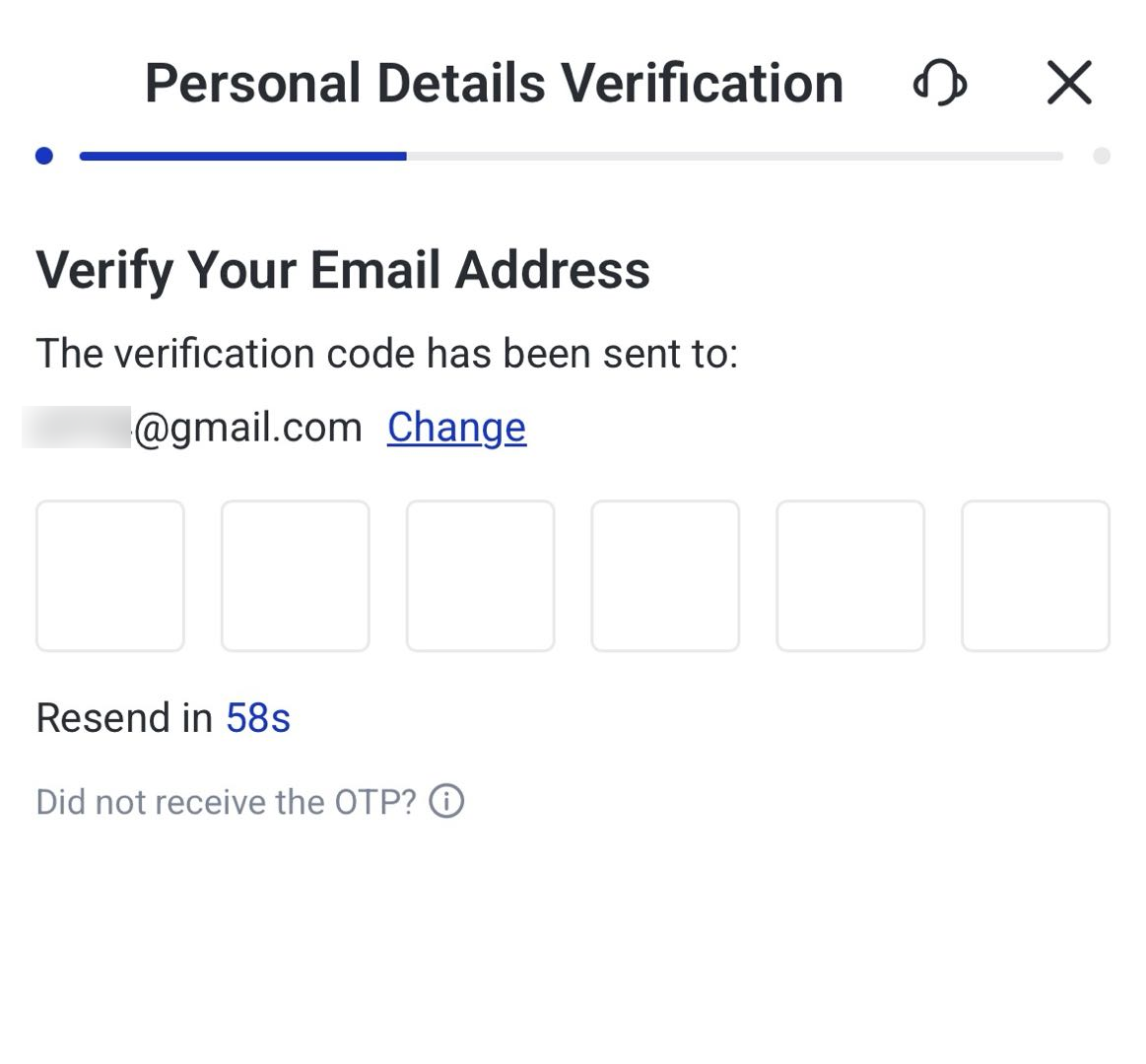
VT Markets will send a one-time password, also known as an OTP, to the email address or mobile phone number used during sign-up.
Enter the OTP code in the app to confirm your details.
Make sure your email address or phone number is correct so you can receive the verification code without delay.
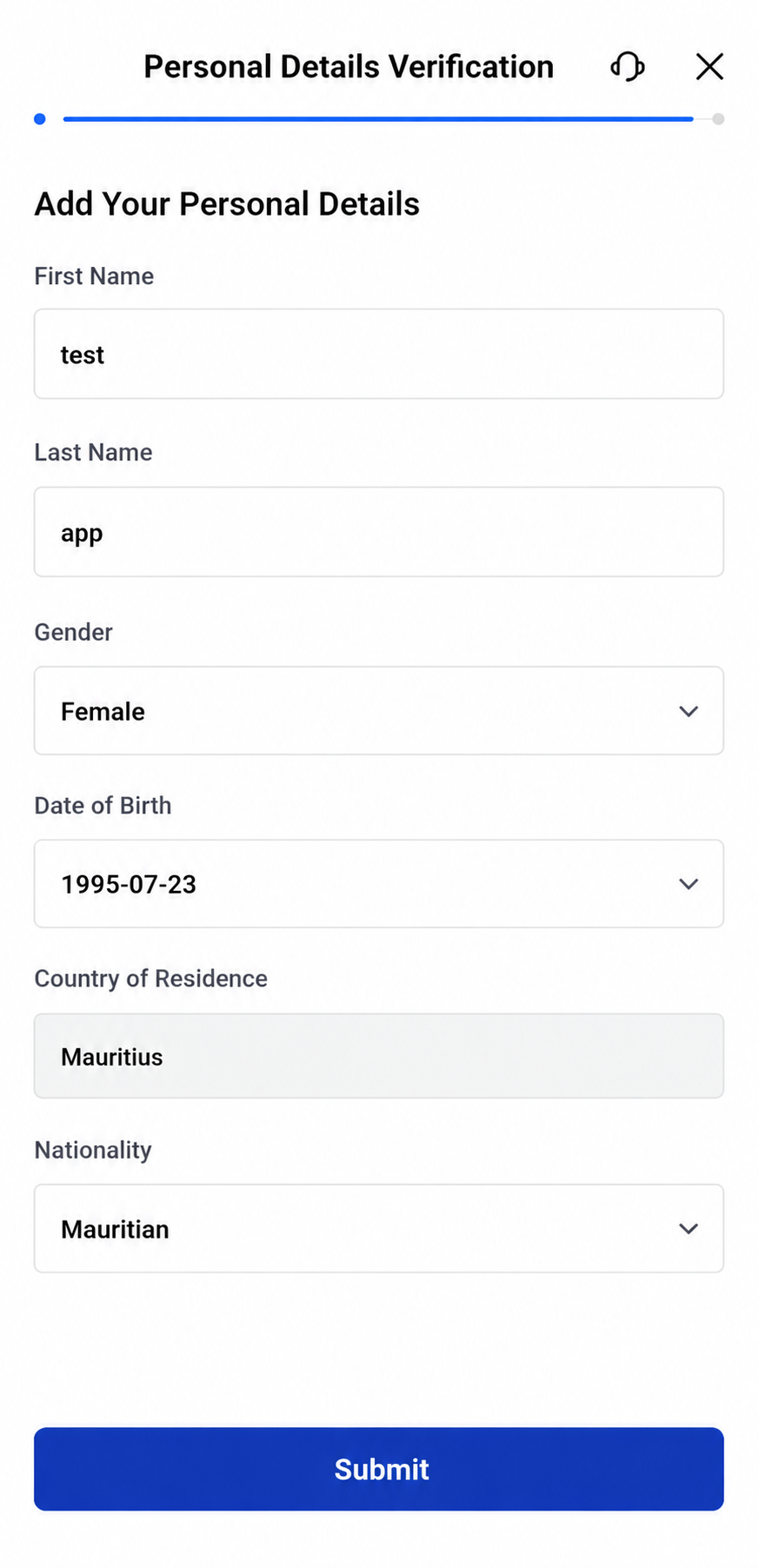
Step 5: Fill Up Your Personal Details
Fill up your personal details including
- Name
- Date of Birth
- Nationality
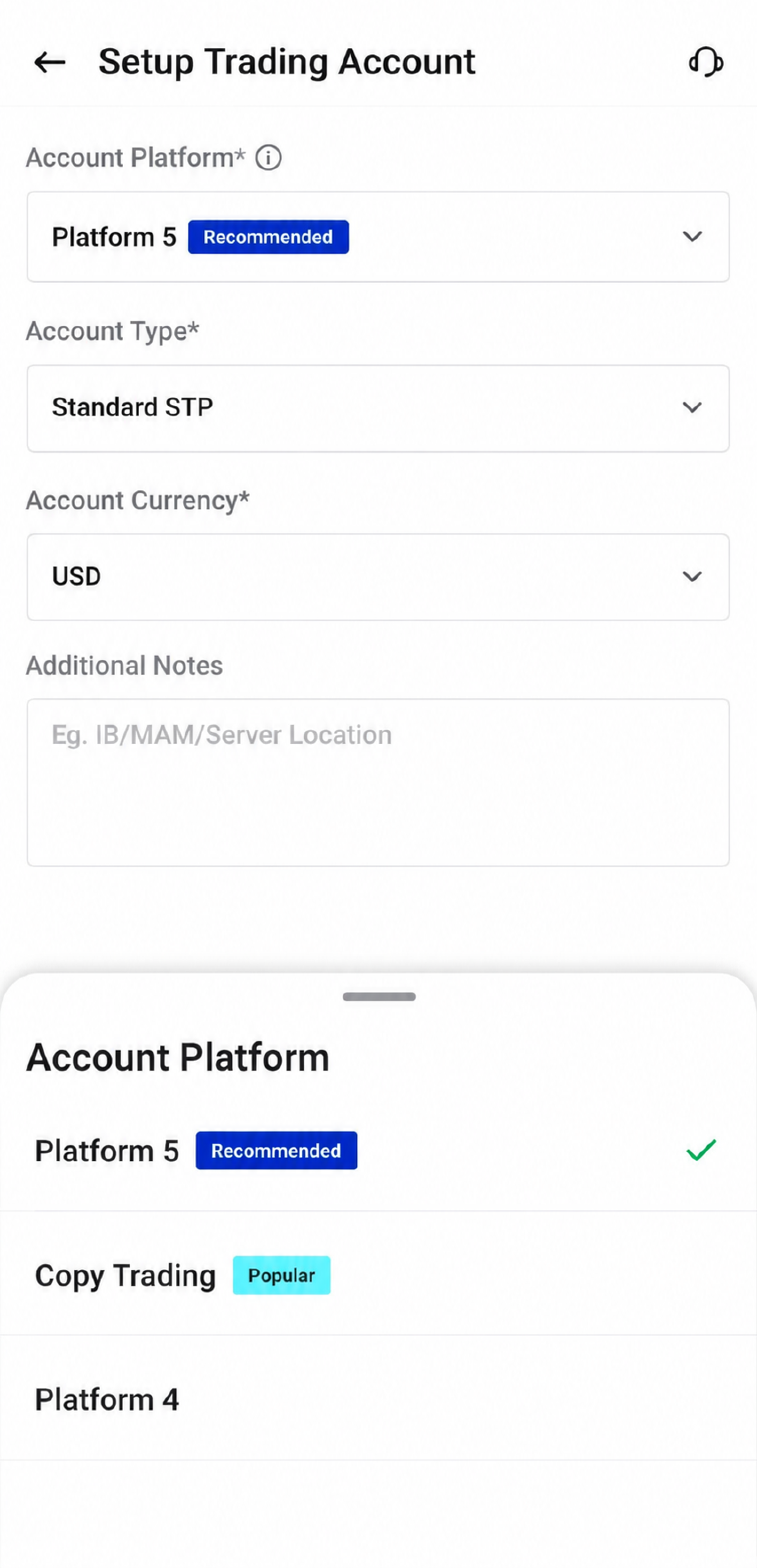
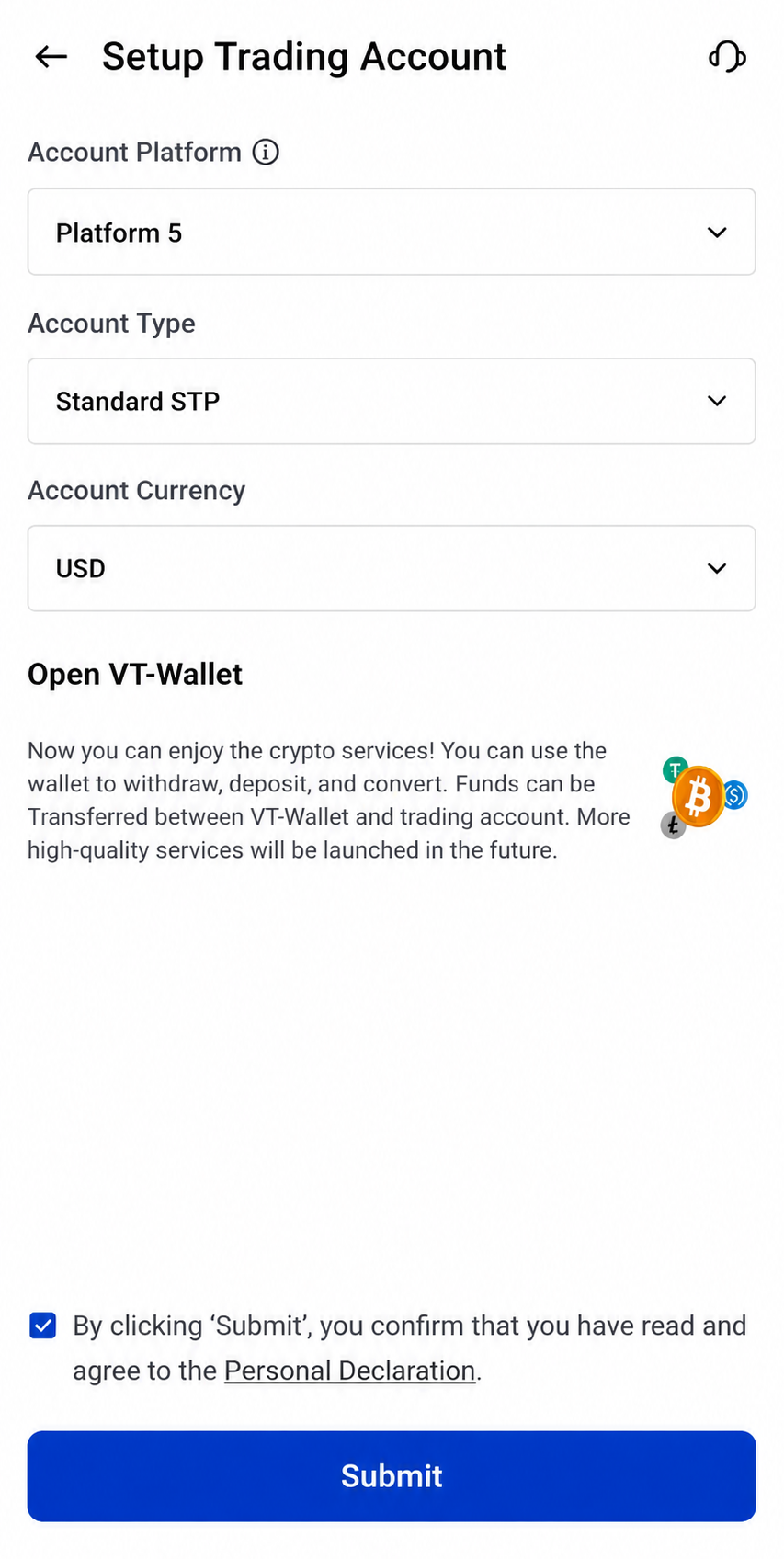
Step 6: Select Your Trading Platform
Next, choose the trading platform you would like to use.
Depending on availability, you may be able to select from options such as:
- MetaTrader 4 (MT4)
- MetaTrader 5 (MT5)
- Copy Trading
Choose the platform that best suits how you plan to trade.
Note: Copytrading is the best options for beginner
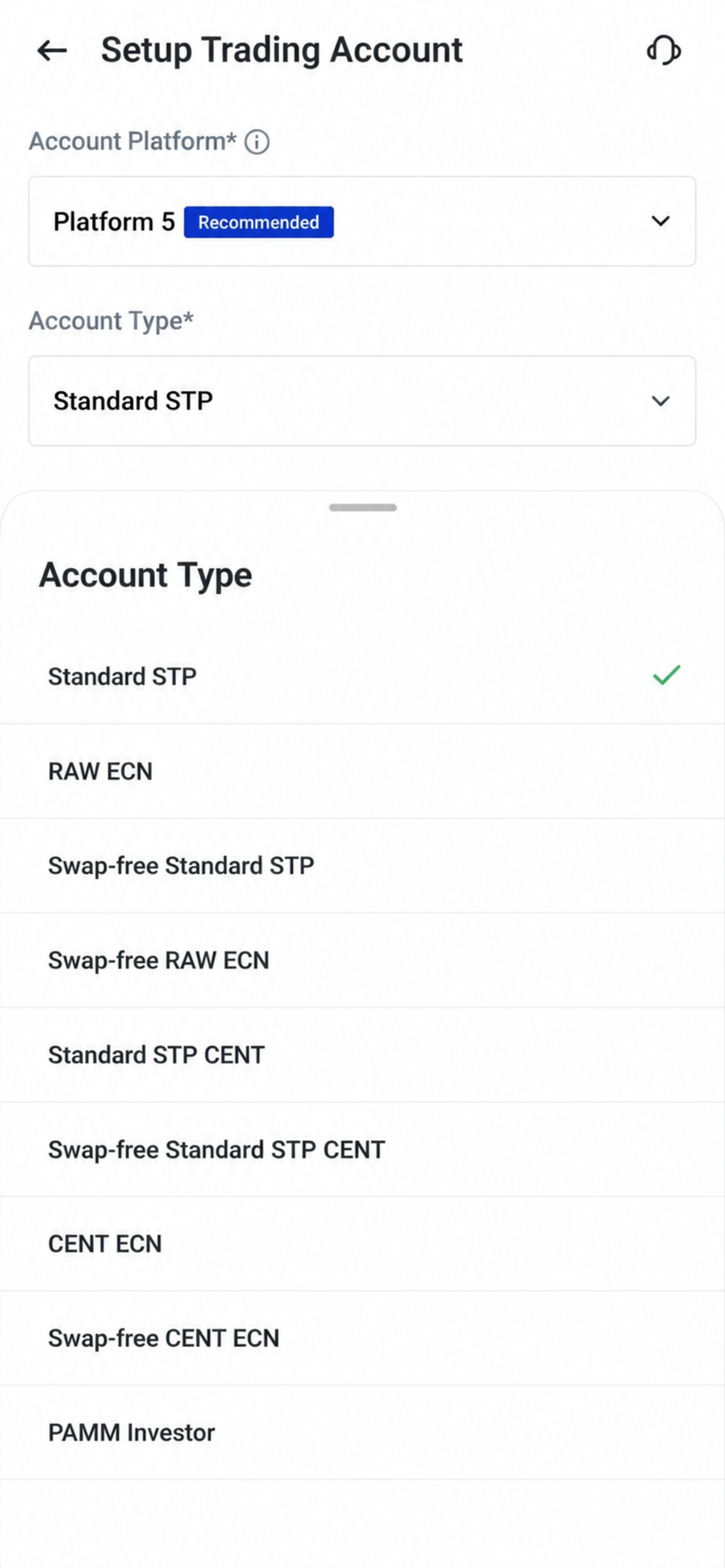
Step 7: Choose Your Account Type
After selecting your platform, choose your preferred account type.
Different account types may suit different trading needs, experience levels, and trading styles. Review the options available in the app before making your selection.
For more information about account types, you may refer to the following guides:
- The Complete Guide to the VT Markets Raw ECN Account
- The Ultimate Guide to the VT Markets Standard STP Account
- What is a Swap-Free Account?
- What Is a Trading Cent Account — and Why Many Beginners Start Here
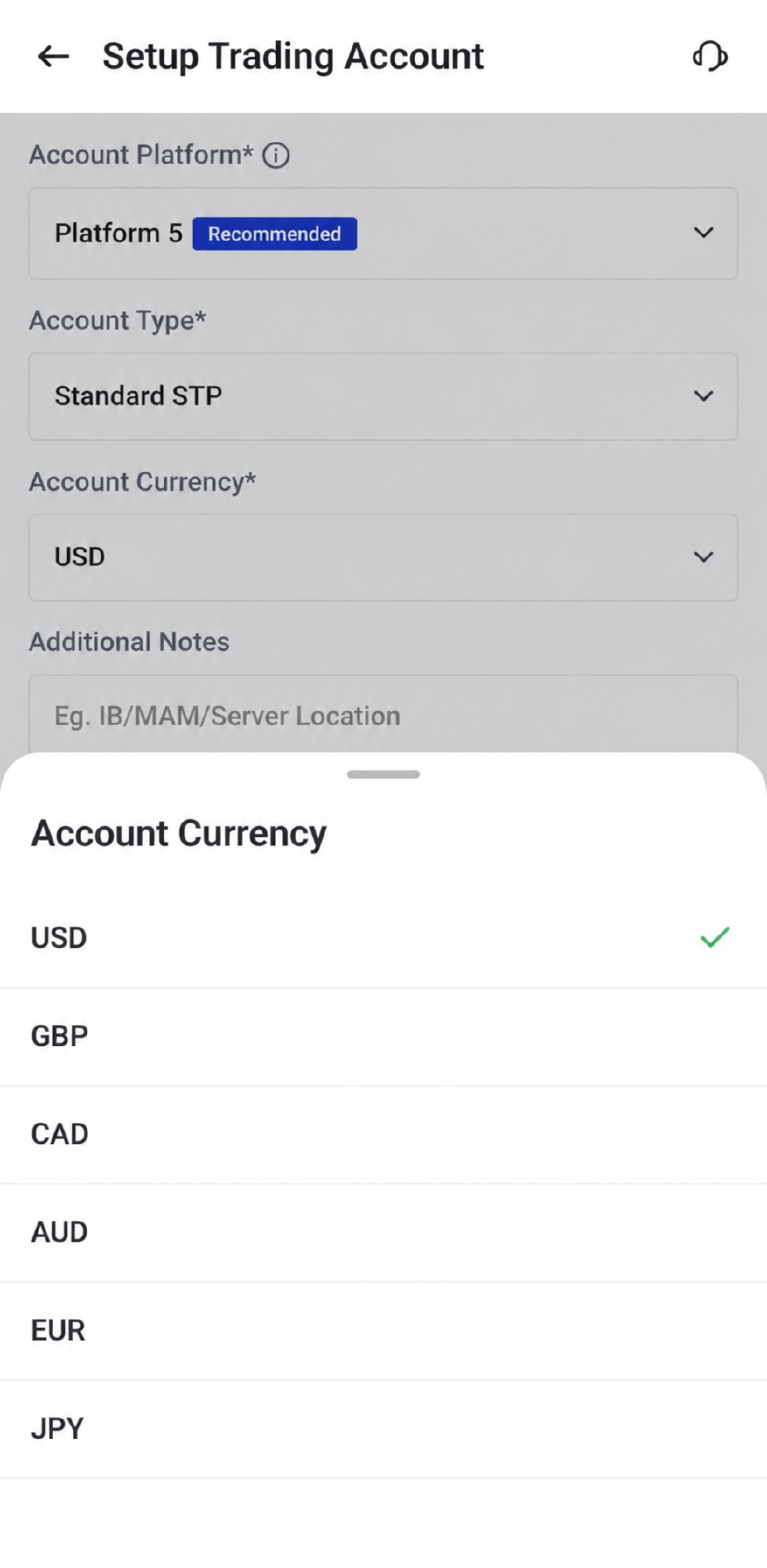
Step 8: Select Your Preferred Account Currency
Next, choose your preferred account currency.
This will be the currency used for your trading account balance, deposits, withdrawals, and account calculations where applicable.
Step 9: Submit Your Account Setup
Once you have selected your platform, account type, and preferred currency, review your details carefully.
If everything is correct, click Submit to continue.
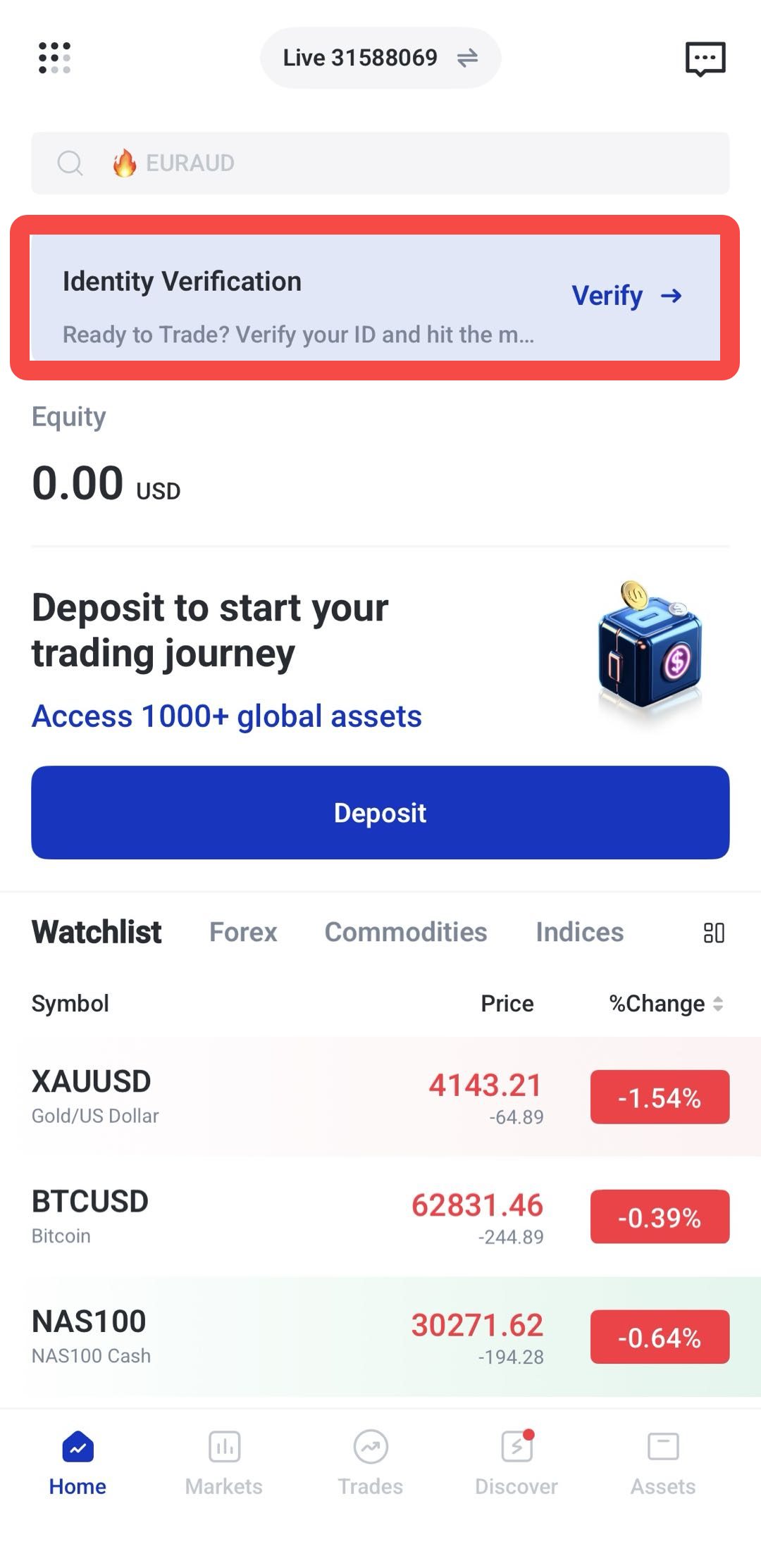
Step 10: Start Identity Verification
After submitting your account setup, you will be prompted to complete identity verification.
Click Verify to begin.
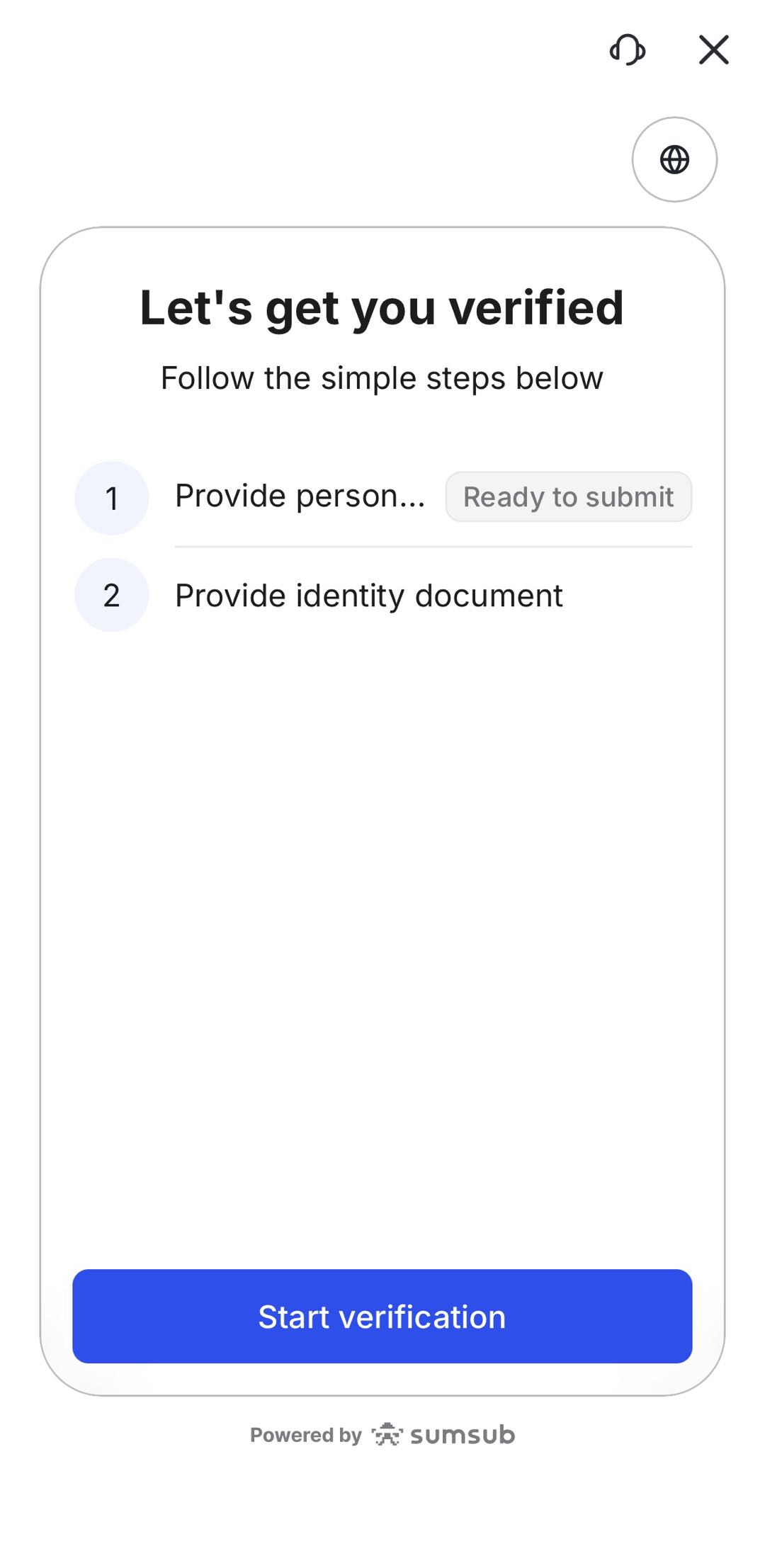
Then, click Start Verification and prepare the required documents.
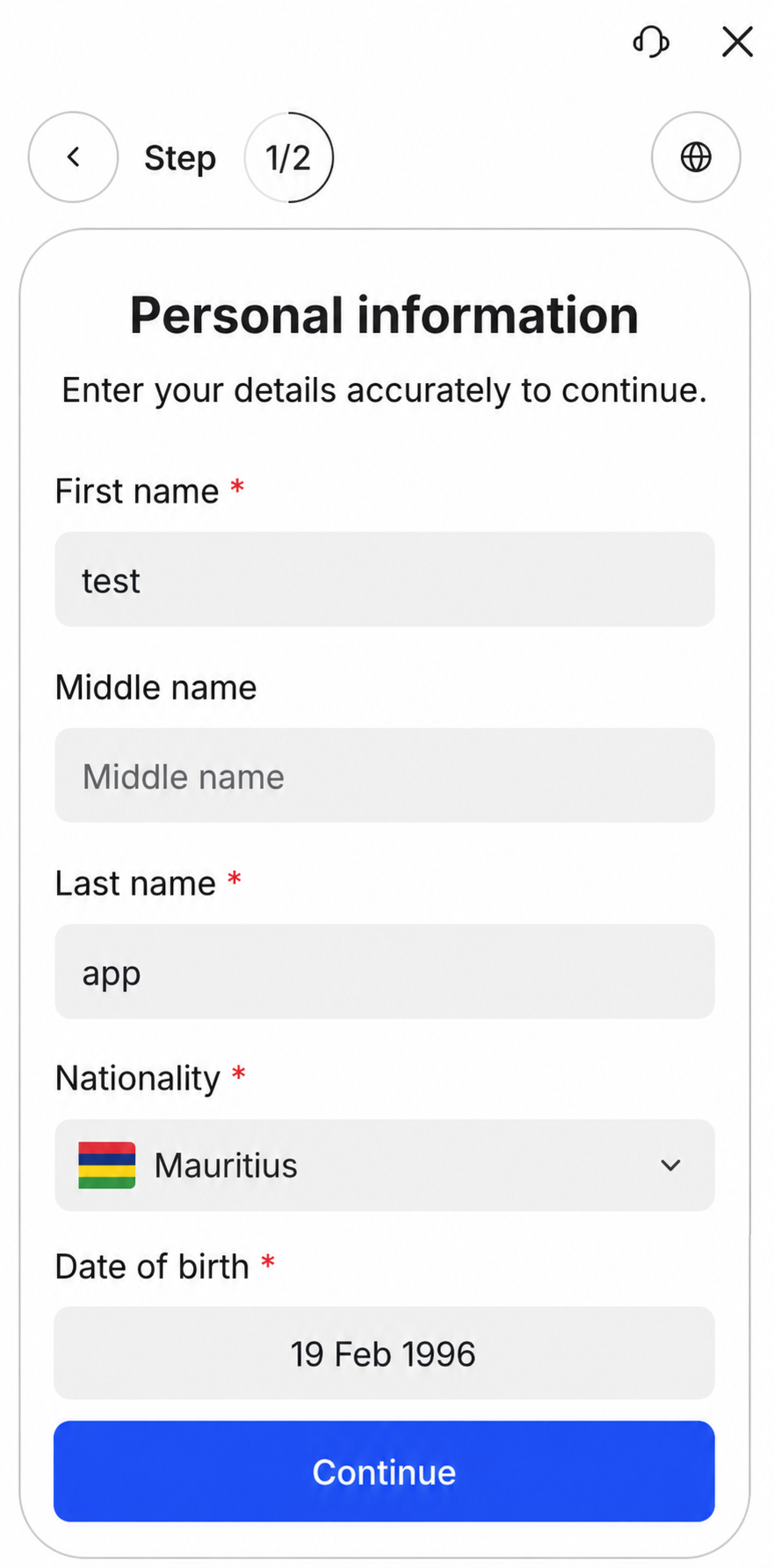
Step 11: Fill In Your Personal Information
Enter your personal details as requested in the app. This may include information such as:
- Full name
- Nationality
- Date of birth
Make sure the information you provide matches your official identity document.
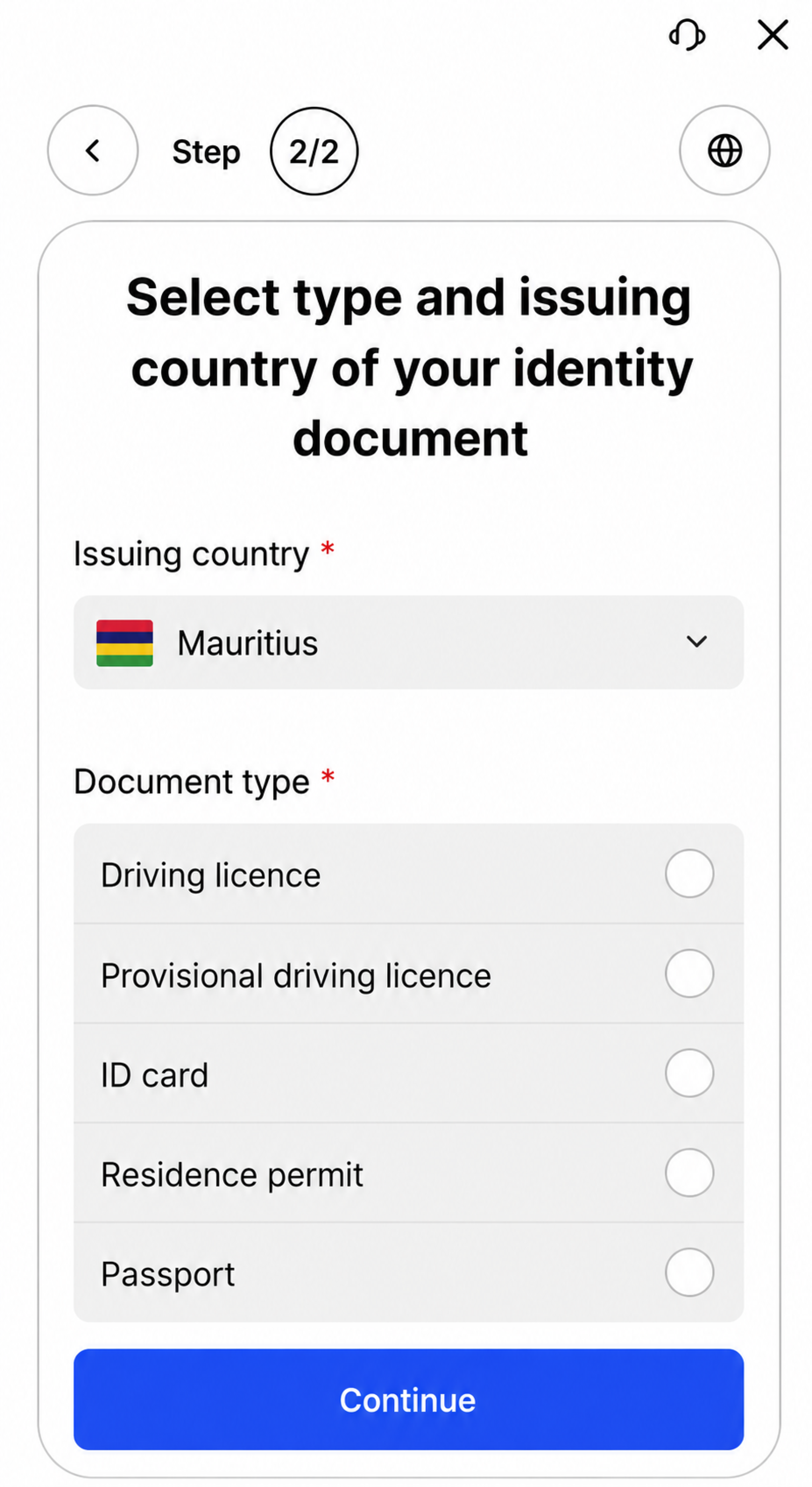
Step 12: Select Your Issuing Country and Document Type
Next, choose the country that issued your document.
Then, select the type of document you would like to use for verification. This may include options such as an identity card, passport, or driving licence, depending on your region and availability.
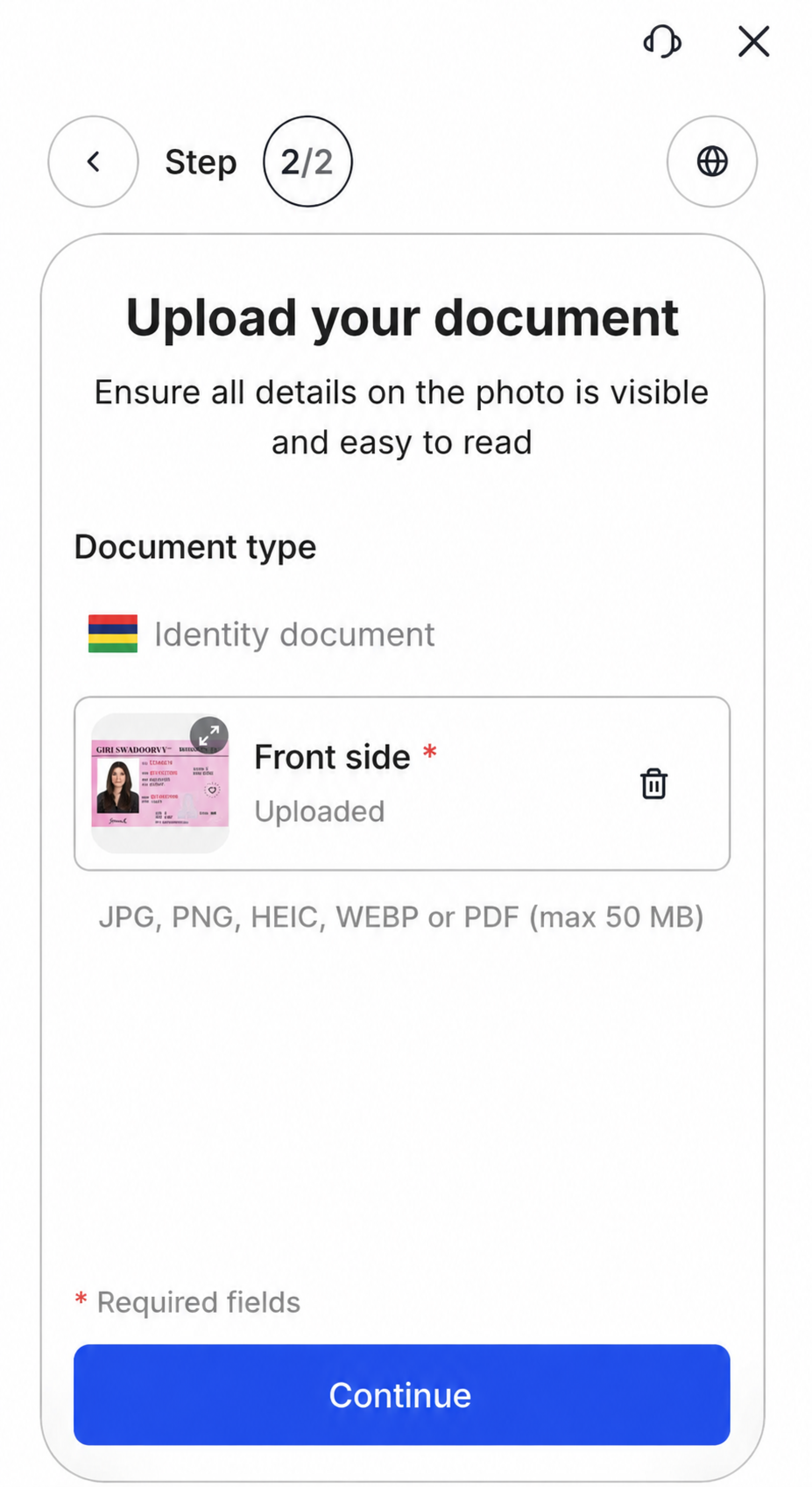
Step 13: Upload Your Verification Document
Follow the on-screen instructions to upload your chosen document.
For example, if you select a driving licence, make sure the image is clear and all details are visible before clicking Continue.
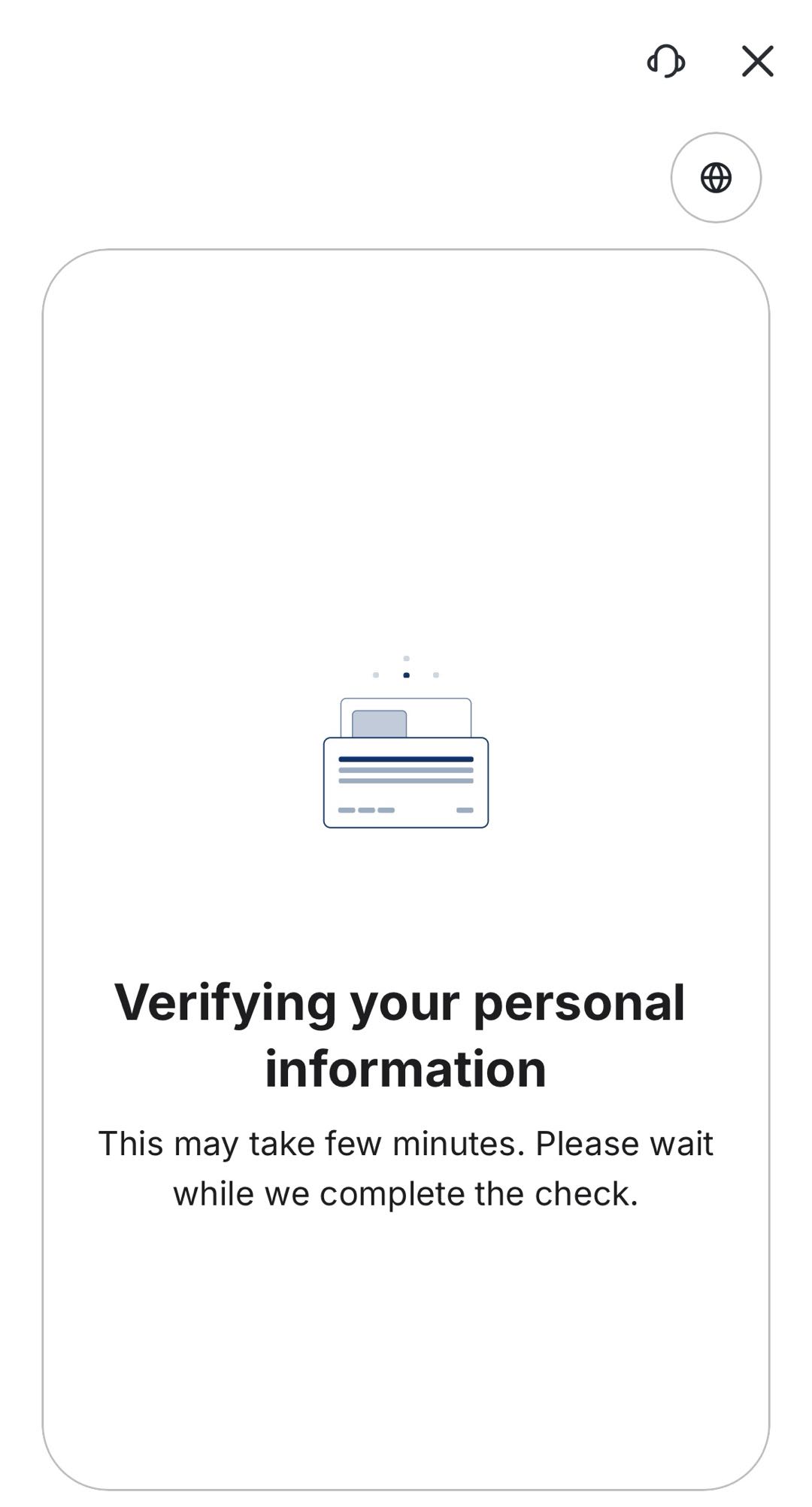
Step 14: Wait for Document Review
After submitting your document, VT Markets will review your information and uploaded files.
The review process may take some time. During this stage, your account status may show that it is under review or being processed.
Step 15: Reupload Documents If Required
If your verification is not approved, you may be asked to reupload your document or provide a different document type.
To reduce the chance of rejection, make sure:
- Your document image is clear
- All corners of the document are visible
- The details match the information entered in the app
- The document is valid and not expired
- There is no glare, blur, or obstruction
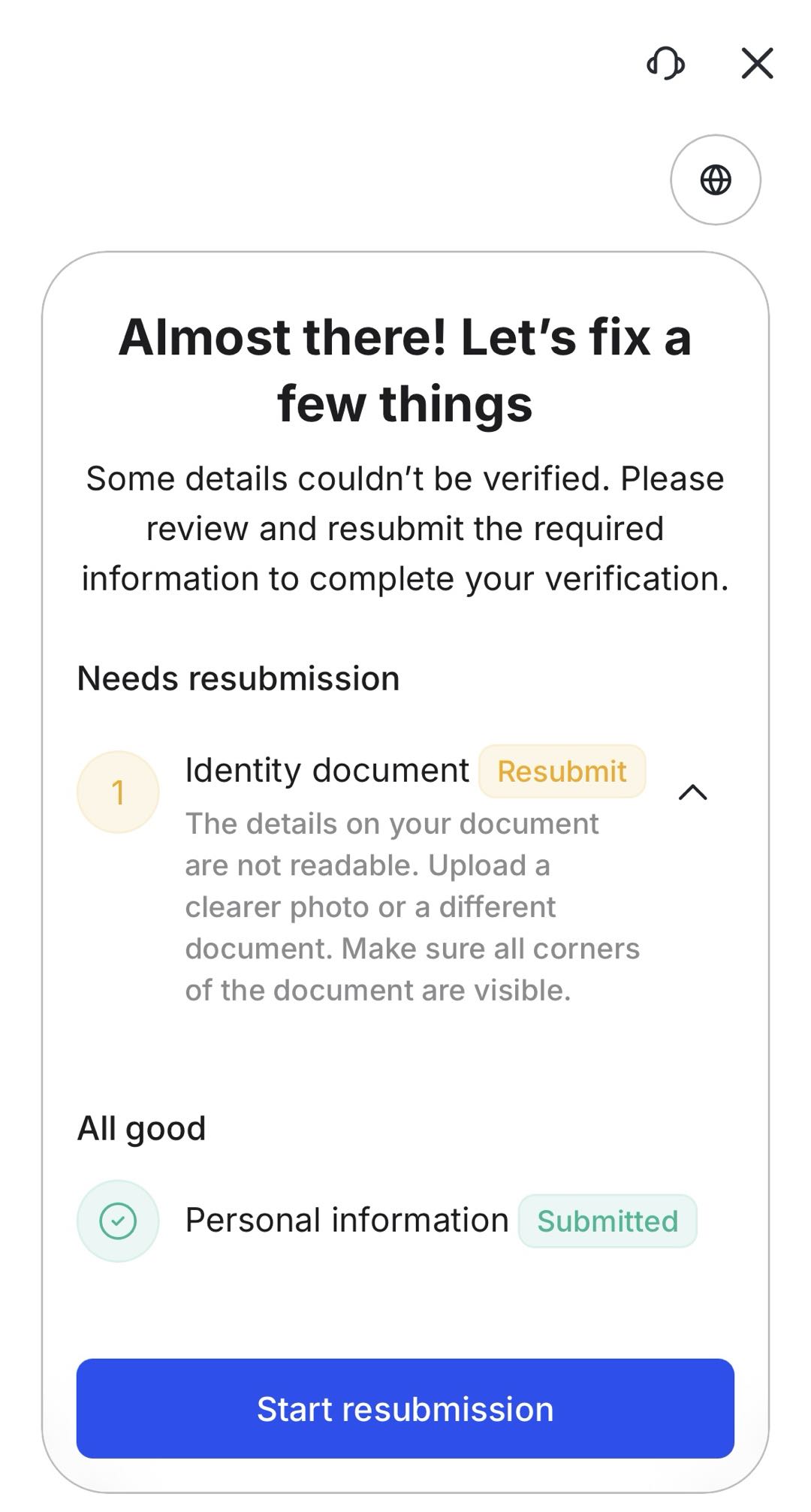
Once the updated document has been submitted and verified with no issues, your account will proceed to the review stage.

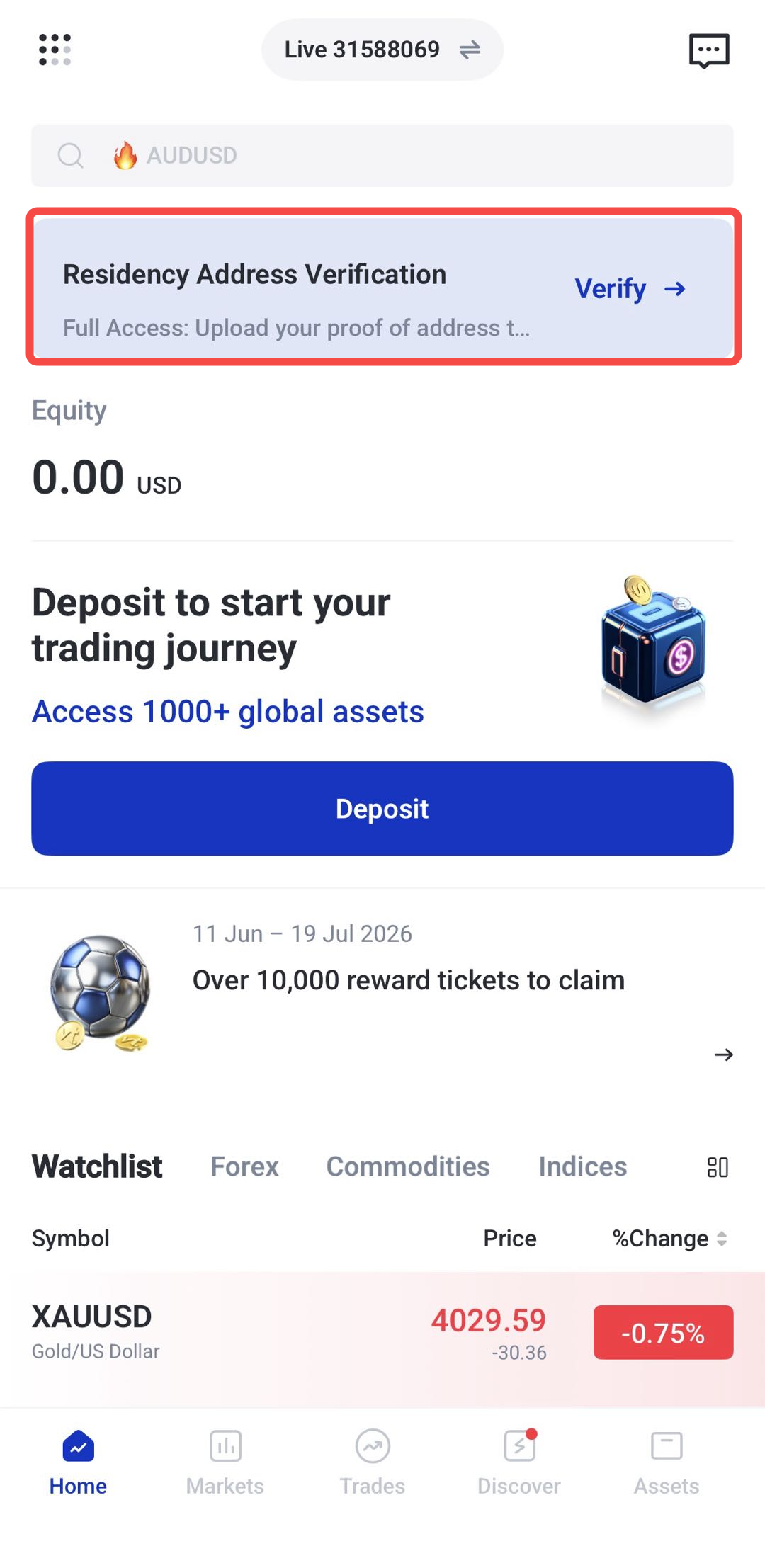
Step 16: Start Residence Verification
To unlock all features, you are required to complete residence verification.
This step verifies your country of residence and address details before withdrawal access can be enabled.
Click Verify to continue
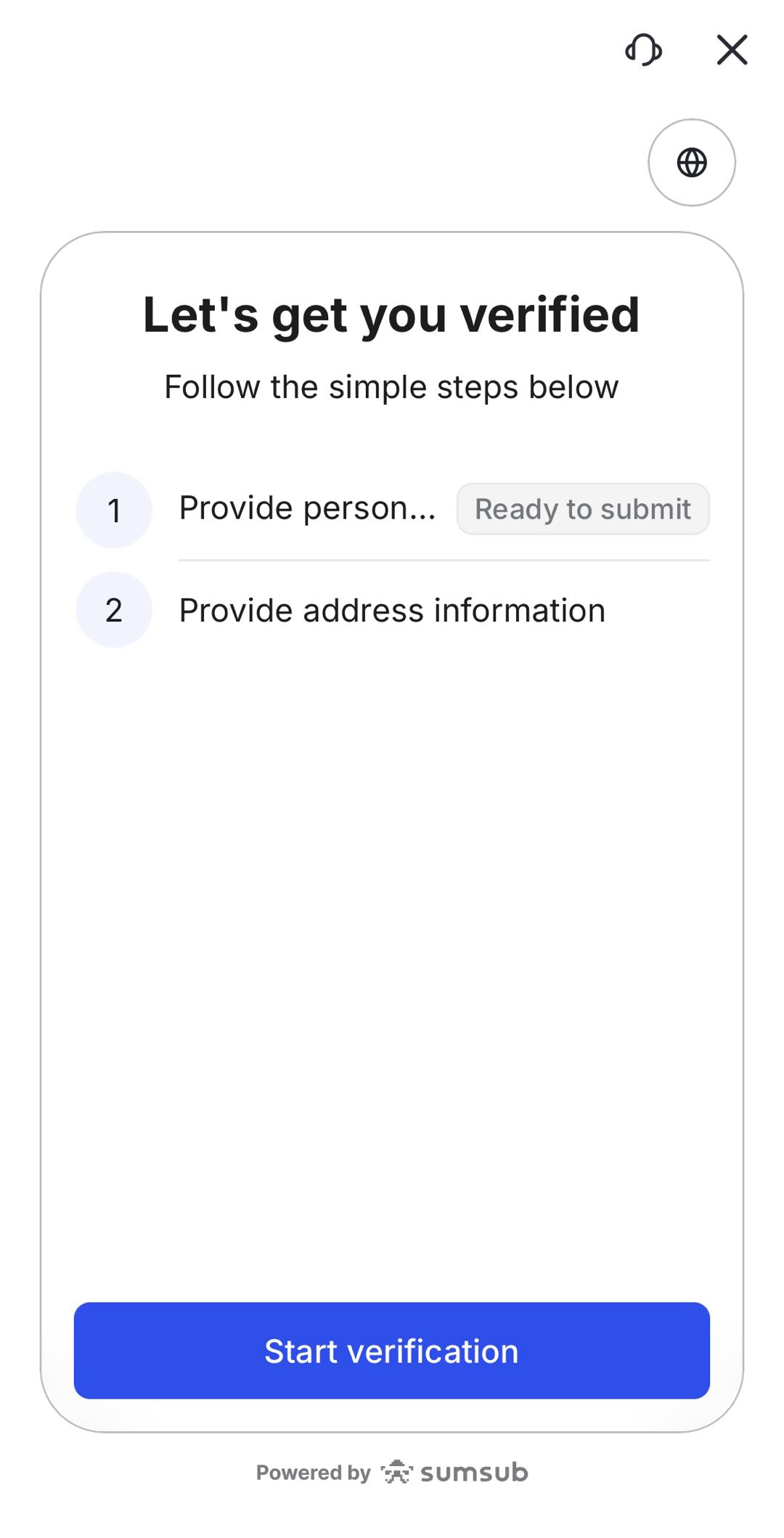
You will be redirected to the verification page, then click Start Verification to continue.
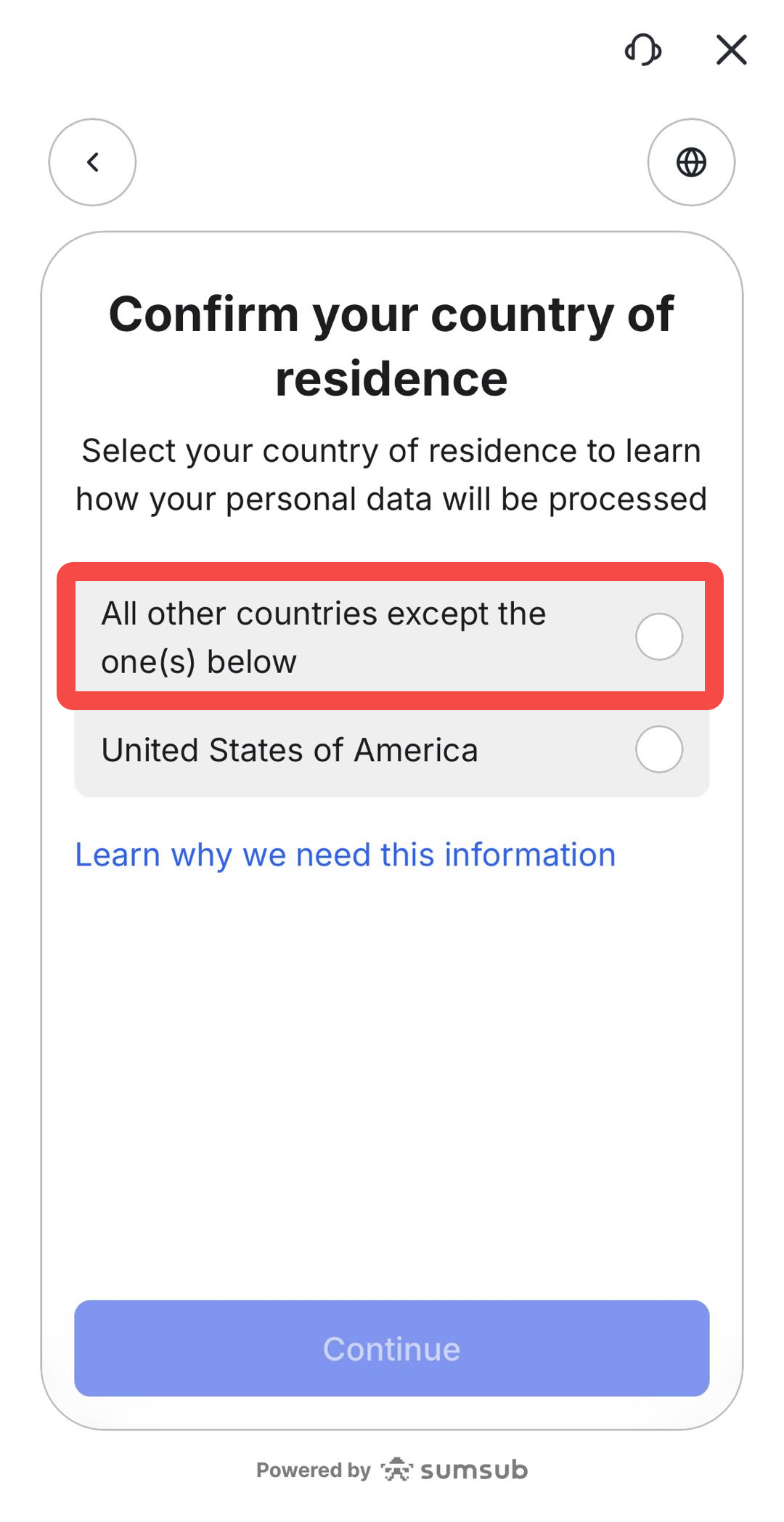
Step 17: Confirm Your Country of Residence
Next, confirm your country of residence.
If you are not a resident of the United States, select All other countries except the one(s) below and click Continue.
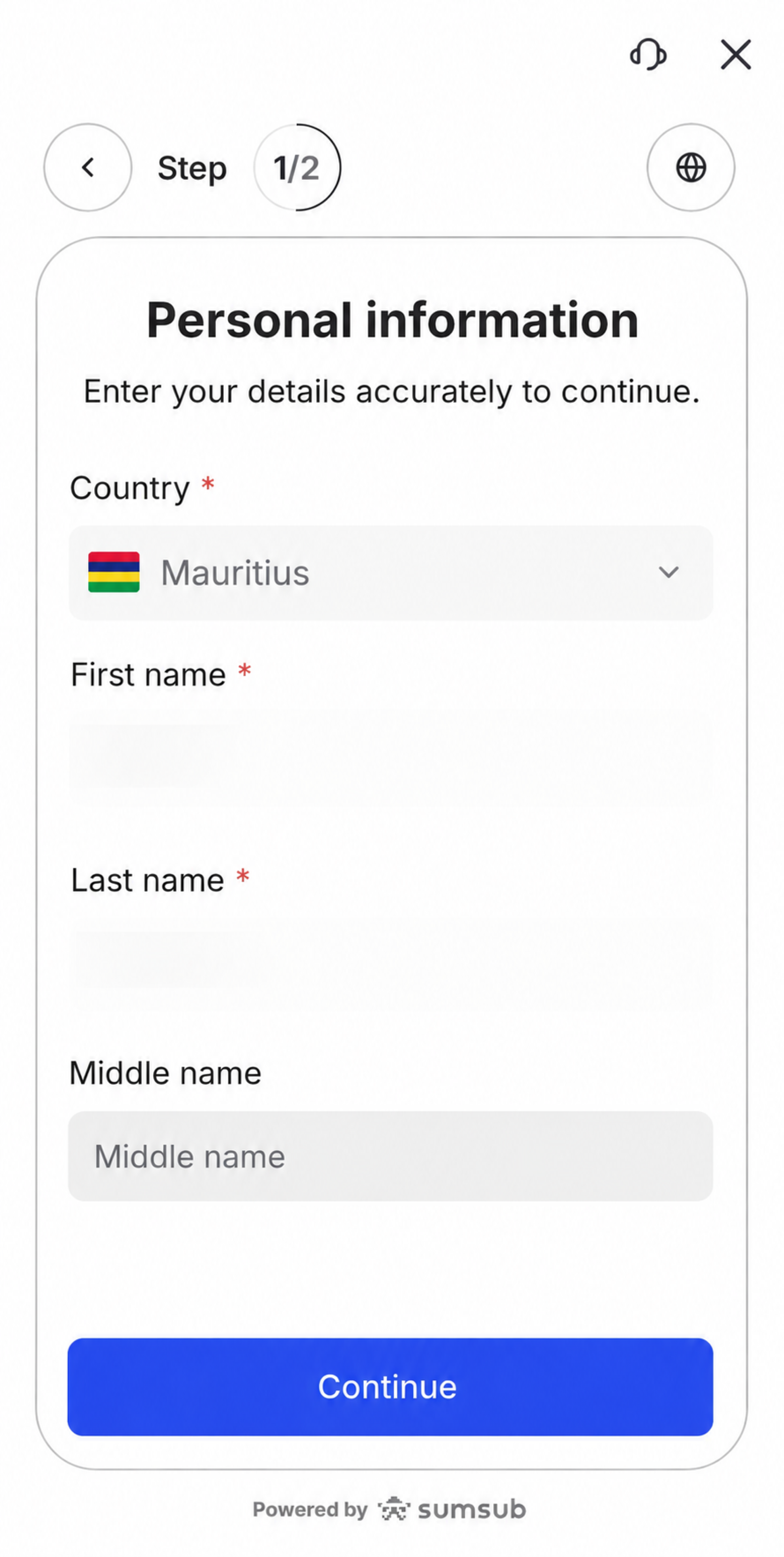
Step 18: Review Your Personal Information
Please review your personal information again . This may include your country, first name, last name, and middle name, where applicable.
Make sure the details are accurate and match the document you will use for verification.
Click Continue once the information is complete.
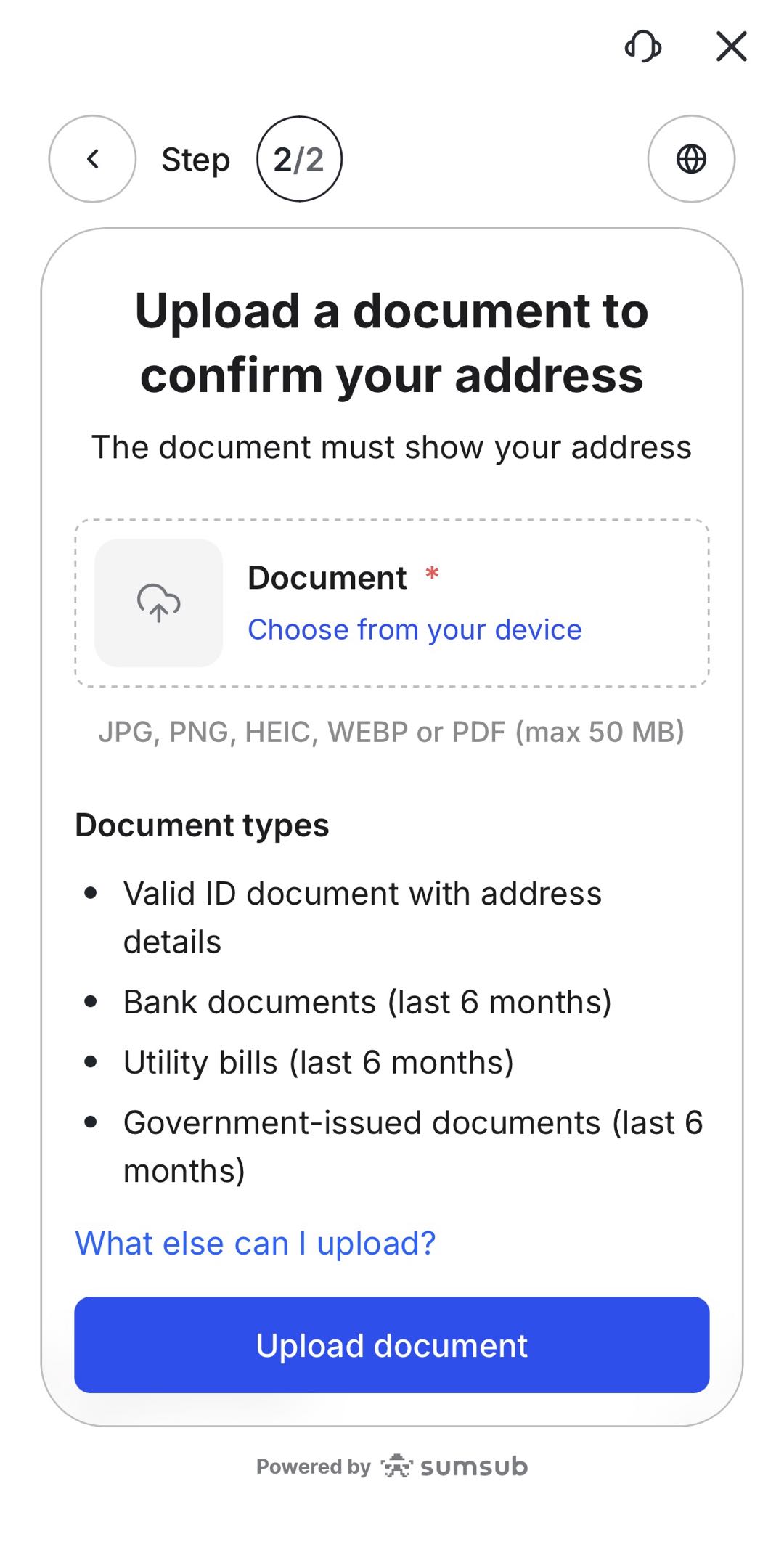
Step 19: Upload Your Proof of Address
Next, upload a document that shows your residential address.
Accepted document types may include:
- Valid ID document with address details
- Bank documents issued within the last 6 months
- Utility bills issued within the last 6 months
- Government-issued documents issued within the last 6 months
Supported file formats may include JPG, PNG, HEIC, WEBP, or PDF, subject to the file size limit shown in the app.
Make sure the document clearly shows your name, address, and issue date where required before submitting it.
Step 20: Wait for Residence Verification Review
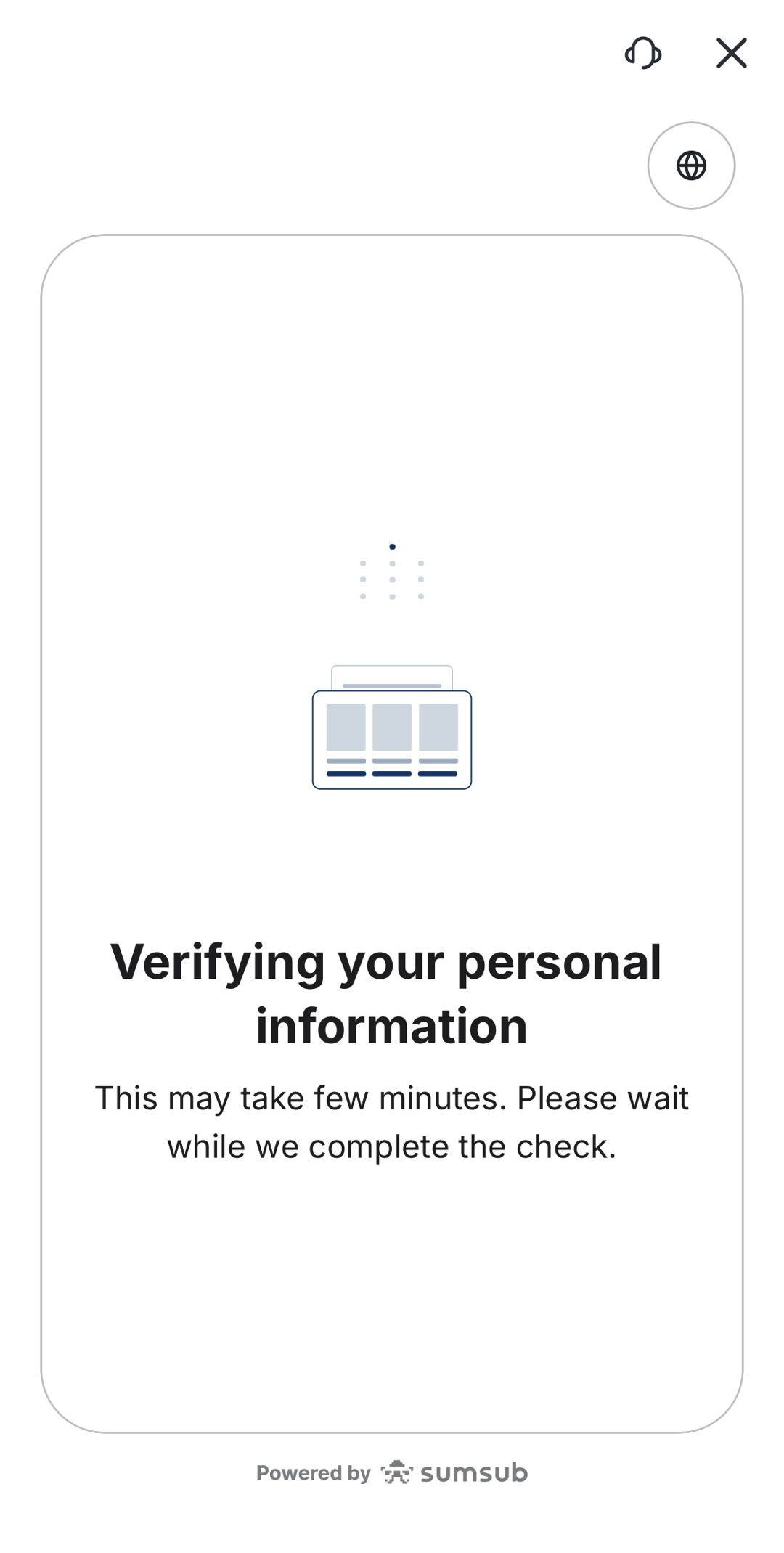
After submitting your proof of address, VT Markets will review your information.
The review process may take some time. During this stage, you may see a verification screen while the check is being completed.
Step 21: Reupload Documents If Required
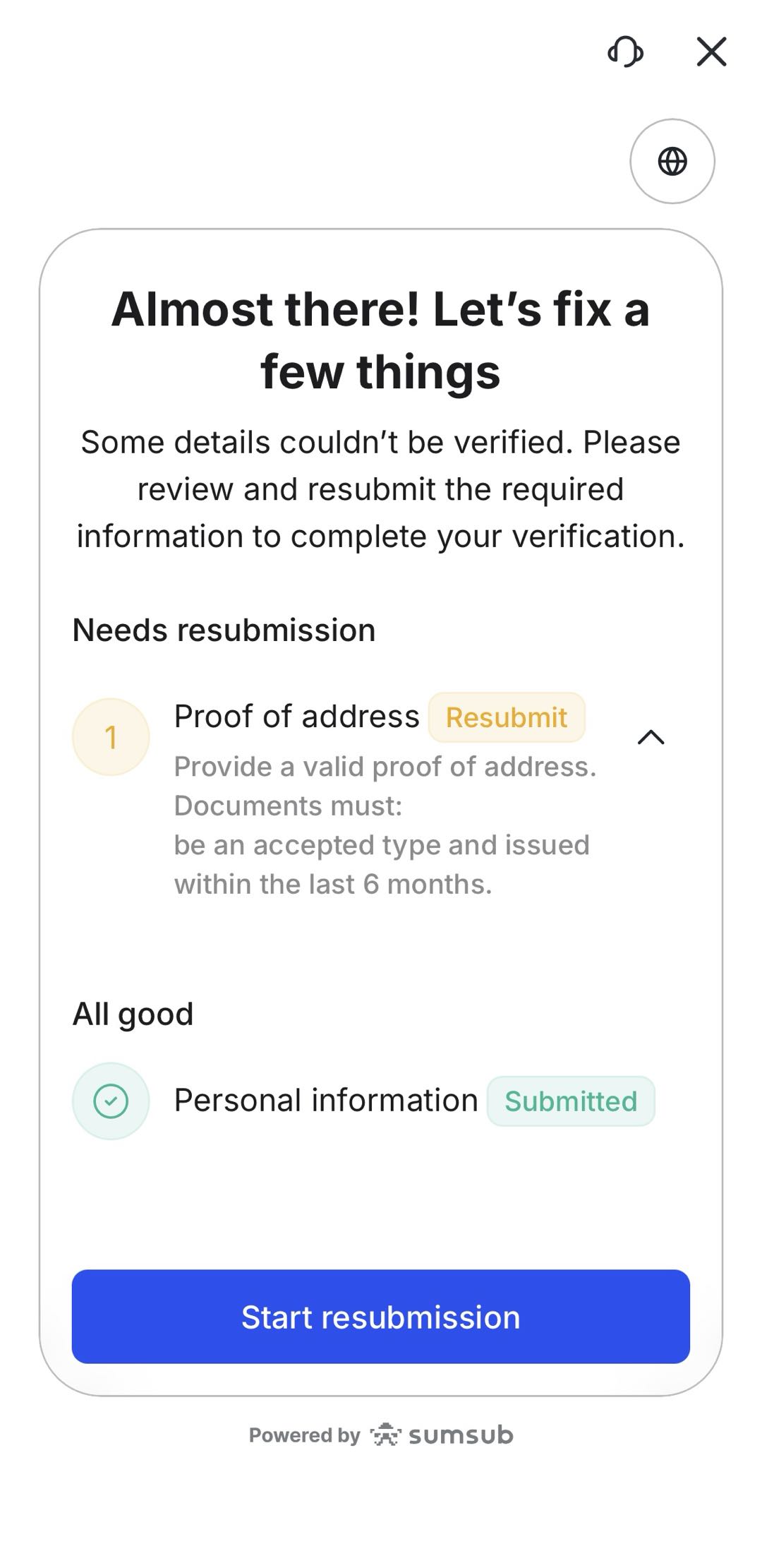
If your verification is not approved, you may be asked to reupload your document or provide a different document type.
To reduce the chance of rejection, make sure:
- Your document image is clear
- All corners of the document are visible
- The details match the information entered in the app
- The document is valid and not expired
- There is no glare, blur, or obstruction
Once the updated document is submitted, your account will return to the review stage.
Step 22: View Your Verified Live Account
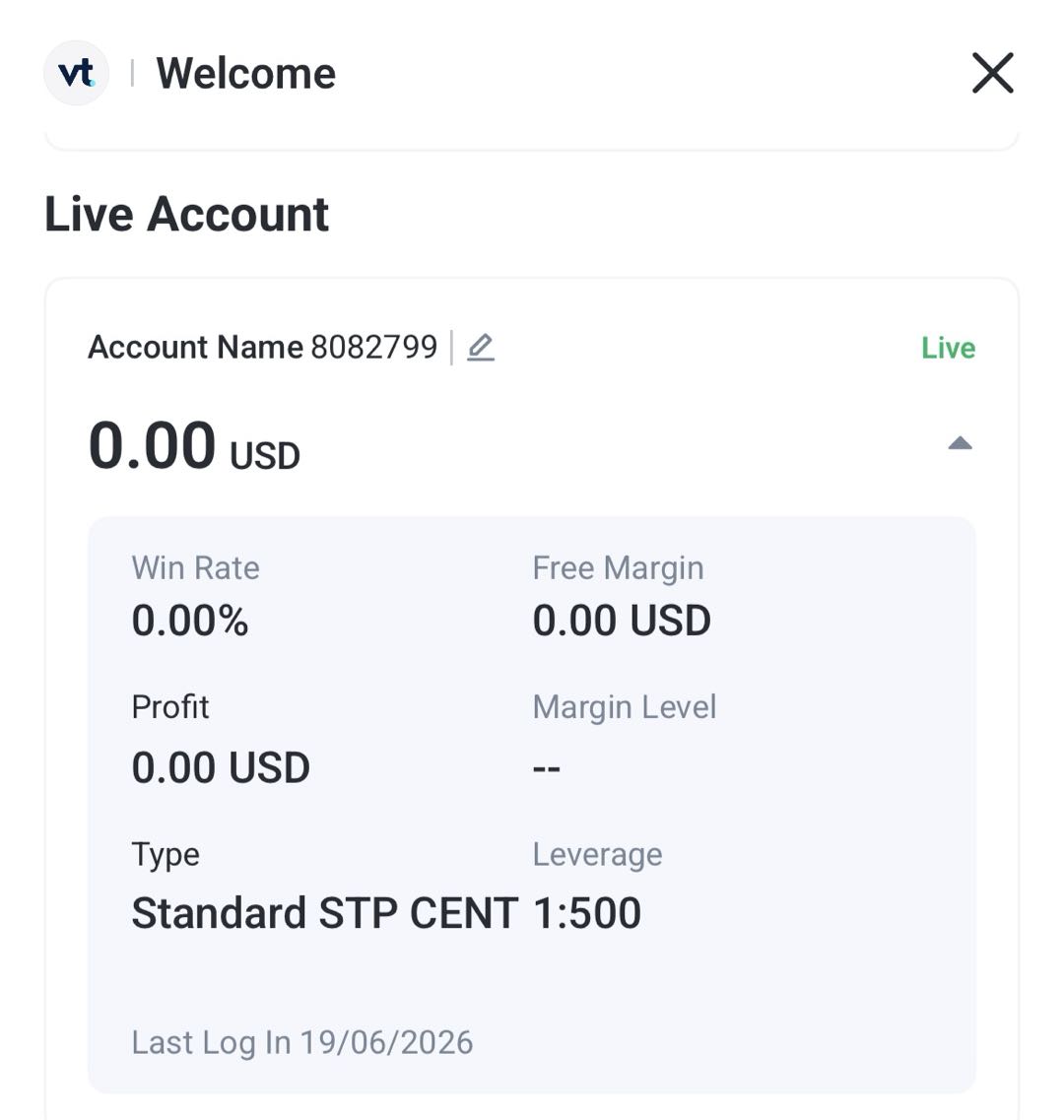
Once your identity and residence verification have been reviewed and approved, your live account will become available in the VT Markets app.
You can then access your account settings, fund your account where available, access your selected trading platform, and request withdrawals.
Frequently Asked Questions
Can I register for a VT Markets account directly through the app?
Yes. You can register for a VT Markets account directly through the VT Markets app using your email address or mobile phone number.
Why do I need to select my country of residence?
Your country of residence helps determine whether VT Markets services are available in your region. It may also affect account setup requirements, available features, and verification steps.
Which trading platform can I choose during registration?
Depending on availability, you may be able to choose from platforms such as MetaTrader 4 (MT4), MetaTrader 5 (MT5), or Copy Trading. The options shown in the app may vary by region and account type.
What documents do I need for identity verification?
You may need to provide a valid identity document, such as an identity card, passport, or driving licence. The available document options may vary depending on your country or region.
Why was my verification document rejected?
Your document may be rejected if the image is blurry, cropped, expired, blocked by glare, or does not match the personal details entered in the app. If this happens, you may need to reupload a clearer document or choose another accepted document type.
How long does account verification take?
The review process may take some time after you submit your information and documents. During this stage, your account may appear as under review or being processed.
Can I trade before completing verification?
You may need to complete identity verification before accessing full live account features, including deposits, withdrawals, and live trading.
Can I change my account type after registration?
No. You cannot directly change the account type of an existing trading account after it has been created. If you want to use a different account type, you will need to create a new trading account in the VT Markets app and select your preferred account type during setup.
Why do I need to complete residence verification?
Residence verification helps confirm your residential address. This may be required for account security, regulatory checks, and withdrawal access.
What documents can I use as proof of address?
You may be able to use a valid ID document with address details, bank document, utility bill, or government-issued document. Some documents may need to be issued within the last 6 months.
Can I withdraw before completing residence verification?
Withdrawal access may only become available after the required verification checks are completed. If residence verification is requested, submit the required proof of address in the app.