Key Takeaways
- VT Markets offers swap-free accounts with no overnight swap charges.
- A Shariah-compliant trading environment for Muslim traders.
- Small administrative fees may apply, depending on the region.
- Access to forex, commodities, indices, and CFDs with no interest-based charges.
- Standard STP or RAW ECN spreads available for swap-free accounts.
Are you considering a trading account that aligns with your religious beliefs or personal preferences? VT Markets offers a Swap-Free account for fair and clear access to global markets. It has no swap interest charges. Below is everything you need to know about how it works, who it’s for, and the fees involved.
What is a Swap-Free Account?
A swap-free account is a type of trading account offered by VT Markets, designed for traders who are unable to pay or receive interest on overnight positions due to religious beliefs, such as Islam, or for those who prefer an interest-free structure when holding positions for several days.
Who Can Use VT Markets Swap-Free Accounts?
Swap-free accounts were first made for traders who follow Islamic finance rules. They also suit traders who hold positions for many days without interest charges. This gives a clear and predictable cost structure.
Specifically, swap-free accounts are suitable for:
- Muslim traders seeking Shariah compliance
- Swing traders holding positions overnight
- Position traders holding trades for days or weeks
- Traders who want a predictable cost structure
- Traders who prefer no interest-based rollover adjustments
Swap-Free vs Standard Trading Account: What are the Differences?
| Feature | Standard Account | Swap-Free Account |
| Overnight Swap | Applied | Not Applied |
| Admin Fee | No | May Apply |
| Spreads | STP / ECN | STP / ECN |
| Best For | Short-term traders | Long-term holders |
Key Features, Benefits, and Fees of VT Markets Swap-Free Accounts
The following table shows an overview of the benefits of opening a swap-free account with VT Markets:
| Feature/Benefit | Description |
| No Swap Fees | Unlike traditional CFD accounts, swap-free accounts do not apply overnight swap charges to positions held past the daily rollover. |
| Small Administrative Fee | While no swap fees are charged, a minimal administrative fee may apply, linked to the cost of maintaining open positions with liquidity providers. |
| Shariah Compliance | These accounts are specifically structured to meet Shariah law principles, offering a transparent and interest-free trading environment for Muslim traders. |
| Costs | VT Markets applies Standard STP spreads or RAW ECN commissions on swap-free accounts, depending on the type of account selected. |
| Administrative Fees | We charge a small admin fee to keep positions open. The fee varies by region, and some countries have no admin fees at all.Please note: The administrative fee applies to all accounts, but only in specific countries and regions are clients eligible for zero admin fees. |
At VT Markets, swap-free trading is available across two core pricing models: Standard STP and RAW ECN. This lets traders choose the structure that fits their strategy, skill level, and trading volume, while keeping a no-swap setup.
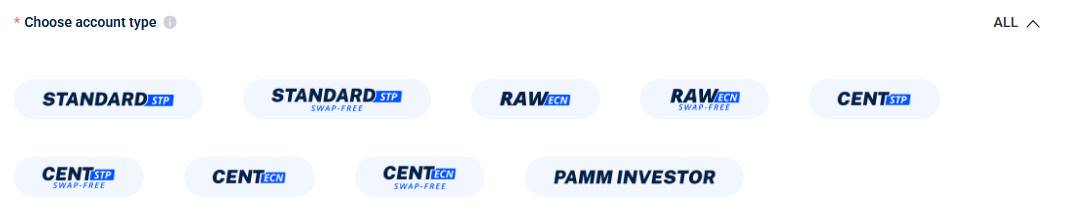
Both options provide:
- No overnight swap charges
- Access to global CFD markets
- Transparent pricing
- The same execution quality as standard accounts
The key difference lies in how spreads and commissions are structured.
Standard STP Swap-Free Account
The Standard STP Swap-Free account offers a simple, spread-only pricing model.
Key Features:
- No commission fees
- Competitive variable spreads
- No overnight swap charges
- Suitable for beginners and professional traders
- Straight-through processing (STP) execution
With this structure, trading costs are built into the spread. No additional per-lot commissions make it easier for traders to calculate costs upfront.
This account type is particularly suitable for:
- New traders
- Traders placing moderate trade sizes
- Swing traders holding positions for several days
- Traders who prefer a simplified cost structure
RAW ECN Swap-Free Account
The RAW ECN Swap-Free account provides access to institutional-grade spreads combined with a transparent commission model.
Key Features:
- Ultra-tight spreads from 0.0 pips
- Fixed commission per lot
- No overnight swap charges
- Direct market pricing via ECN model
- Designed for high-volume or experienced traders
Instead of slightly wider spreads, traders pay a fixed commission per lot traded. This structure is often preferred by:
- Active traders
- High-frequency traders
- Algorithmic traders
- Professional or high-volume traders
For traders who focus on tight spreads, especially in volatile markets like gold or major forex pairs, the RAW ECN model offers clearer costs.
Which Swap-Free Option Should You Choose?
| If You Prefer | Consider |
| Simplicity and no commission | Standard STP Swap-Free |
| Tight spreads and commission-based pricing | RAW ECN Swap-Free |
Step-by-Step Guide to Opening a VT Markets Swap-Free Account
Opening a swap-free account with VT Markets is fast and straightforward. Follow these simple steps to get started:
Step 1: Access the Account Opening Page
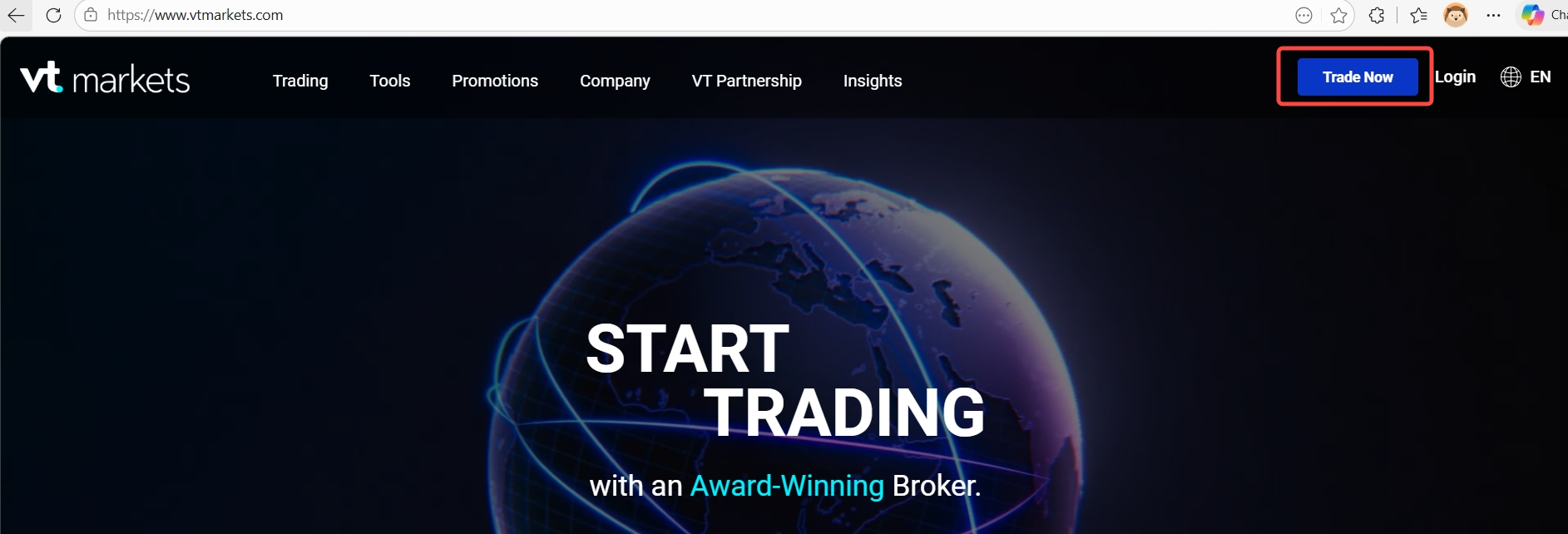
- Visit the official VT Markets homepage: www.vtmarkets.io/en-ca/
- Click on the Open a Live Account button located at the top of the page.
Step 2: Fill Out the Registration Form
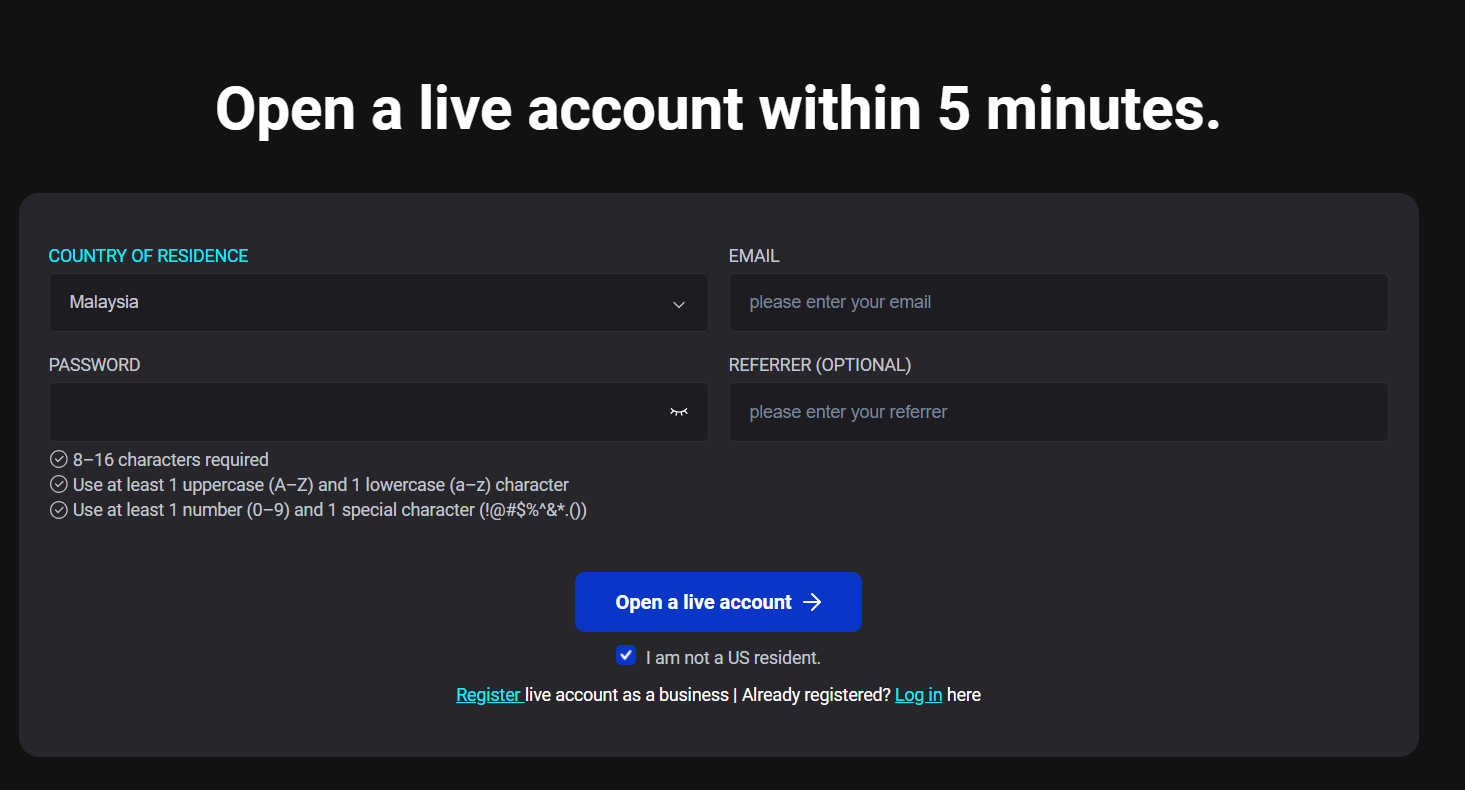
Provide the following details to set up your account:
- Country of Residence: Choose your country from the dropdown menu.
- Email Address: Enter your email address.
- Password: Create a strong password using these requirements:
- 8–16 characters
- At least one uppercase letter (A-Z)
- At least one lowercase letter (a-z)
- At least one number (0-9)
- At least one special character (!@#$%^&*.)
- Referrer ID (optional): If referred by someone, enter their ID here.
- Confirm Eligibility: Tick the box confirming you are not a U.S. resident.
- Select Account Type: Choose the Swap-Free Account option from the available account types.
Click Open a Live Account to proceed.
Step 3: Verify Your Email Address
- Check your inbox for a verification message from VT Markets.
- Click the link in the email to confirm your registration.
Step 4: Complete Your Profile Information
Log in to your Client Portal using the credentials created earlier.
- Provide the required personal details, including your full name, date of birth, and other necessary information to complete your profile.
Step 5: Upload Verification Documents
To comply with regulatory requirements, you will need to upload the following:
- Proof of Identity (POI): A clear, color copy of a government-issued photo ID (passport, driver’s license, etc.).
- Proof of Address (POA): A recent document (utility bill, bank statement, tax document, etc.) showing your name and residential address.
Step 6: Await Account Approval
Once your documents are submitted, our team will review them. Account approval typically takes 3 business hours, and you will be notified once your account is ready.
For Existing Clients: Open an Additional Swap-Free Account
1. Navigate to the Live Accounts tab. Click the “+ Open live account” button located at the top right corner.

2. Under Account Configuration, select your preferred platform:
- MetaTrader 5 (MT5) – Popular choice, supports more instruments and advanced features
- MetaTrader 4 (MT4) – Classic trading platform
- Copy Trading – For following strategy providers
3. Under Choose account type, select one of the Swap-Free options. You will see several account categories. Look specifically for those labelled “Swap-Free.”
Available Swap-Free options may include:
- Standard STP Swap-Free
- RAW ECN Swap-Free
- Cent STP Swap-Free
- Cent ECN Swap-Free
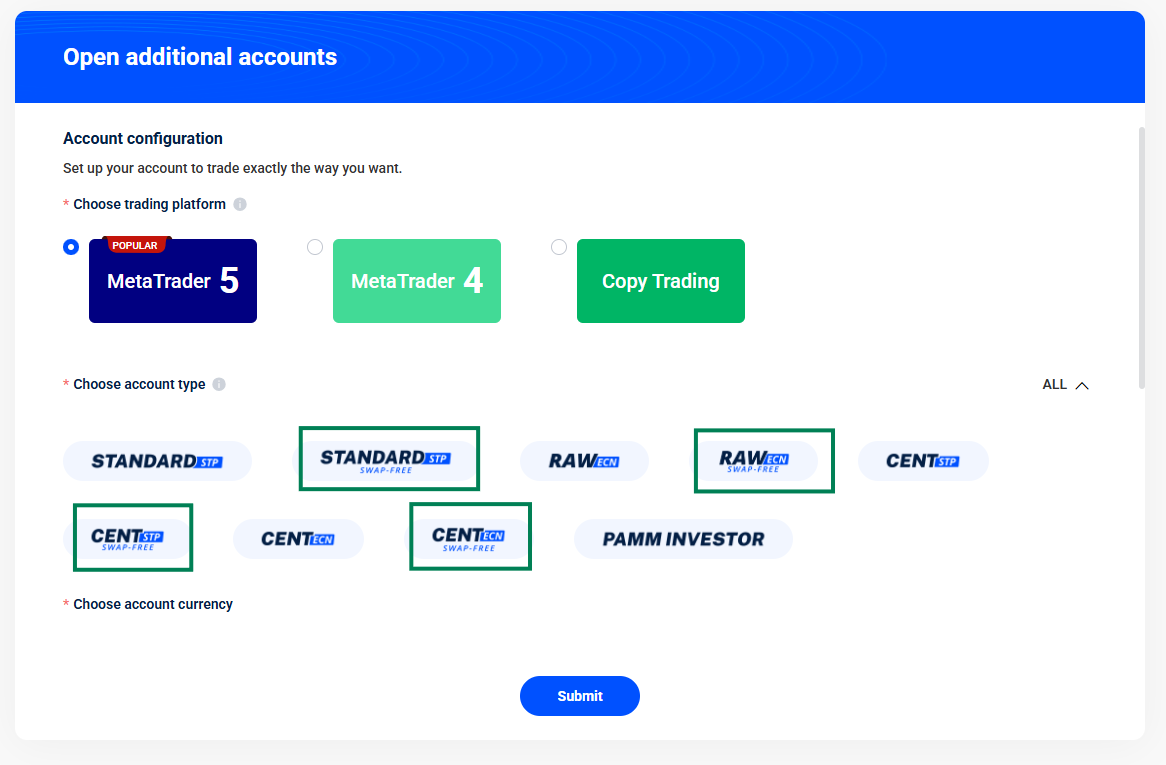
4. Under Choose account currency, select your preferred base currency.
5. Click Submit. We will process your application as soon as possible.
6. Once the account has been approved, you will receive an email confirmation and will be able to view it on the Client Portal.
7. Start adding funds and trading.
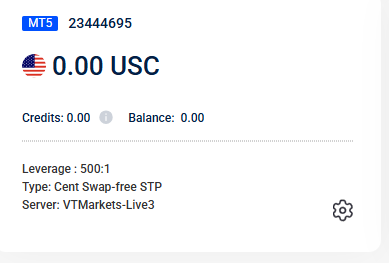
How Trades are Managed with VT Markets’ Swap-Free Account
With VT Markets’ swap-free account, trades are executed in the same manner as regular CFD trading accounts. All trades are sent to liquidity providers. This ensures full transparency and execution at real market prices. This approach guarantees that your trading exposure is real and in line with Shariah principles (Qabdh).
Funds and Shariah Compliance
VT Markets ensures that funds in swap-free accounts are segregated and ring-fenced in Shariah-compliant accounts. These funds follow Islamic financial principles, and safeguards are in place to ensure full compliance with these rules.
Frequently Asked Questions
Q1: Does VT Markets Provide Loans for Swap-Free Accounts?
No, VT Markets does not provide loans. Instead, liquidity providers facilitate margin trading and charge an administration fee that clients pay.
Q2: What Time Are Administration Fees Applied to Swap-Free Account?
Administration fees are calculated at 00:00 platform time for all open positions. They are applied between 1:00 AM and 2:59 AM platform time.
Q3: How Can I Deposit Funds Into My Swap-Free Account?
Once approved, you can deposit funds via the Client Portal using your preferred method. Detailed deposit options are available in your VT Markets account.
Q4: How Long Can I Hold Positions in a Swap-Free Account?
There is no fixed limit on how long you can hold positions in a swap-free account. While you won’t pay interest, a daily administrative fee usually applies for any trade held past the rollover time. These costs accumulate daily, making this account type a predictable option for long-term swing or position traders.
Q5: Is There Any Difference in Execution Between Swap-Free and Standard Accounts?
No. Swap-free accounts offer the same execution quality, price feeds, and liquidity as standard accounts. The only difference is the fee structure for overnight positions.
All trades are executed at real market prices, with spreads and commissions determined by whether you choose a Standard STP or RAW ECN pricing model.
Disclaimer: Regional restrictions may apply. Product specifications, trading conditions, and platform features are subject to VT Markets’ Terms and Conditions.