


Key Takeaways
- A demo account lets you practise trading with virtual funds before using real money.
- You can access the demo account through the VT Markets app after register or log in.
- Demo mode allows you to explore price charts, practice trades, test order types, and understand how the app works.
- You can switch between demo and live accounts in the app, depending on which account you want to use.
- Demo trading is useful for learning the platform, but live trading involves real market risk, emotions, spreads, slippage, and account funding decisions.
VT Markets demo account lets you explore the app and practise placing trades using virtual funds before moving to a live trading environment.
This guide covers how demo trading works, how to access a demo account through the VT Markets app, how to switch between demo and live accounts, and which platform features you can test.
What Is a Demo Account?
A demo account provides access to a simulated trading environment using virtual funds instead of real money. It allows you to explore different CFD markets, view price charts, open and close practice positions, and test the app’s trading tools without making a deposit.
This can help you understand how the platform works and become more comfortable navigating its features before using a live account.
However, demo and live trading are not identical. Because no real funds are involved, demo trading may not fully reflect the emotional pressure, execution conditions, slippage, or risk management decisions associated with live markets.
Demo Account vs Live Account
The table below shows the main differences between a demo account and a live account.
| Feature | Demo Account | Live Account |
| Funds used | Virtual funds | Real funds |
| Profit and loss | Simulated | Real |
| Deposit required | No deposit required | Deposit required before trading |
| Main purpose | Practice and platform learning | Real market trading |
| Risk level | No real capital risk | Real capital is at risk |
| Suitable for | Beginners, testing, strategy practice | Traders ready to trade with real funds |
How to Access the Demo Account on the VT Markets App
You can access the demo account through the VT Markets app once you have installed the app and logged in.
Step 1: Open the VT Markets App
Launch the VT Markets app on your mobile device.
If you already have an account, log in using your registered email address or phone number. If you are new to VT Markets, register for an account first.
Need help getting started? Read our guide: How to Download and Register an Account on VT Markets App
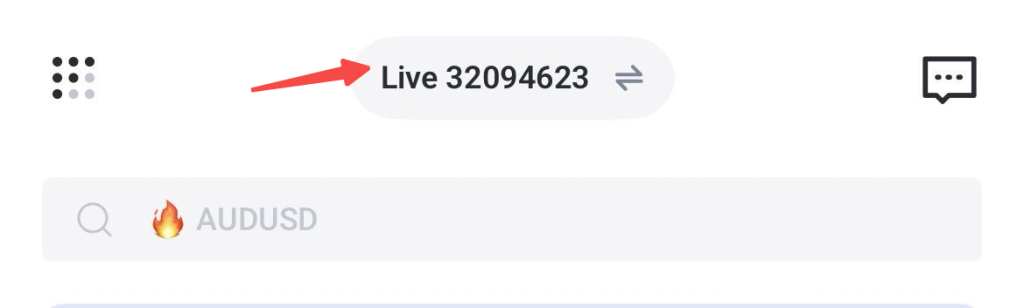
Step 2: Go to the Account Section
After logging in, go to the account area located in the top of the app. This is where you can view your available trading accounts and account-related settings.
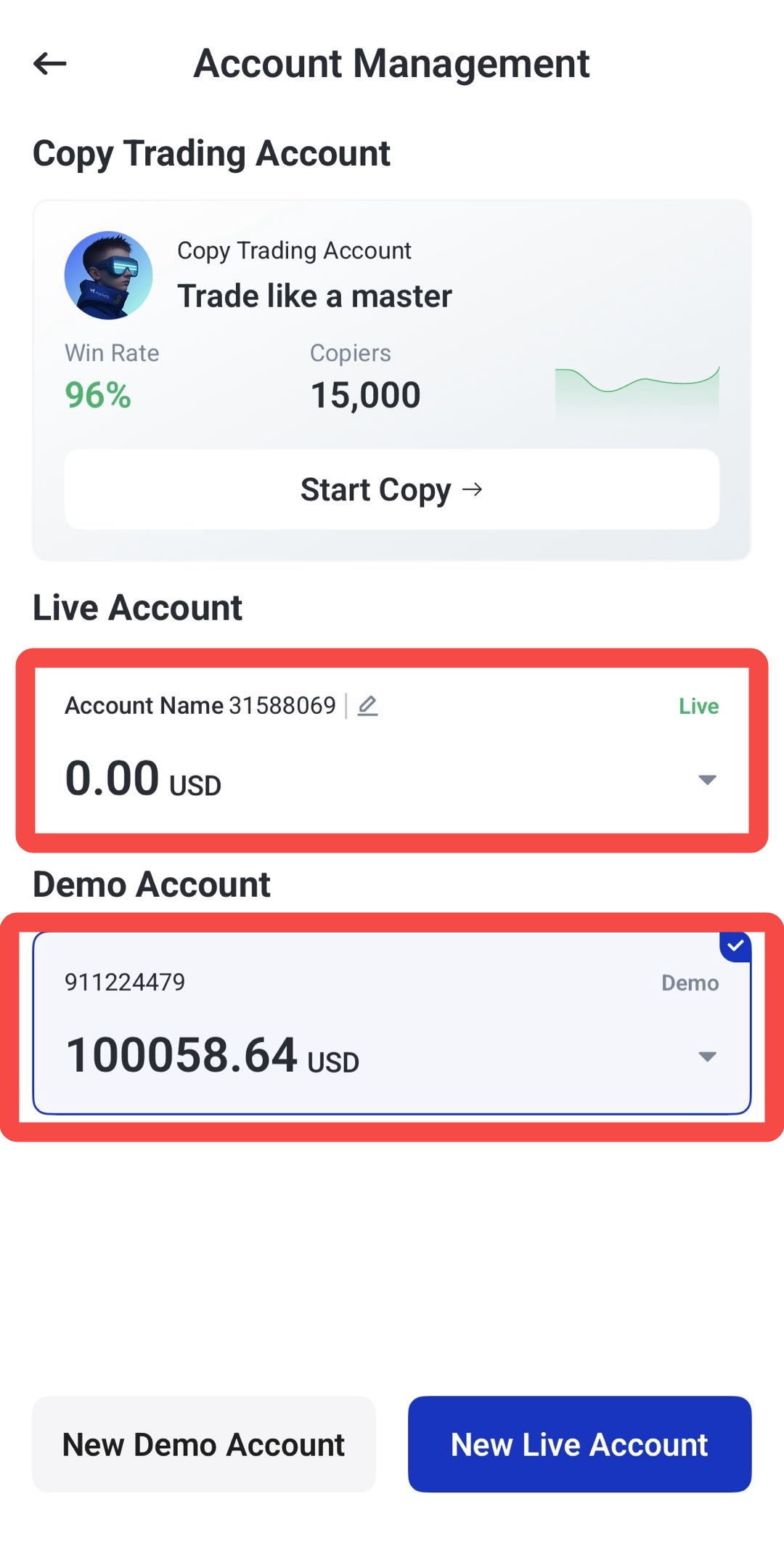
Step 3: Select Demo Account
Depending on your account status, you may see an existing demo account.
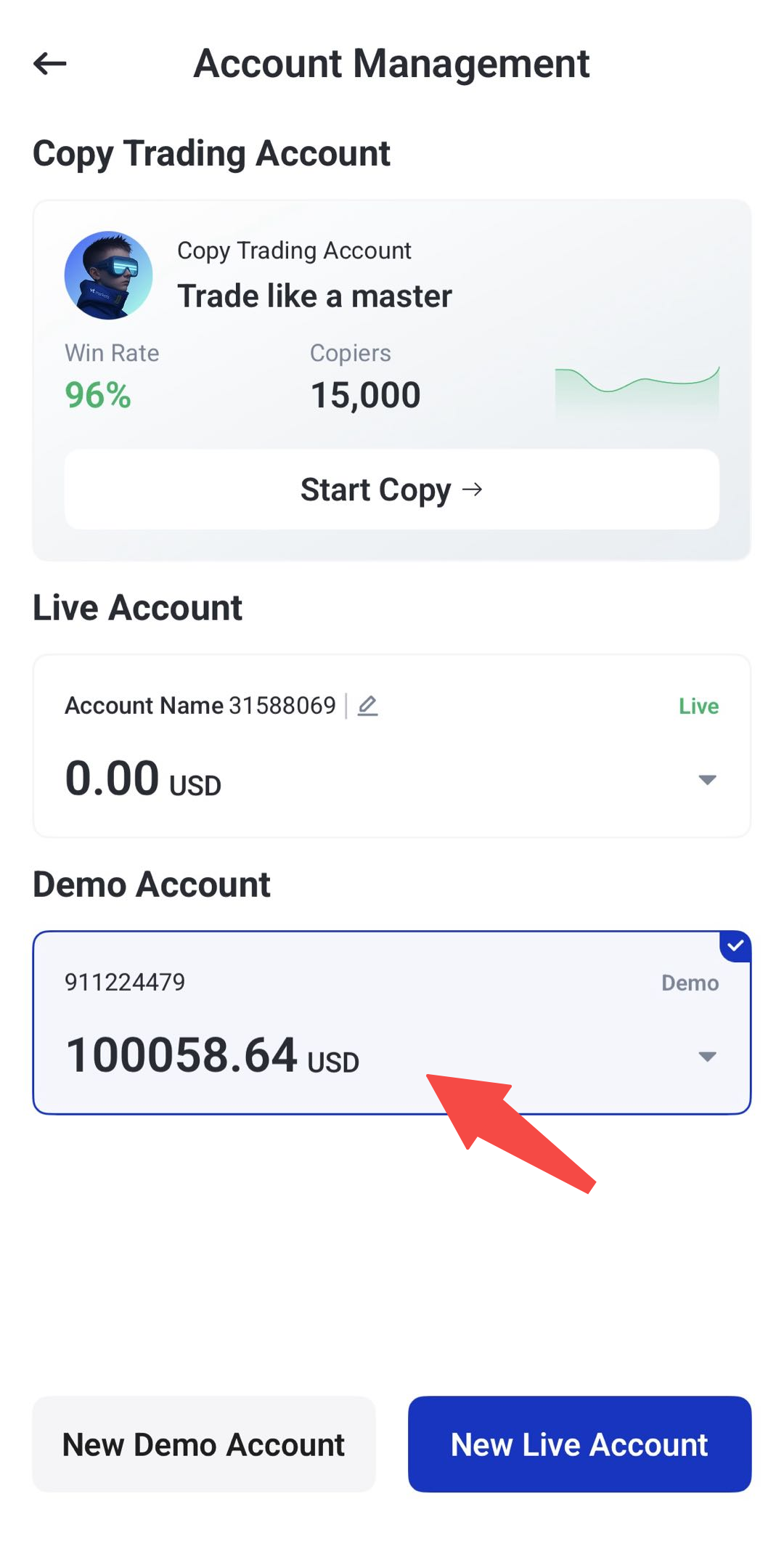
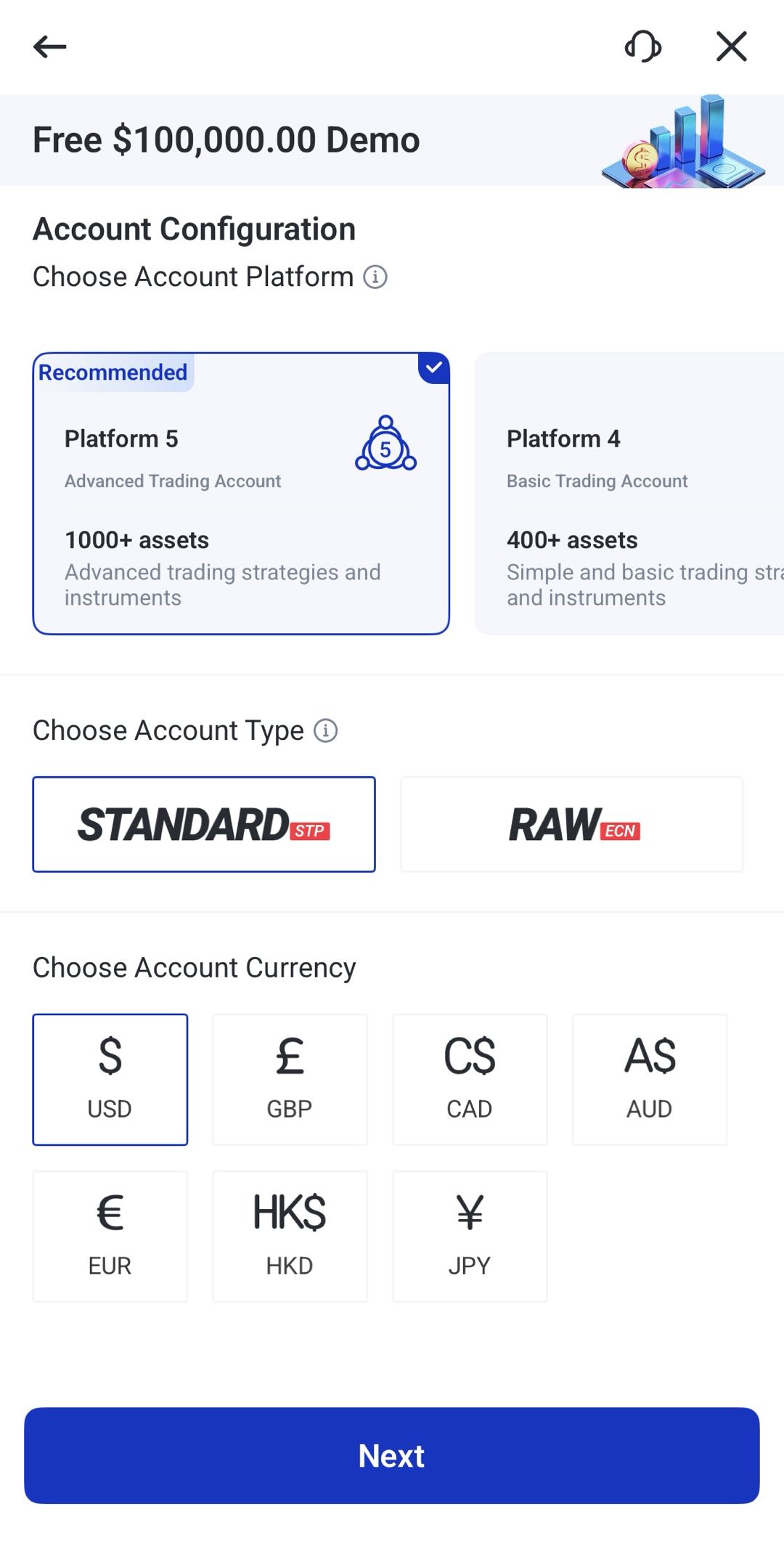
However, if there is no existing demo account, you can create the new one by clicking New Demo Account.
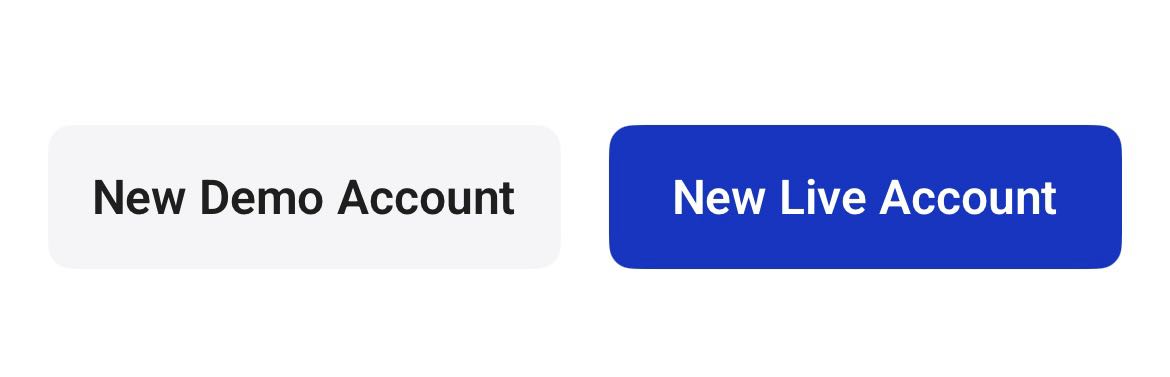
Select platform, account types and currencies you want in your demo account, then click next.
Step 4: Start Exploring the App
Once you are in demo mode, you can begin exploring the app features. You can view instruments, open charts, check market prices, and place practice trades using virtual funds.
How to Switch Between Demo and Live Accounts
The VT Markets app allows you to switch between demo and live accounts when both account types are available.
To switch accounts:
1. Open the VT Markets app.
2. Click this button on top of the page
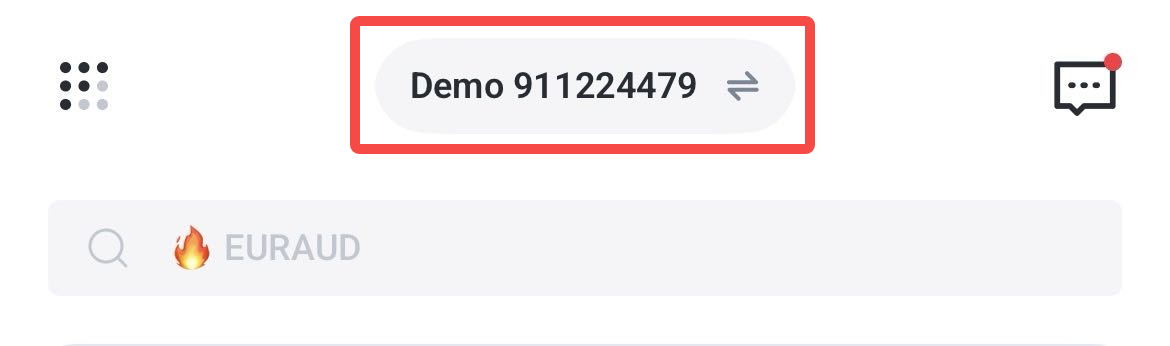
3. Choose either your demo account or live account.
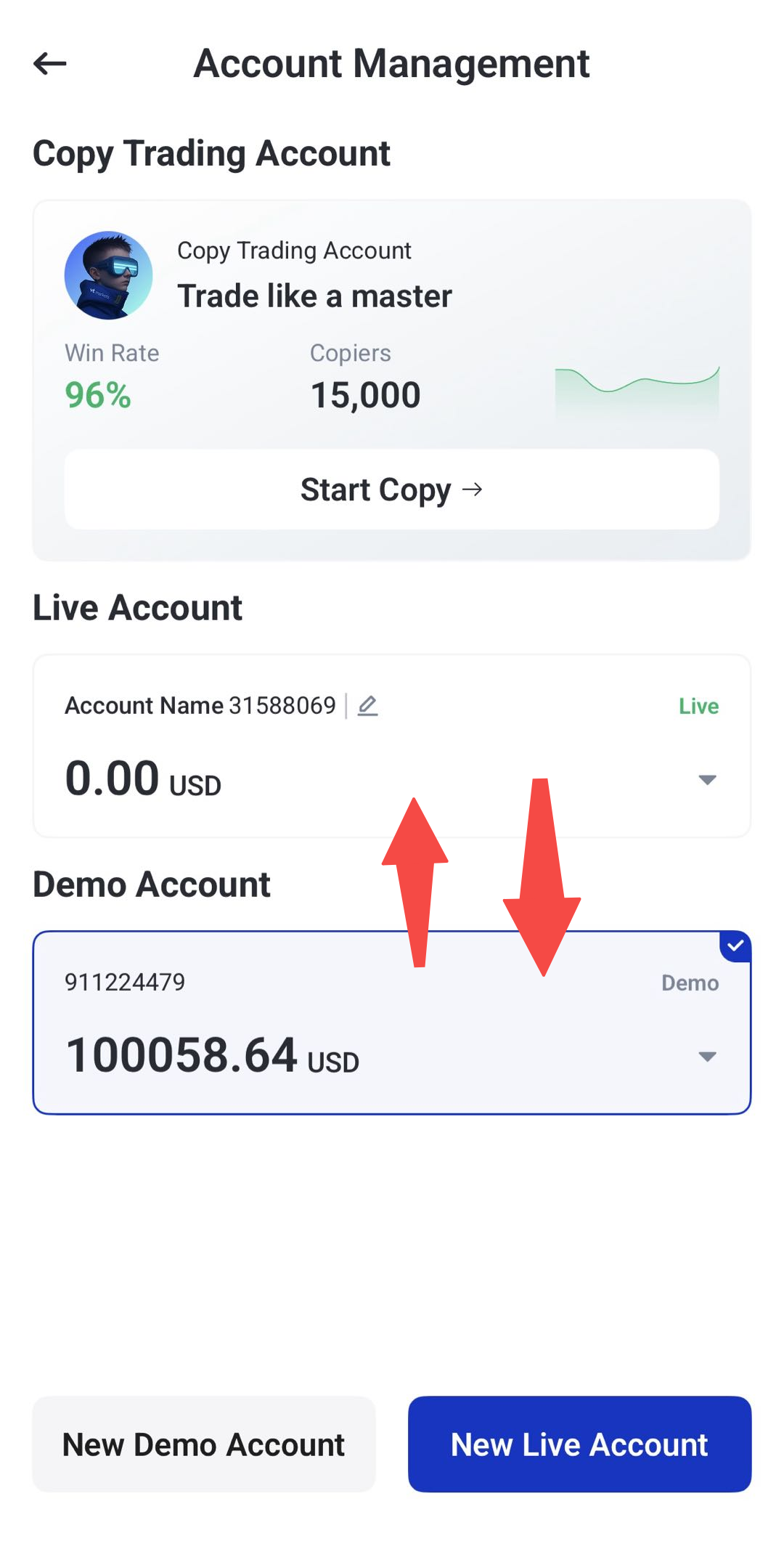
4. Confirm that you are using the correct account before placing any trade.
Note: Always check whether you are in demo or live mode before opening a position. Trades placed in a demo account use virtual funds, while trades placed in a live account involve real funds and real market risk.
How to Practise Trading with Virtual Funds
A demo account gives you a practical way to learn how trading works before using real money. You can use it to practise the full trading process from market selection to order management.
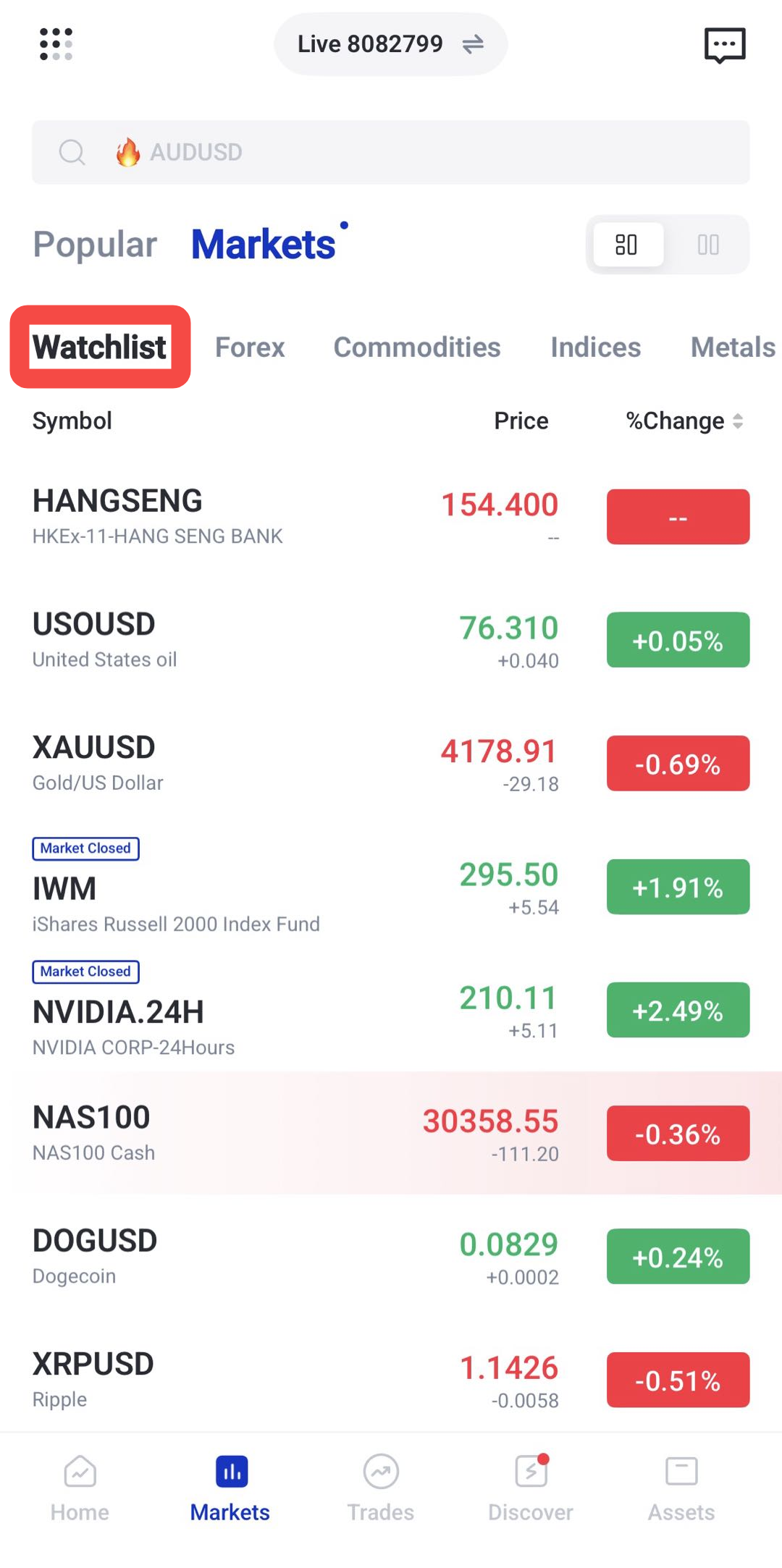
Step 1: Choose a Market
Start by selecting a market you want to practise on. Depending on availability, this may include forex, commodities, indices, shares, ETFs, bonds, or cryptocurrencies.
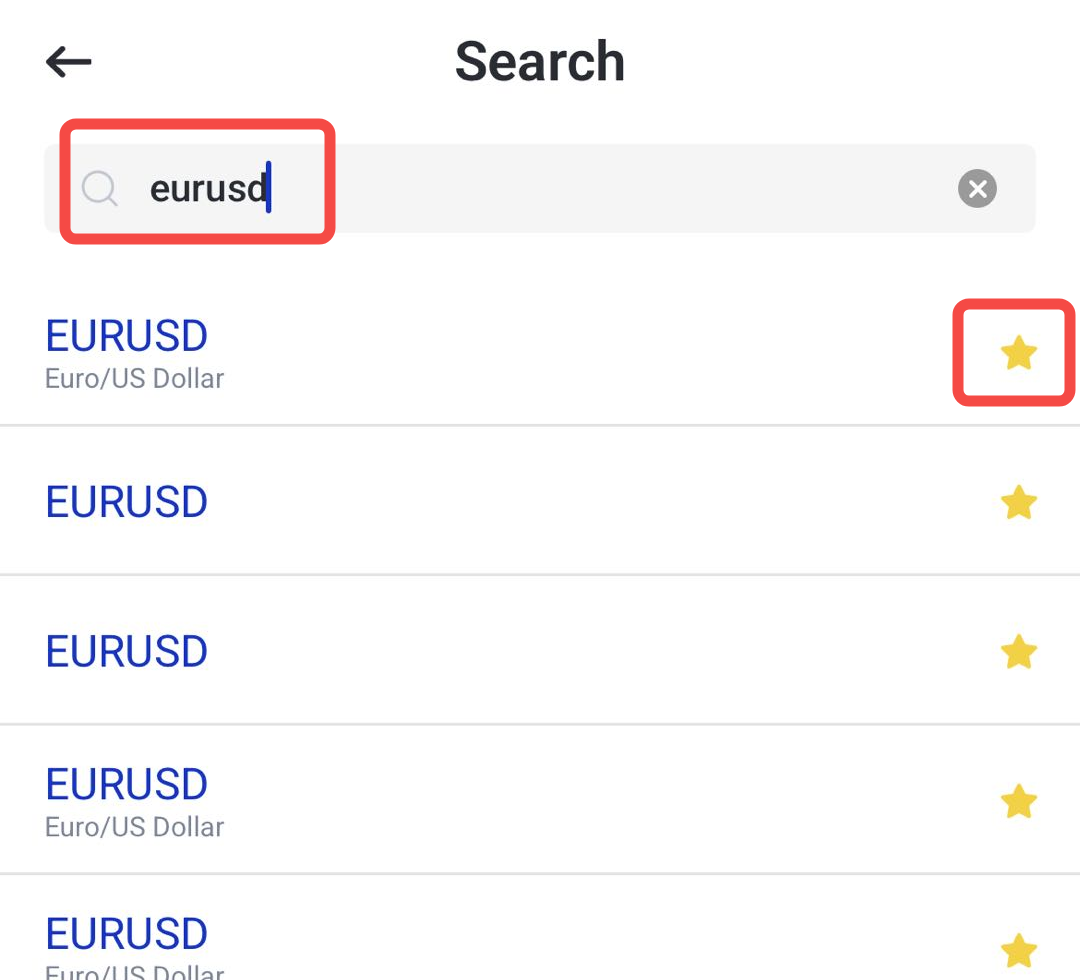
For example, you can search for a product, add it to your watchlist, and monitor how its price moves during different market sessions.
Step 2: Open a Chart
Tap on the product to view its chart. You can use the chart to study price movement, switch between timeframes, and apply basic technical indicators.
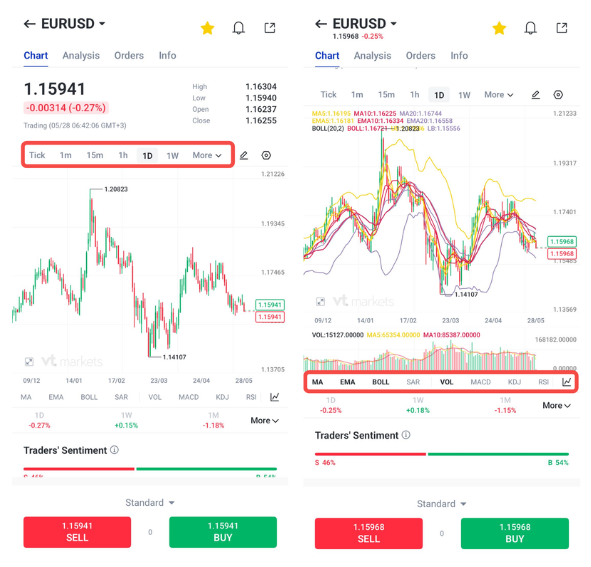
This helps you understand how price changes over time and how different market conditions may affect trading decisions.
Step 3: Place a Practice Trade
When you are ready, place a practice trade using your demo funds. Before confirming the order, check the product, direction, trade size, and order type.
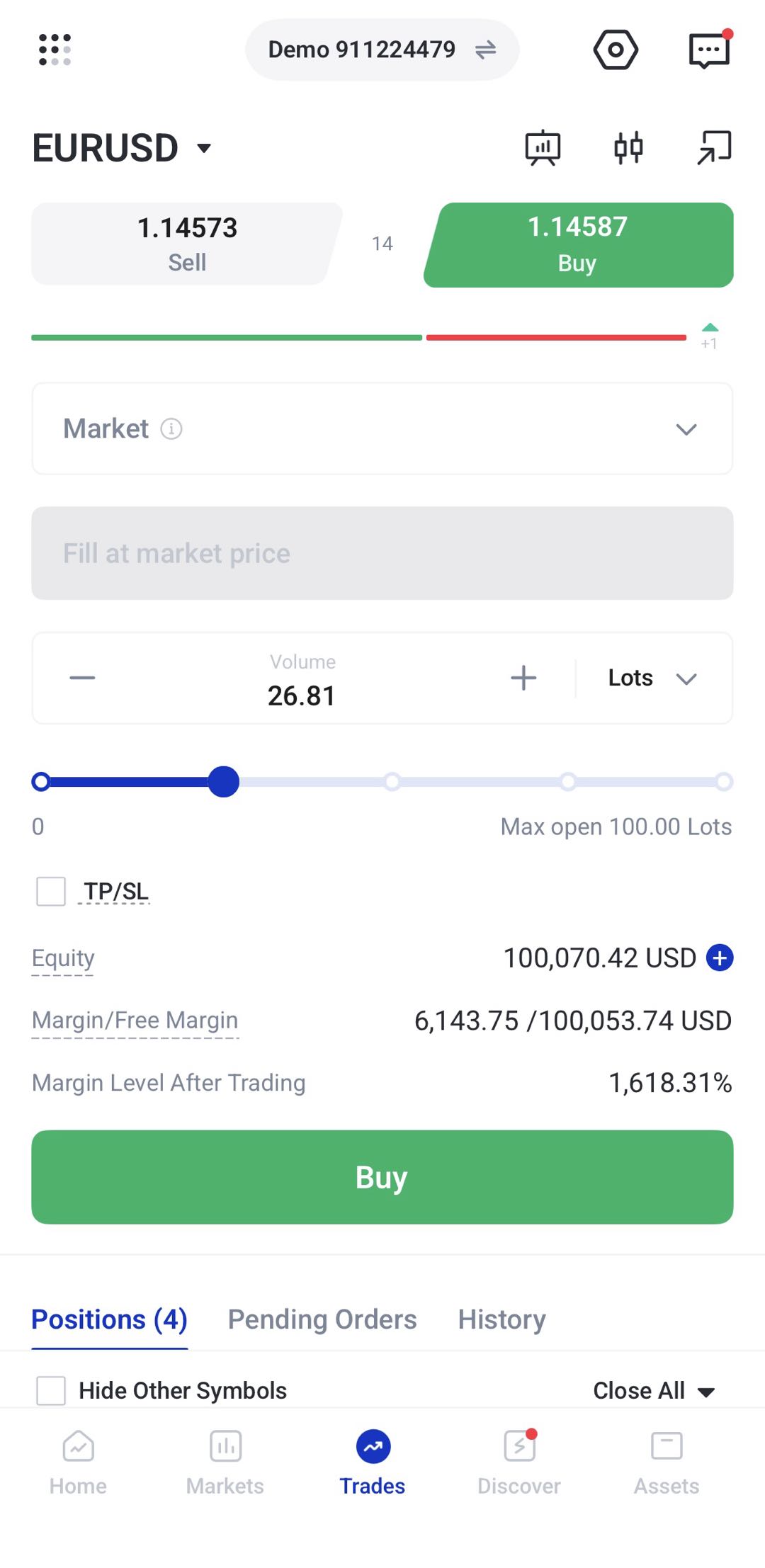
You can practise both buy and sell orders to understand how positions behave when prices move in different directions.
Step 4: Set Stop Loss and Take Profit
A demo account is also useful for practising risk management. You can set a stop loss to define where a trade should close if the market moves against you, and a take profit to define where it should close if the market moves in your favour.
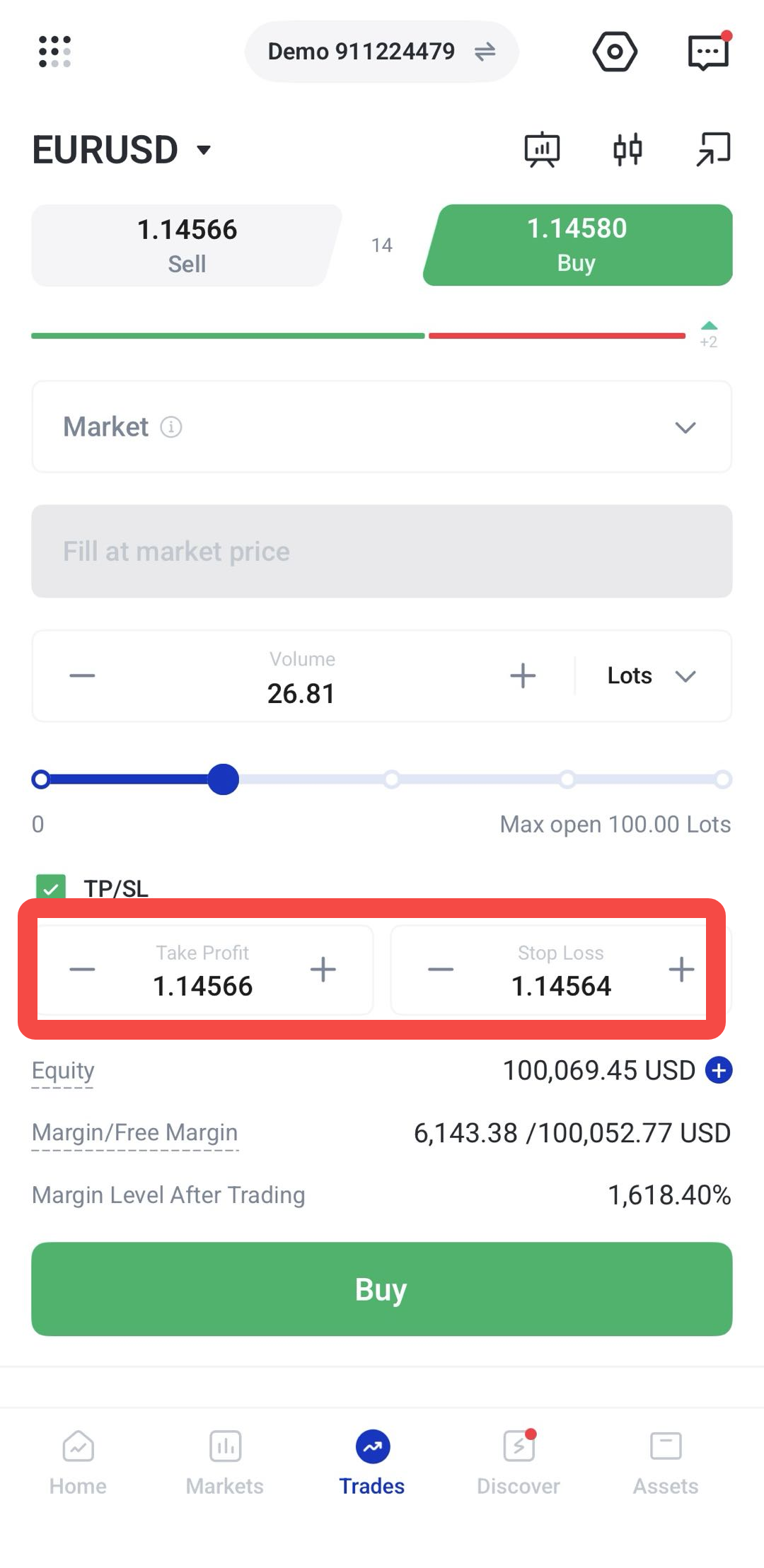
Using these tools in demo mode helps you understand how order levels work before applying them in live trading.
Step 5: Monitor and Close the Trade
After opening a practice trade, monitor its performance in the app. You can check the unrealised profit or loss, adjust order levels where available, and close the position when you want to exit.
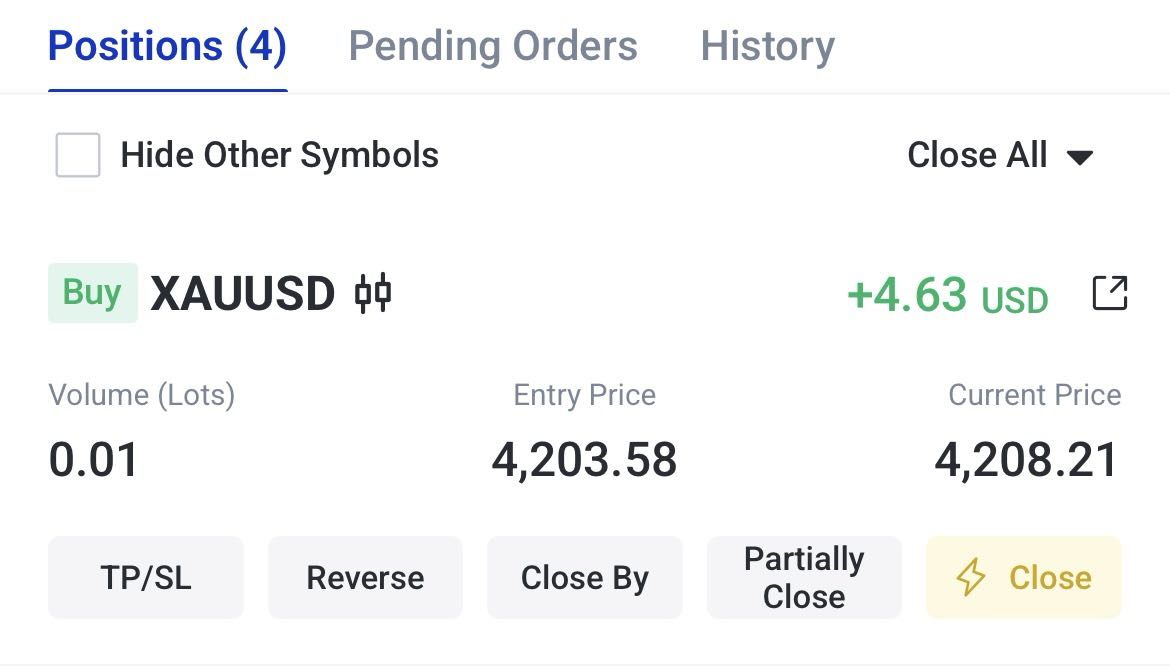
You may also see several trade management buttons:
| Button | Meaning | Simple explanation |
| Reverse | Close the current position and open an opposite position | If you have a Buy position, tapping Reverse will close it and open a Sell position, usually with the same trade size. |
| Close By | Close two opposite positions against each other | Used when you have both a Buy and Sell position on the same product. The system can offset them against each other instead of closing them separately. |
| Partially Close | Close only part of the position | Lets you reduce your trade size while keeping the remaining position open. For example, closing 0.03 lots from a 0.10-lot trade leaves 0.07 lots open. |
| Close | Close the selected position fully | Ends the current open trade. Any profit or loss at that time will be realised. |
This helps you learn how open positions are displayed and managed inside the VT Markets app.
What Can You Test in Demo Mode?
Demo mode is useful for testing both app features and basic trading decisions. It gives you a controlled environment to understand how the platform works.
You can use the demo account to test:
- How to search for trading products
- How to add products to a watchlist
- How to read basic price charts
- How to use different chart timeframes
- How to place market orders
- How to practise limit and stop orders
- How to set stop loss and take profit levels
- How trade size affects profit and loss movement
- How to close trades manually
- How to review open and closed positions
Important Things to Remember About Demo Trading
Demo trading is helpful, but it has limits. Since demo funds are virtual, your decisions may feel easier than they would in a live account.
When trading live, factors such as emotions, market volatility, spreads, slippage, margin requirements, and real profit or loss can affect your trading decisions. This is why demo trading should be used as a learning tool, not as a guarantee of live trading performance.
Before switching to a live account, make sure you understand the products you are trading, how leverage works, and how much capital you are prepared to risk.
Frequently Asked Questions
What is a VT Markets demo account?
A VT Markets demo account is a practice trading account that uses virtual funds. It allows you to explore the VT Markets app, place practice trades, and test trading features without using real money.
Do I need to deposit funds to use a demo account?
No. A demo account uses virtual funds, so you do not need to make a deposit before practising in demo mode.
Can I switch from demo to live trading?
Yes. You can switch between demo and live accounts in the VT Markets app when both account types are available. Always check which account you are using before placing a trade.
Is demo trading the same as live trading?
No. Demo trading uses virtual funds, while live trading uses real money. Live trading involves real profit and loss, market execution factors, and emotional pressure that may not be fully reflected in demo mode.
What can I practise with a demo account?
You can practise searching for products, using charts, placing orders, setting stop loss and take profit levels, monitoring open positions, and closing trades.
Can beginners use the VT Markets demo account?
Yes. A demo account is suitable for beginners who want to learn how the app works before trading with real funds.