


Key Takeaways
- A stop loss (SL) helps traders set a planned exit level if the market moves against their trade.
- A take profit (TP) helps traders set a planned exit level if the market reaches their target price.
- Traders can add SL and TP before placing a trade from the trade ticket on the VT Markets app.
- Traders can also adjust SL and TP for an open trade after the position has been placed.
- SL and TP settings can support risk management, but they do not remove trading risk completely.
Setting a stop loss and take profit is an important part of trade planning. Before entering a trade, traders should know where they want to exit if the market moves in their favour and where they may exit if the market moves against them.
On the VT Markets app, traders can add SL and TP levels before placing a trade. They can also adjust these levels later for an open position.
This guide explains what SL and TP mean, where to find them in the VT Markets app, and how to set or adjust them step by step.
What Is a Stop Loss
A stop loss, also known as SL, is an order used to close a trade when the market reaches a selected loss level.
For example, if a trader opens a buy trade and the market moves lower, SL can help close the position at a pre-set level. This can help limit further losses if the trade does not move as expected.
SL does not guarantee that losses will be limited to the exact selected price in all market conditions. During high volatility, price gaps, or low liquidity, the final execution price may differ from the SL level.
What Is a Take Profit
A take profit, also known as TP, is an order used to close a trade when the market reaches a selected profit target.
For example, if a trader opens a buy trade and the market moves higher, a TP can close the position once the selected target price is reached.
TP can help traders lock in gains without needing to monitor the market constantly. However, the market must reach the selected TP level for the order to be triggered.
Stop Loss vs Take Profit
The table below shows the main difference between SL and TP.
| Feature | Stop Loss | Take Profit |
|---|---|---|
| Main purpose | Helps limit losses | Helps secure profits |
| Common use | Exit when the market moves against the trade | Exit when the market reaches the target |
| Used for | Risk management | Profit planning |
| Can be set before trading | Yes | Yes |
| Can be adjusted after trading | Yes | Yes |
How to Decide Where to Place Your SL and TP
There is no single rule to determine the SL and TP levels. The right levels depend on your trading strategy, market conditions, and risk tolerance. The following steps serve as a general rule of thumb.
Base your levels on the market
Rather than choosing a random price, look for technical levels such as:
- Support and resistance
- Recent swing highs and lows
- Trendlines or chart patterns
- Market volatility
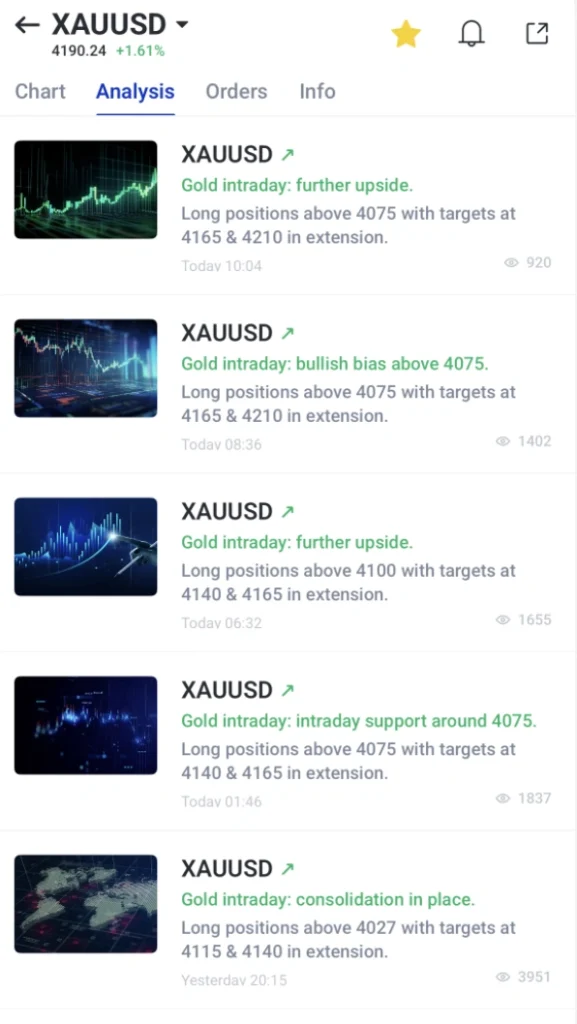
Refer to the Analysis tab on the VT Markets app for recent price movements
Consider your risk-to-reward ratio
Many traders compare how much they are willing to risk with their potential reward before entering a trade.
For example:
- Risking 50 pips to target 100 pips gives a 1:2 risk-to-reward ratio.
- This means the potential reward is twice the amount being risked.
A favourable risk-to-reward ratio does not guarantee profitable trades, but it can help traders manage risk consistently over time.
Example: How to Use Risk-to-Reward Ratio to Determine SL and TP Levels for XAUUSD
Suppose XAUUSD is trading at $4,000 and you plan to open a buy position.
- Entry price: $4,000
- Stop loss: $3,980 (risk of $20 per ounce)
- Take profit: $4,040 (potential reward of $40 per ounce)
In this example:
- Risk = $4,000 − $3,980 = $20
- Potential reward = $4,040 − $4,000 = $40
The risk-to-reward ratio is 1:2, meaning you are risking $20 for the opportunity to make $40.
While a higher risk-to-reward ratio does not guarantee a profitable trade, it can help traders evaluate whether a trade aligns with their trading plan and risk tolerance.
Plan Your Trade with the TradingView Risk/Reward Tool
The VT Markets App includes TradingView charts, which provide a built-in Long Position and Short Position tool. This feature allows traders to visually plan a trade by setting their entry price, SL level, and TP level on the chart.
As you adjust these levels, the tool automatically displays the risk-to-reward ratio, the distance between your entry and SL, and the potential reward if your TP level is reached. This can help traders evaluate whether a trade aligns with their trading plan before placing an order.
How to Use the Long/Short Position Tool
Step 1: Open the Chart
Open the instrument you want to trade and switch to the TradingView chart.
Step 2: Select the Long or Short Position Tool
From the left toolbar, tap the Prediction and Measurement Tools icon, then select:
- Long Position for a buy trade
- Short Position for a sell trade
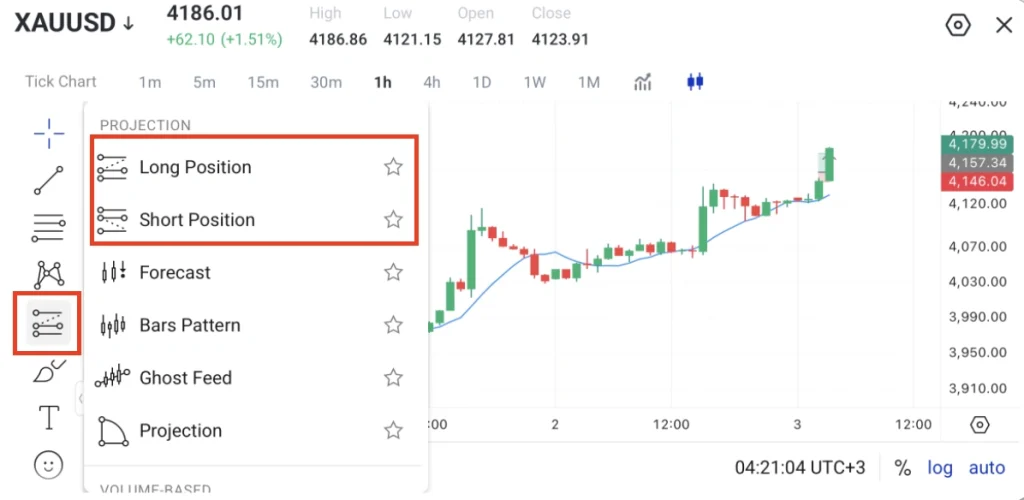
Step 3: Place the Tool on the Chart
Tap the chart to place the position tool. Three horizontal levels will appear:
- Entry price (centre line)
- TP level (green area)
- SL level (red area)
Drag each level to match your planned trade.
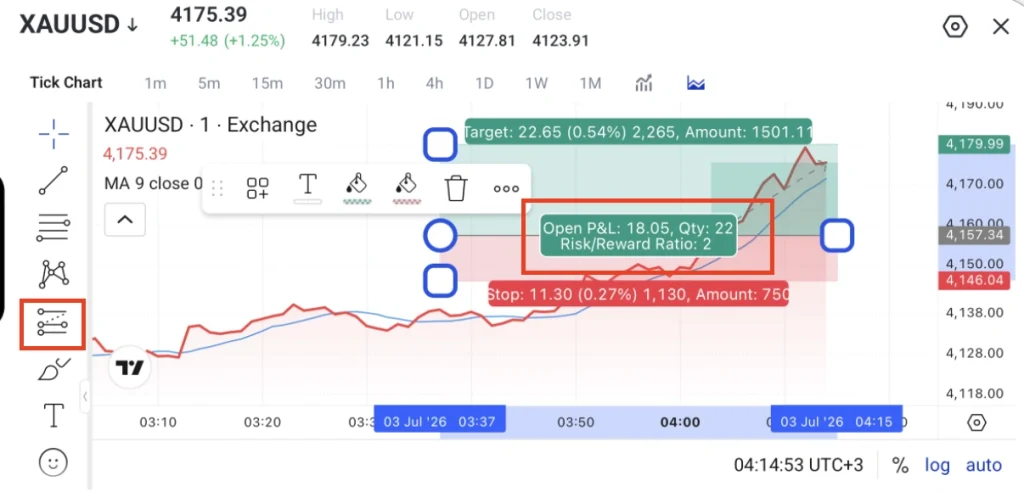
Step 4: Review the Risk-to-Reward Ratio
As you adjust the levels, TradingView automatically updates information such as:
- Risk-to-reward ratio
- Potential profit and loss
- Distance between the entry, SL, and TP
For example, a 1:2 risk-to-reward ratio means your potential reward is twice the amount you are risking.
Step 5: Enter the Same Levels on the Order
Once you are satisfied with your trade plan, note the SL and TP prices shown on the chart. Enter these same price levels in the TP and SL fields when placing your trade in the VT Markets App.
*Need more guidance on setting Stop Loss and Take Profit? Learn how to calculate Stop Loss and Take Profit levels correctly before applying them to your trading plan.
How to Set SL and TP on the VT Markets App
Follow these steps to set SL and TP before placing a trade on the VT Markets app.
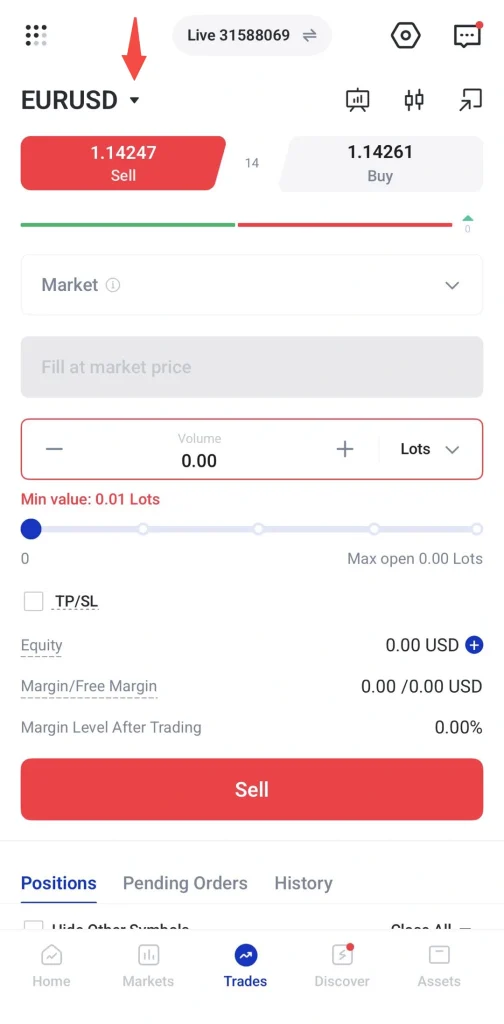
Step 1: Go to the Trades Tab
Open the VT Markets app and tap Trades from the bottom menu.
This will open the trading screen, where traders can view the selected instrument, live buy and sell prices, order type, trade volume, and order settings.
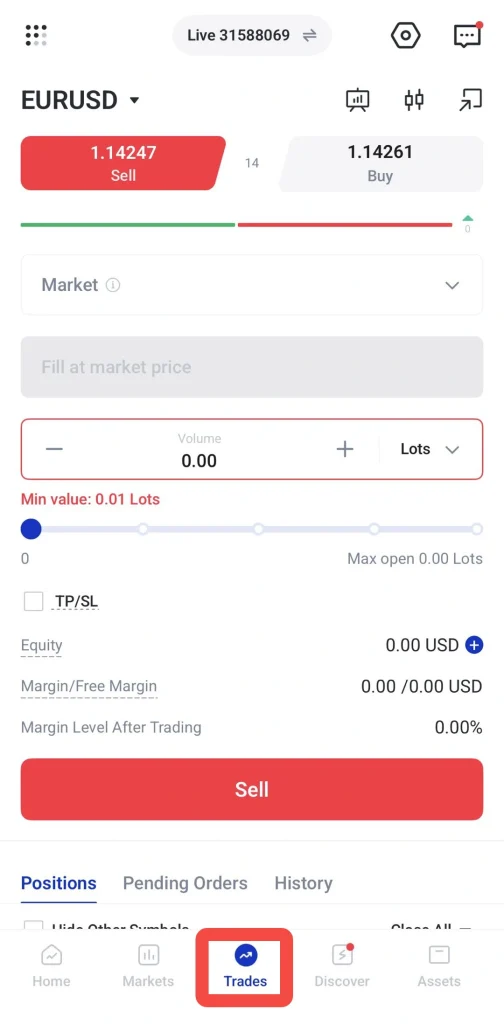
Step 2: Choose the Instrument You Want to Trade
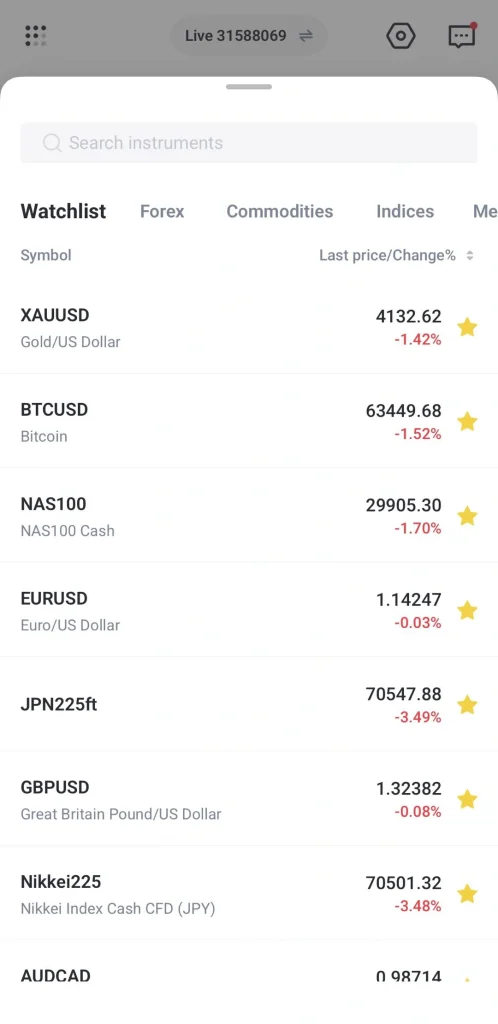
Tap the instrument name at the top of the trading screen.
A list of instruments will appear. Traders can search for an instrument or browse by category, such as forex, commodities, indices, or cryptocurrencies.
Tap the instrument you want to trade.
Step 3: Select the Order Type
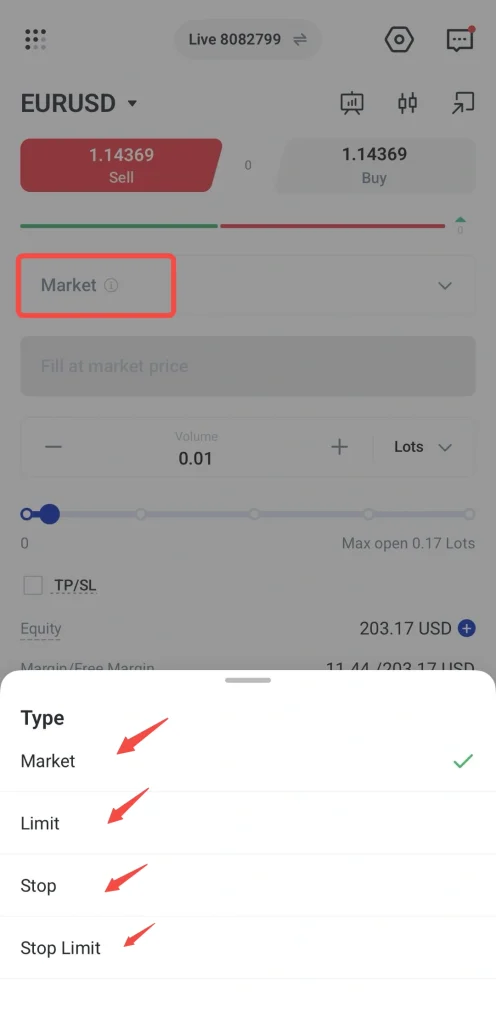
Tap the order type field and choose the order type you want to use.
The available order types may include:
- Market
- Limit
- Stop
- Stop Limit
For a market order, the trade is placed at the current available market price. For pending orders such as limit, stop, or stop limit, traders need to specify the trigger price before placing the order.
Step 4: Enter the Trade Volume
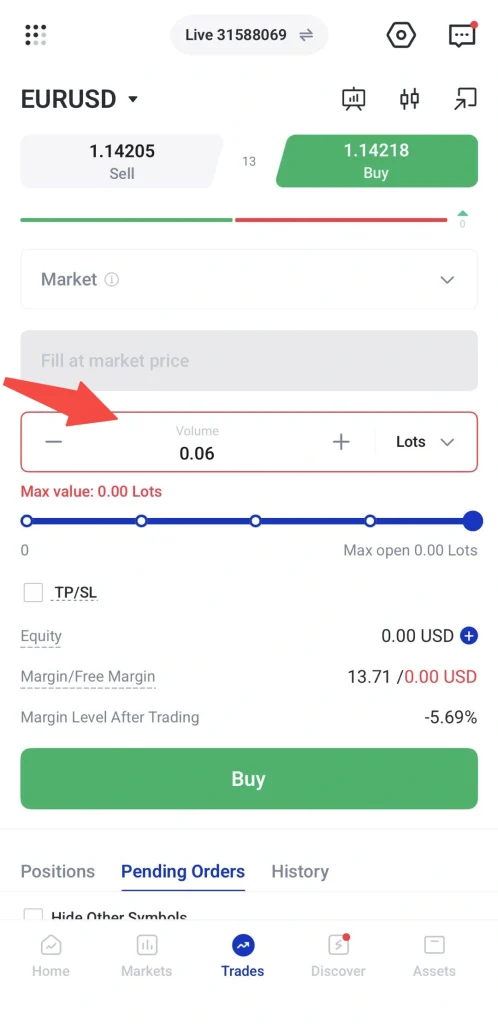
Enter the trade volume in lots. Traders can adjust the volume using the minus and plus buttons where available.
Before placing a trade, review the account information shown on the trade ticket, such as equity, margin, free margin, and margin level after trading.
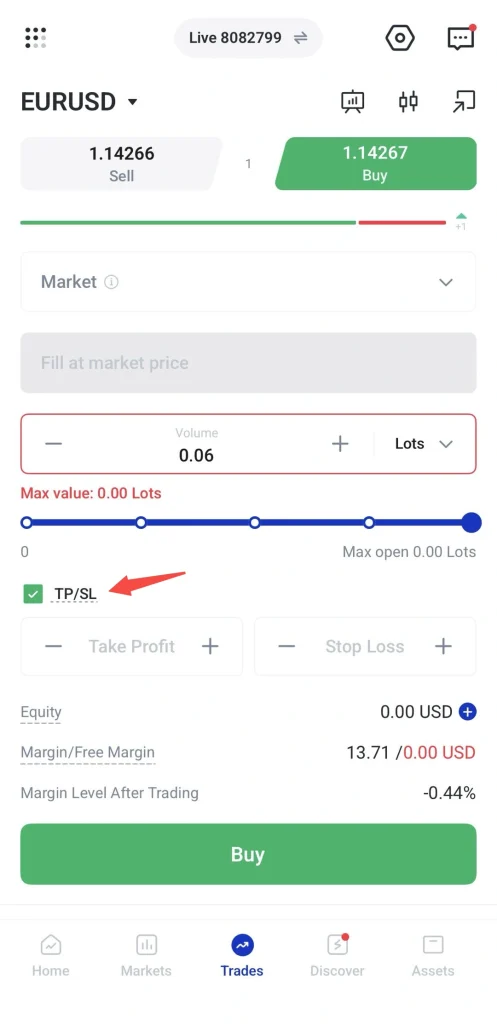
Step 5: Tick TP/SL
Tick TP/SL on the trade ticket.
Once selected, the app will show fields for take profit and stop loss.
Step 6: Enter the TP Level
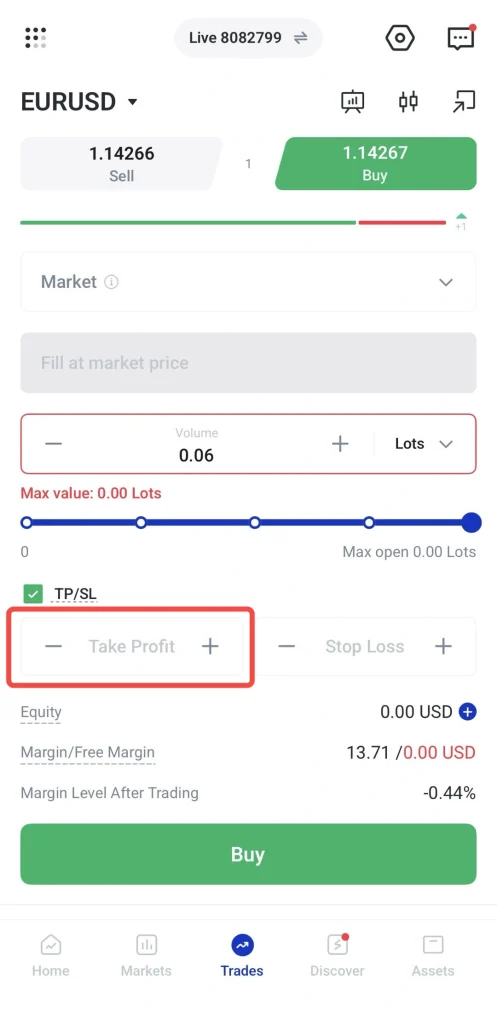
Enter the TP price based on your trading plan.
For a buy trade, the TP level is usually placed above the entry price. For a sell trade, the TP level is usually placed below the entry price.
Step 7: Enter the SL Level
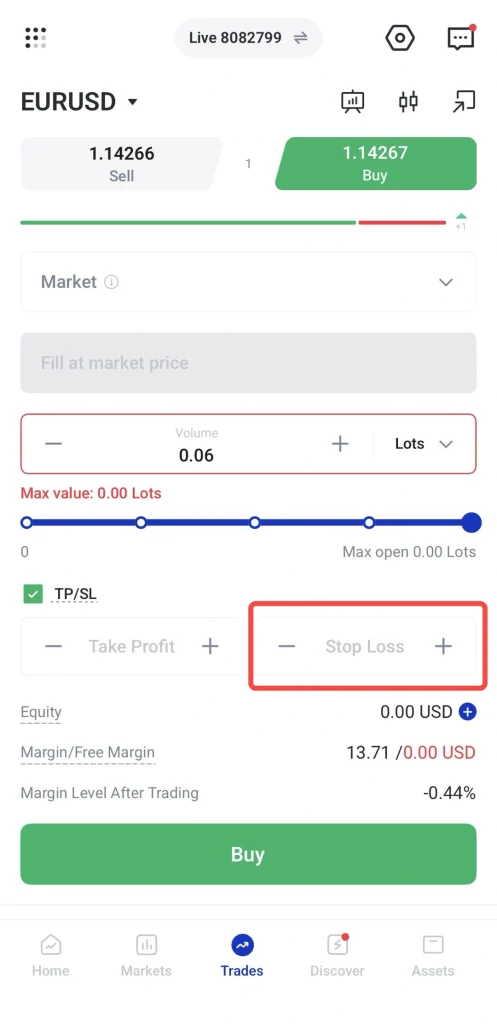
Enter the SL price based on the level where you want the trade to close if the market moves against your position.
For a buy trade, the SL level is usually placed below the entry price. For a sell trade, the SL level is usually placed above the entry price.
Step 8: Review the Order Details
Before confirming the trade, review the following details:
- Instrument
- Buy or sell direction
- Order type
- Trade volume
- Entry price or pending order price
- TP level
- SL level
- Margin information
Make sure the TP and SL levels match your trading plan before placing the order.
Step 9: Tap Buy or Sell
Once the order details are ready, tap Buy or Sell.
If it is a market order, the trade will be placed at the current available market price. If it is a pending order, the order will wait until the selected price condition is met.
How to Adjust SL and TP for an Open Trade
Traders can also adjust TP and SL levels after a trade has been opened.
This can be useful when market conditions change or when traders want to update their exit levels based on their strategy.
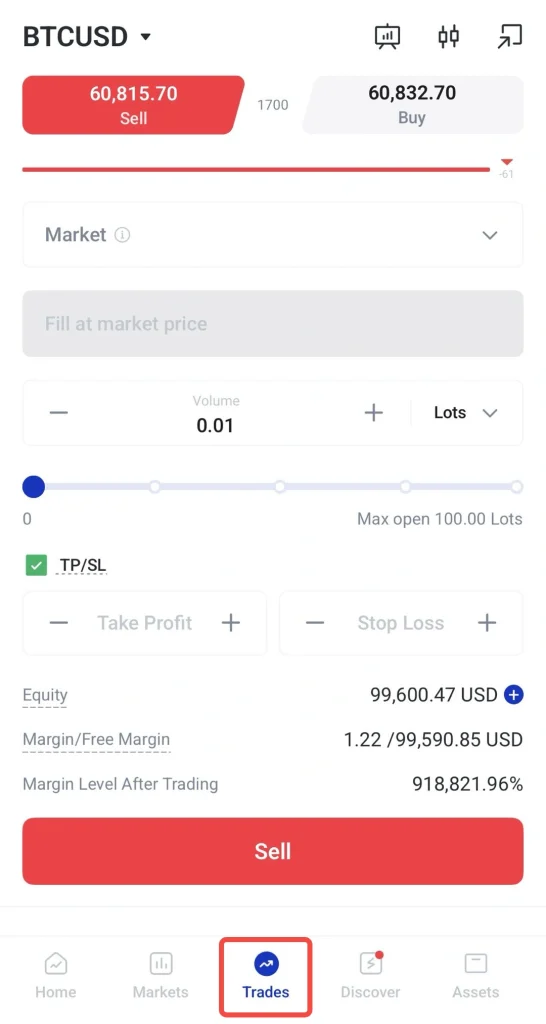
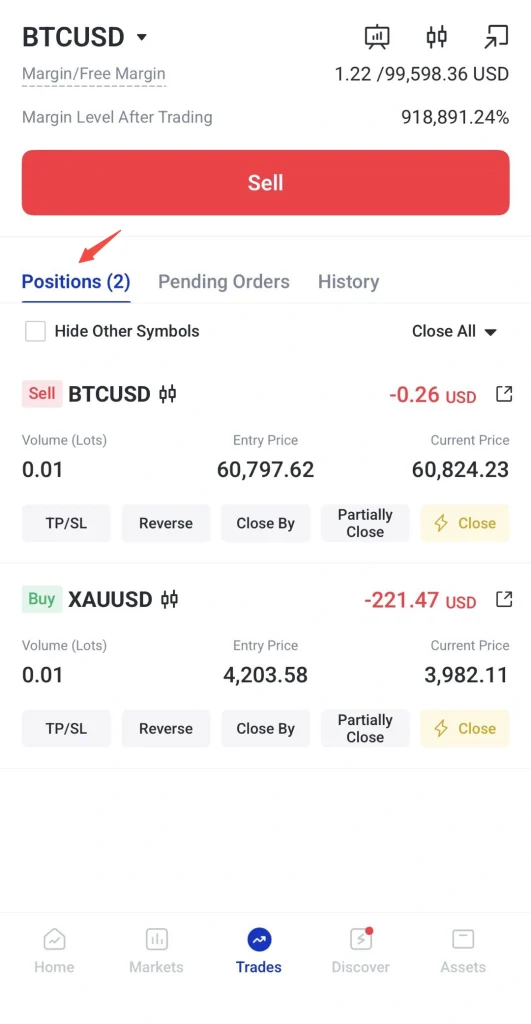
Step 1: Go to the Positions Section
Open the VT Markets app and go to the Trades tab.
Under the trading screen, find the Positions section. This section shows open trades that are currently active.
Step 2: Select the Open Position
Scroll down and tap the open position you want to manage.
This will open the position details or available action menu.
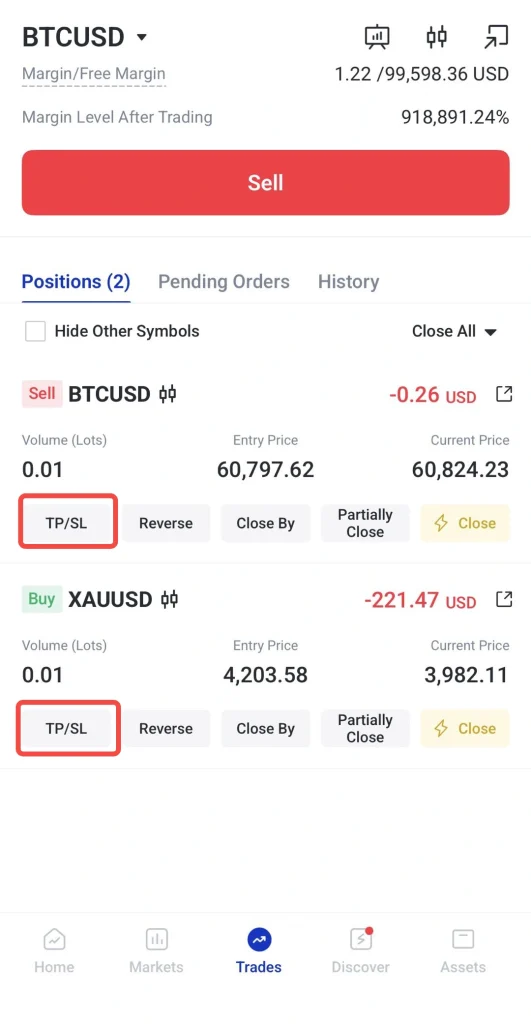
Step 3: Choose the TP/SL or Modify Option
Select the option to edit the trade. Depending on the app screen, this may appear as TP/SL, Modify, or another similar action.
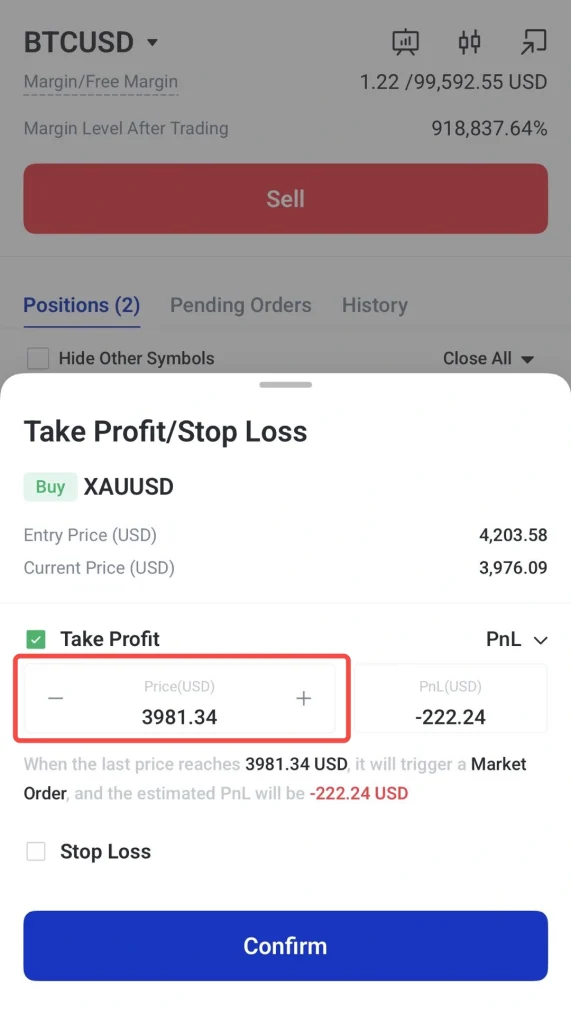
Step 4: Update the TP Level
Enter the new TP price if you want to change the target level.
Make sure the new TP level is placed in the correct direction based on whether the trade is a buy or sell position.
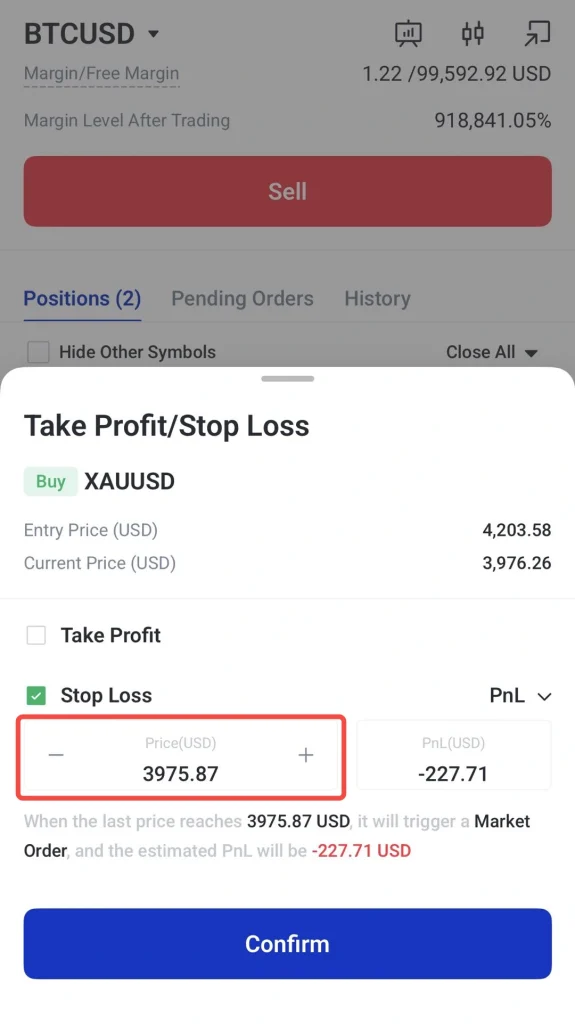
Step 5: Update the SL Level
Enter the new SL price if you want to change the risk level.
Before adjusting SL, consider whether the new level still matches your trading plan and risk tolerance.
Step 6: Confirm the Changes
Review the updated TP and SL levels, then tap Confirm or Save to apply the changes.
Once updated, the new TP and SL levels will apply to the open position.
Things to Check Before Setting SL and TP
Before setting SL and TP levels, traders should review:
Market Conditions
- Volatility
- Spread
- Liquidity
Trade Setup
- Support and resistance
- Timeframe
Risk Management
- Leverage
- Available margin
- Risk tolerance
Traders should also avoid placing SL and TP levels randomly. These levels should be based on a trading plan, not only on the amount they want to gain or avoid losing.
Start Your Trading Journey with VT Markets
Create a live account with VT Markets today and trade CFDs across 1,000+ global markets, including forex, precious metals, commodities, shares and more.
Frequently Asked Questions
What does stop loss mean in trading?
A stop loss is an order used to close a trade when the market reaches a selected loss level. It helps traders plan how much risk they are willing to take on a trade.
What does take profit mean in trading?
A take profit is an order used to close a trade when the market reaches a selected profit target. It helps traders plan where they want to exit if the trade moves in their favour.
Can I set SL and TP before placing a trade on the VT Markets app?
Yes. Traders can tick TP/SL on the trade ticket before placing a trade, then enter their preferred SL and TP levels.
Can I adjust SL and TP after opening a trade?
Yes. Traders can select an open position and use the available TP/SL or modify option to adjust their SL and TP levels.
Where should I place stop loss and take profit?
While there is no universal rule, most traders base their SL and TP levels on technical analysis, market volatility, support and resistance levels, and their preferred risk-to-reward ratio. These levels should form part of a trading plan rather than being chosen at random.
Does stop loss guarantee the exact exit price?
Not always. During high volatility, price gaps, or low liquidity, the final execution price may differ from the selected SL level.
Should beginners use stop loss and take profit?
Beginners may practise using SL and TP on a demo account first. This can help them understand how exit levels work and how risk settings can be used before trading live.