


Key Takeaways
- VT Markets Web Trading provides browser-based access with no download required, using one secure login across desktop, tablet, and mobile devices.
- Built-in TradingView charts provide access to 100+ technical indicators and drawing tools.
- The platform supports multiple order types, including Market, Limit, and Stop Orders, with Take Profit and Stop Loss settings.
- Traders can access 1,000+ assets with leverage of up to 2000:1 across eligible products.
- The minimum deposit starts from $50, depending on account type and region.
- Customer support is available 24/7 to assist with account and trading-related enquiries.
Access markets, analyse price movements, place orders, and manage positions directly from your browser. No software download required.
VT Markets Web Trading brings advanced charting, flexible order tools, position management, and account controls together in one streamlined workspace. This guide explains its key features and how to use them.
What is VT Markets Web Trading?
VT Markets Web Trading allows traders to analyse markets, place orders, and manage positions directly through their web browser.
It brings essential trading functions together in one platform, providing a streamlined way to access and manage your trading account.
Why Trade with VT Markets Web Trading?
VT Markets Web Trading offers flexible market access with tools designed to support different trading needs.
- No Download Required: Access your trading workspace directly through supported browsers such as Chrome, Safari, Firefox, or Edge.
- Multi-Device Access: Trade on desktop, tablet, or mobile with one secure login.
- 1,000+ Assets: Explore a wide range of markets from one platform.
- Flexible Leverage: Access leverage of up to 2000:1 across eligible products.
- Lower Entry Requirement: Start with a minimum deposit of $50.
- Support Around the Clock: Get assistance 24/7 whenever you need it.
*Specifications may vary by region, product, and account type.
Key Features of Web Trading
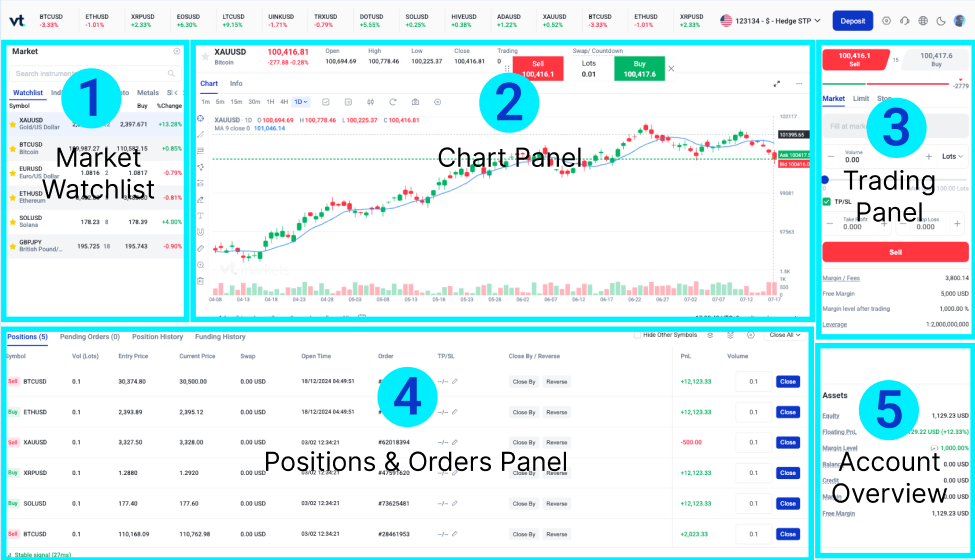
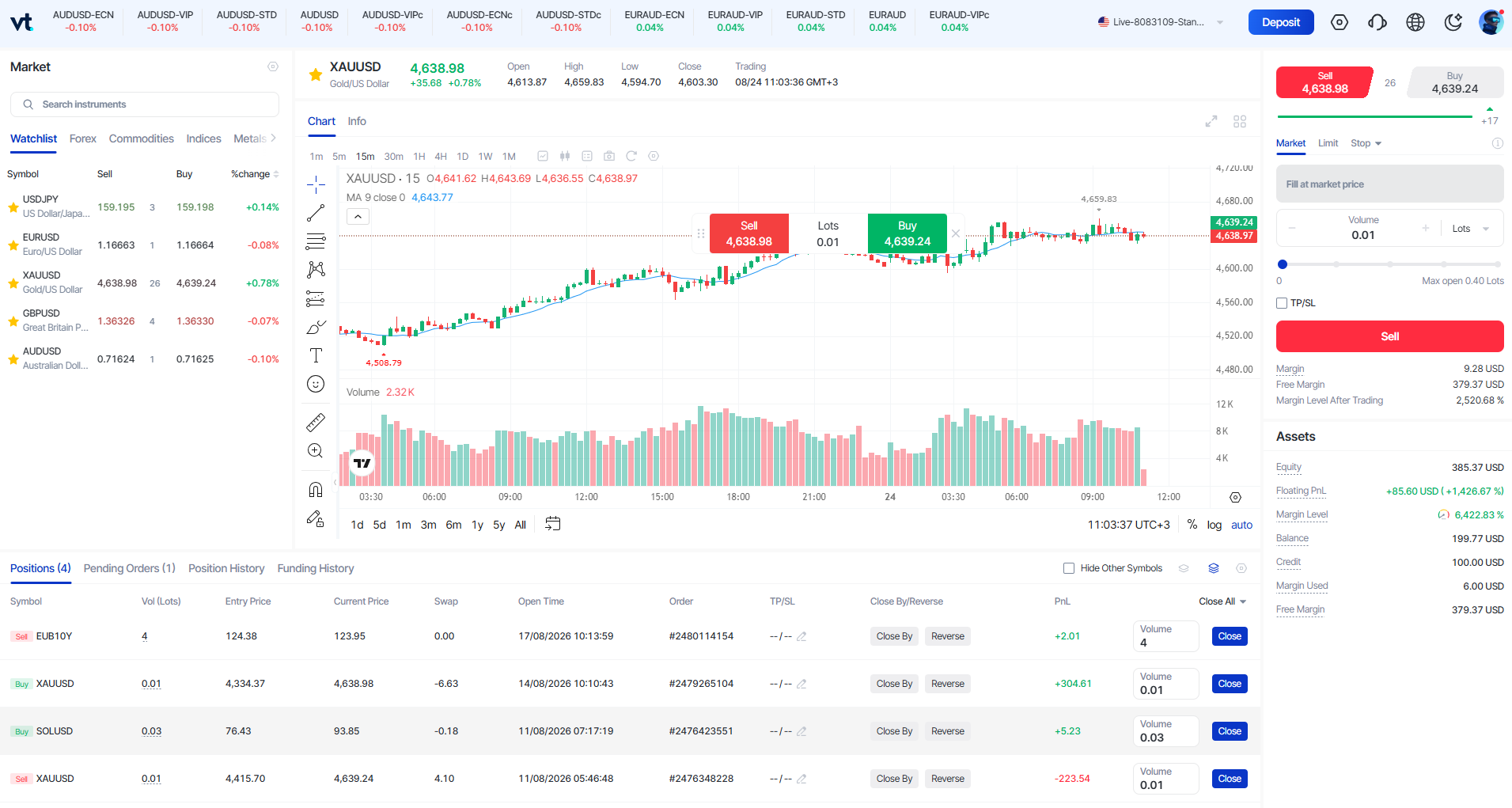
Designed for a streamlined workflow, the Web Trading workspace brings essential tools together in one intuitive interface. It consists of five main sections:
1. Market Watch
Find trading opportunities in one view.
The Market Watch Panel allows you to:
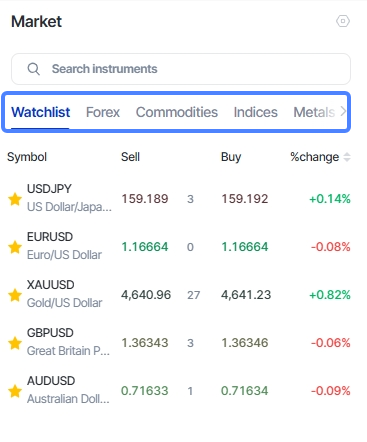
- Search by product name or symbol
- Monitor Buy and Sell prices
- Select a product to analyse or trade
- View available instruments
2. Chart Panel
Analyse price movements within the Web Trading workspace.
The Chart Panel allows you to:
- View live price movements
- Switch between chart views and timeframes
- Monitor market trends while managing trades
3. Trading Panel
Execute trades with different order types.
The Trading Panel allows you to:
- Buy or Sell instantly
- Choose Market, Limit or Stop Orders
- Enter trade size
- Set Take Profit (TP) and Stop Loss (SL)
You can adjust their trade settings before placing an order directly from the platform.
4. Position & Order Panel
Manage your trades with ease.
The Position & Order Panel allows you to:
- View open positions and pending orders
- Modify or close trades
- Edit or cancel pending orders
5. Account Overview
Stay on top of your account at all times.
The Account Overview allows you to:
- View your balance and equity
- Check available margin
- Monitor unrealised profit or loss
Built-In TradingView Charts
Web Trading provides TradingView-powered interactive charts designed to help traders analyse market movements and customise their charting experience.
With advanced charting tools, traders can study price trends, apply technical indicators, add drawings, and adjust chart settings based on their trading approach.
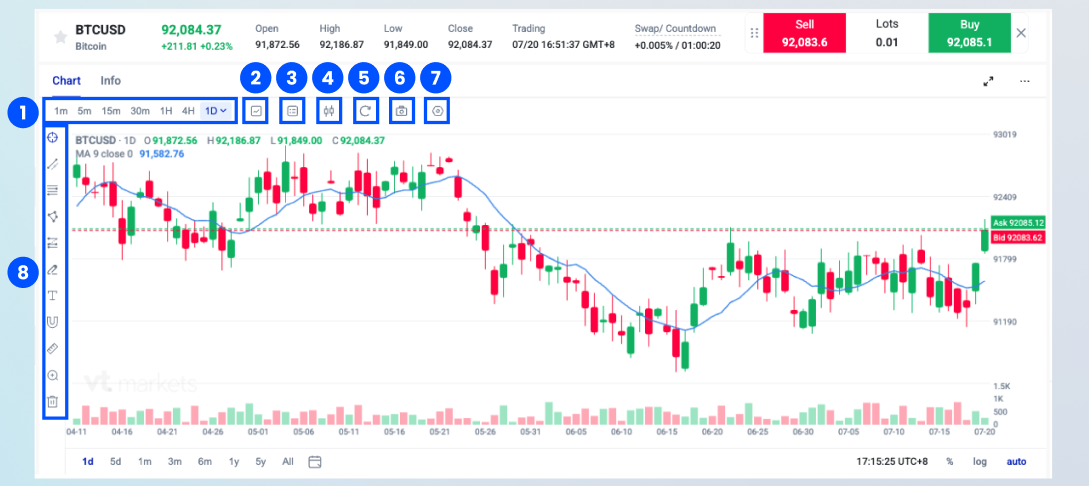
1. Timeframes
Analyse both short-term and long-term market trends with 9 available timeframes.
Traders can switch between different time intervals to review price movements across various trading perspectives, from shorter-term analysis to broader market trends.
2. Technical Indicators
Apply over 100 popular technical indicators to support market analysis.
Available indicators include:
- Moving Average (MA)
- Moving Average Convergence Divergence (MACD)
- Relative Strength Index (RSI)
- Bollinger Bands (BB)
These tools help traders evaluate price trends, momentum, volatility, and potential market conditions.
3. Price Lines
Enable One-Click Trading and display important trading levels directly on your chart.
Price lines include:
- Bid Price Line
- Ask Price Line
- Open Position Line
- Take Profit (TP) Line
- Stop Loss (SL) Line
These features allow traders to monitor key price levels and manage trades more efficiently from the chart interface.
4. Chart Types
Choose from 12 chart styles to view price movements in different formats.
Available chart types include:
- Candlestick charts
- Bar charts
- Line charts
- Hollow Candles
- Heikin Ashi
- Area charts
- Baseline charts
- Renko charts
- Line Break charts
- Kagi charts
Different chart styles allow traders to analyse market movements using their preferred visual format.
5. Reset Chart
Restore the chart to its default view at any time.
This allows traders to quickly return to the original chart layout after applying indicators, drawings, or custom settings.
6. Screenshot
Capture and download your chart, including any indicators and drawings you have added.
This allows traders to save their analysis, review previous setups, or share chart observations.
7. Settings
Customise your chart layout, scales, colours, and display settings.
Traders can adjust the appearance and configuration of their charts to create a more personalised analysis environment.
8. Drawing Tools
Add technical drawings to identify key price levels and analyse market patterns.
Available tools include:
- Trend lines
- Fibonacci retracements
- Shapes
- Other drawing tools
These tools help traders mark potential support and resistance areas, highlight trends, and organise their technical analysis.
How to Use VT Markets Web Trading
Follow these steps to access Web Trading, fund your account, and manage your trades directly from your browser.
Step 1: Access Web Trading
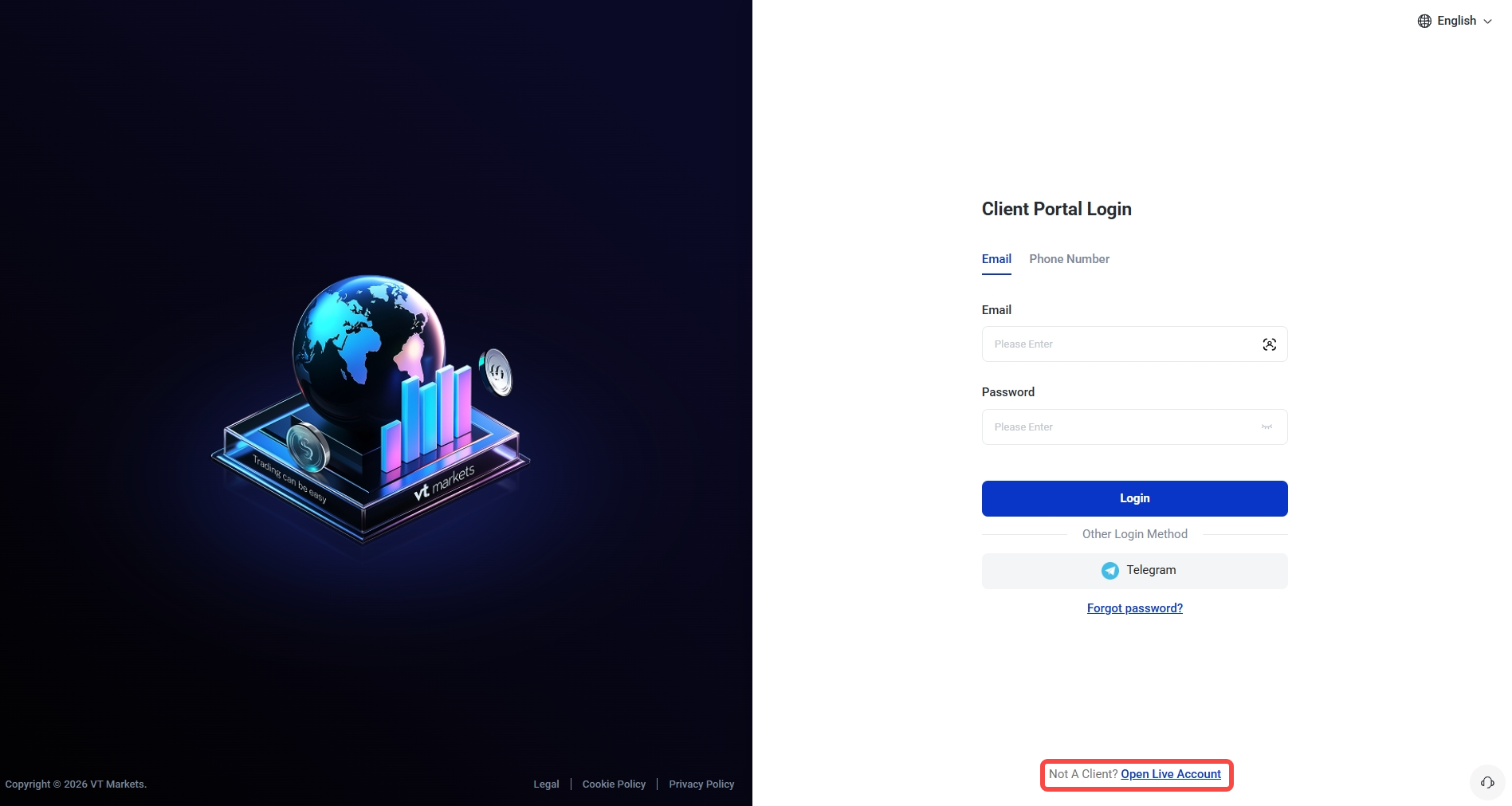
1. Log In to Client Portal
Log in using your VT Markets account credentials.
If you do not have an account, click Open Live Account to register.
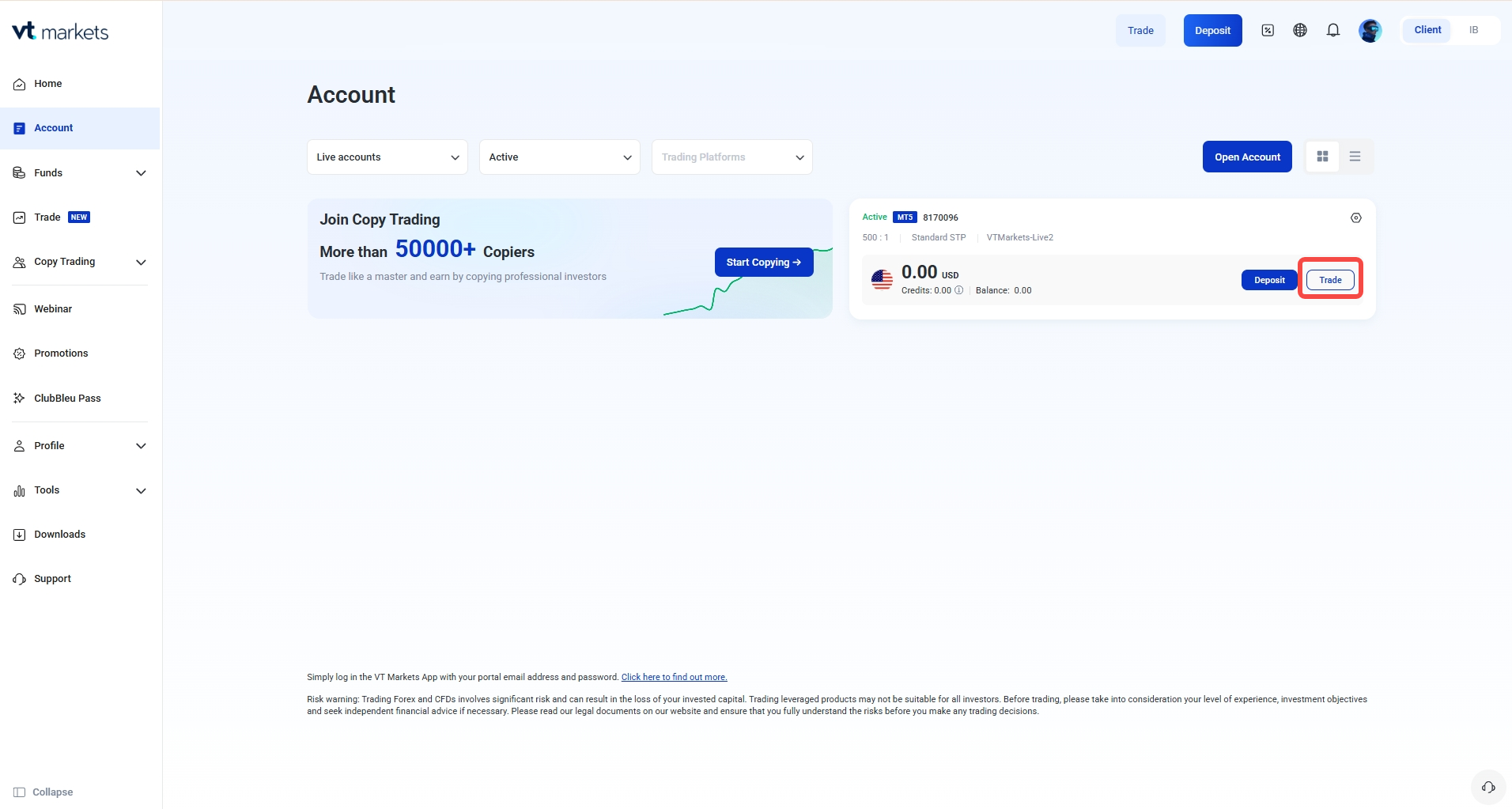
2. Select Your Trading Account
On the Account page, choose the trading account you wish to use and click Trade.
3. Launch Web Trading
You can now access Web Trading directly from your browser and explore the platform features, including market analysis tools, charts, and trading functions.
Step 2: Fund Your Trading Account
Before placing trades, make sure your trading account has sufficient funds.
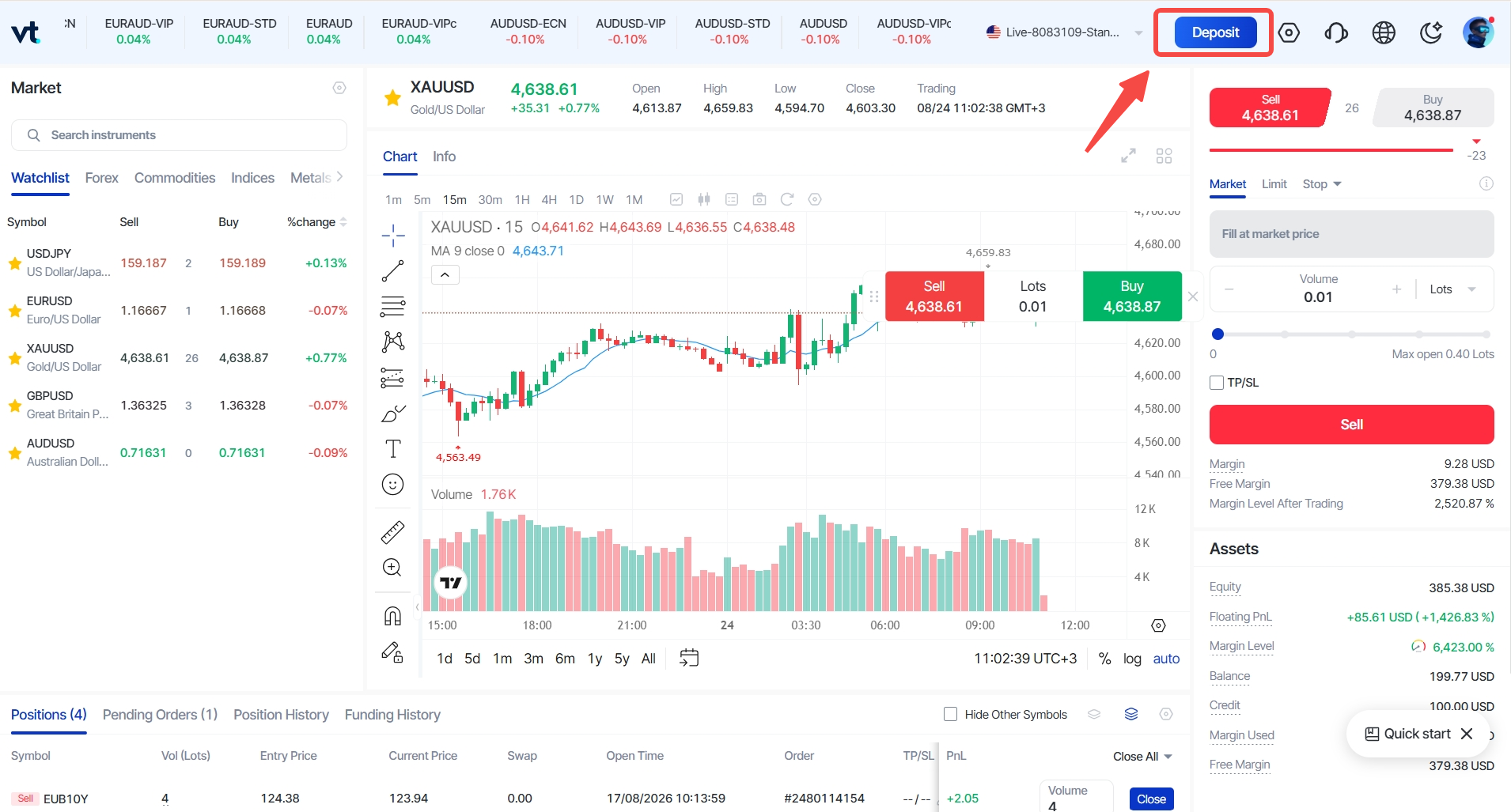
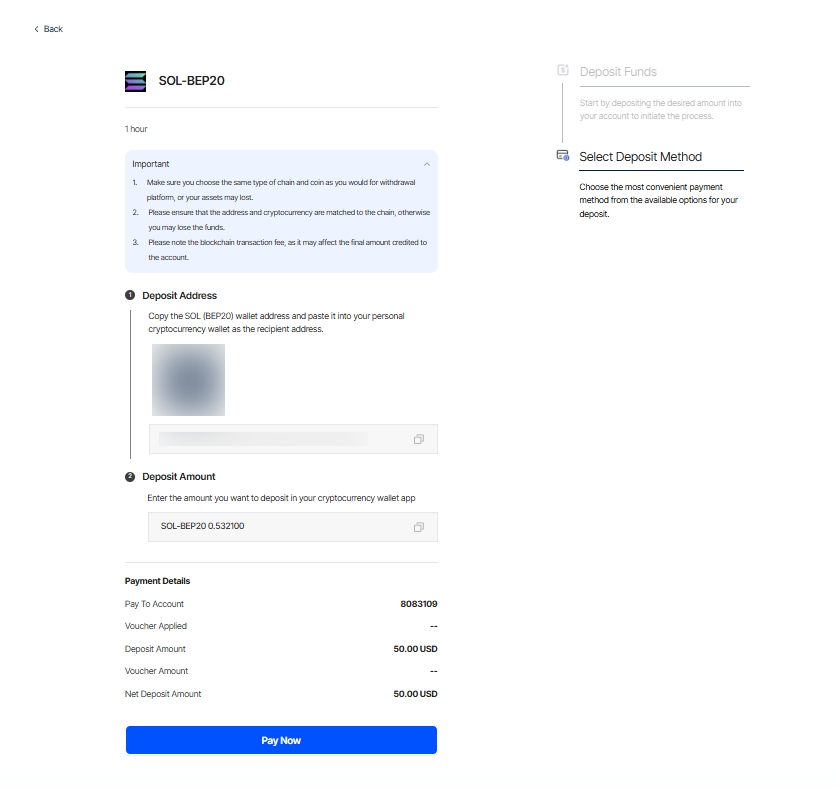
1. Click Deposit
Select the Deposit button in the top-right corner.
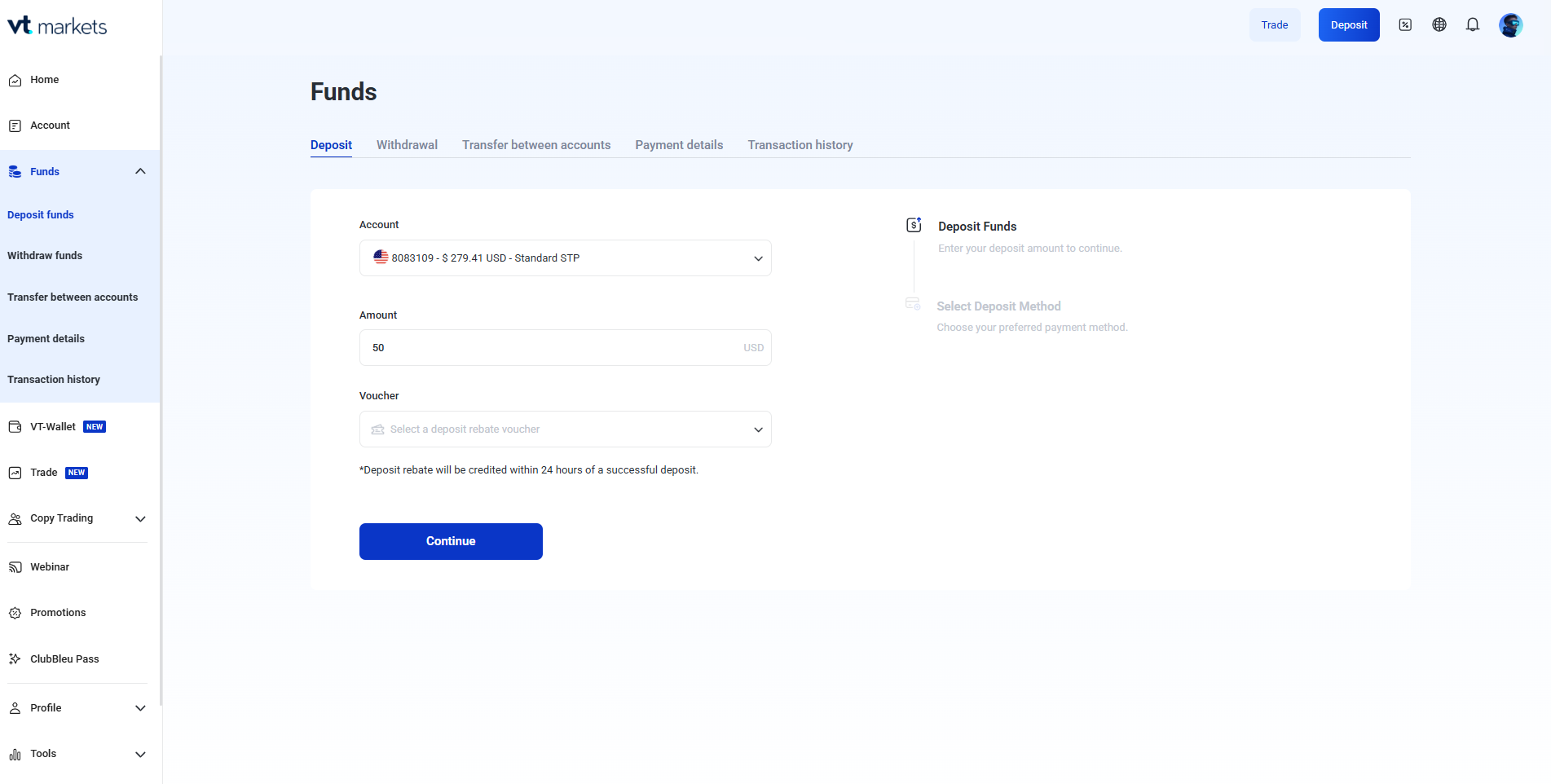
2. Choose Your Trading Account
Choose the trading account you want to fund, enter the deposit amount, and click Continue.
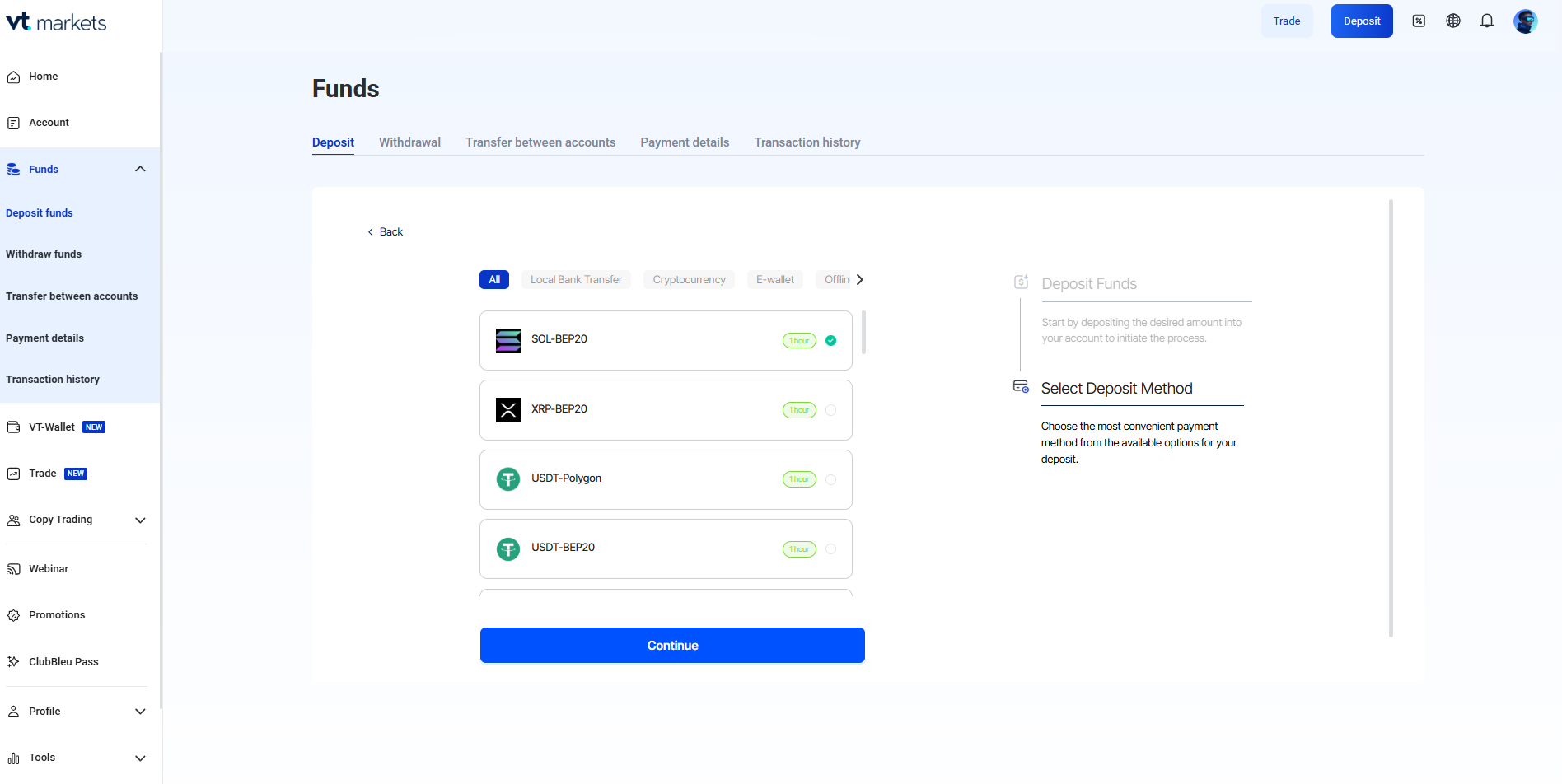
3. Complete Your Payment
Select your preferred payment method and follow the on-screen instructions to complete your deposit.
Step 3: Open a Position
Traders can open positions directly from the Web Trading interface.
1. Search for a Product
Use the Market Watch panel to search for a product by entering its name or symbol.
2. Choose Buy or Sell
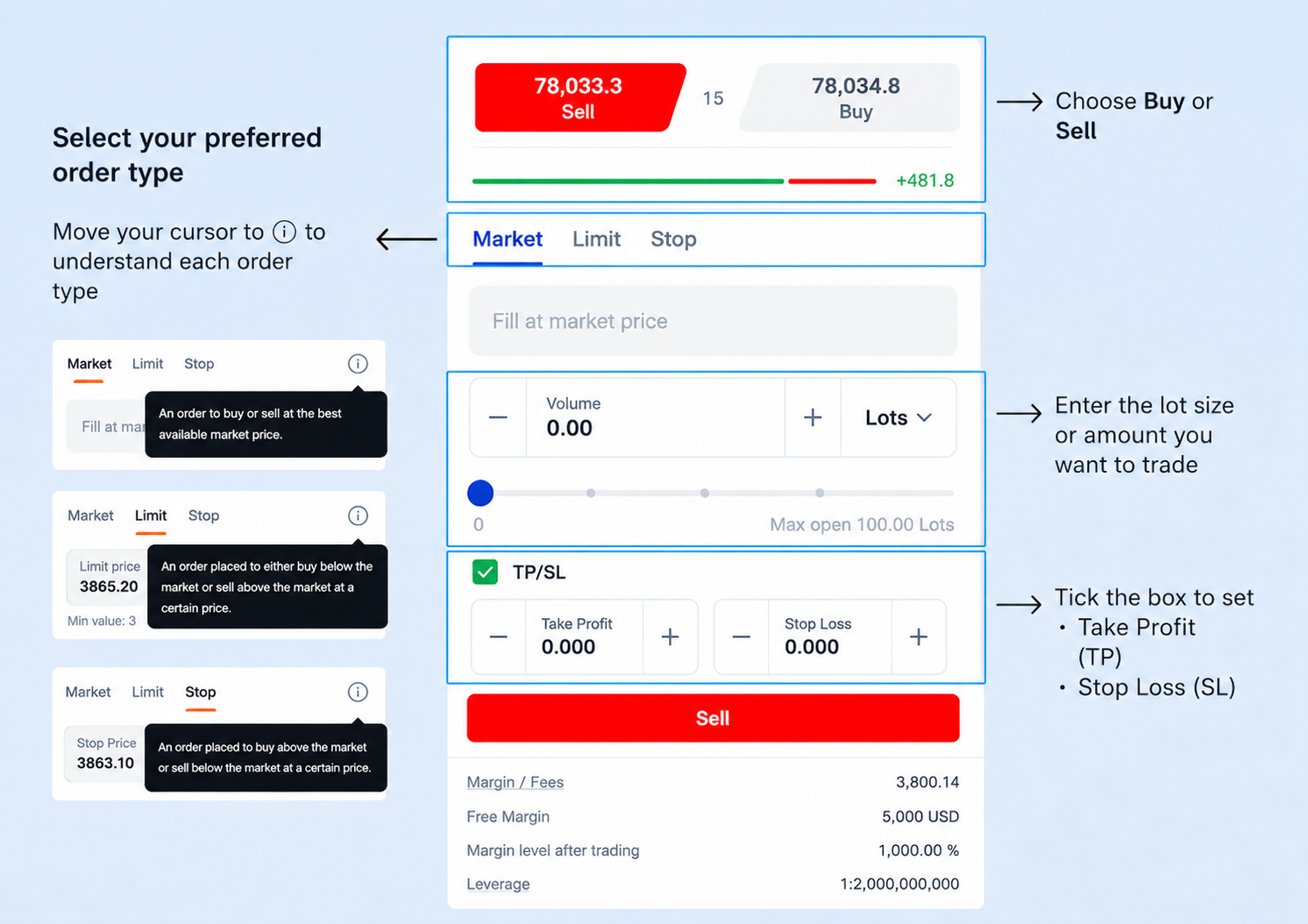
Use the Trading Panel to select your trade direction and order type.
You can:
- Select Buy or Sell
- Choose Market, Limit, or Stop Orders
- Enter your lot size
- Set Take Profit (TP) and Stop Loss (SL)
Step 4: Manage Your Position
Manage Open Positions
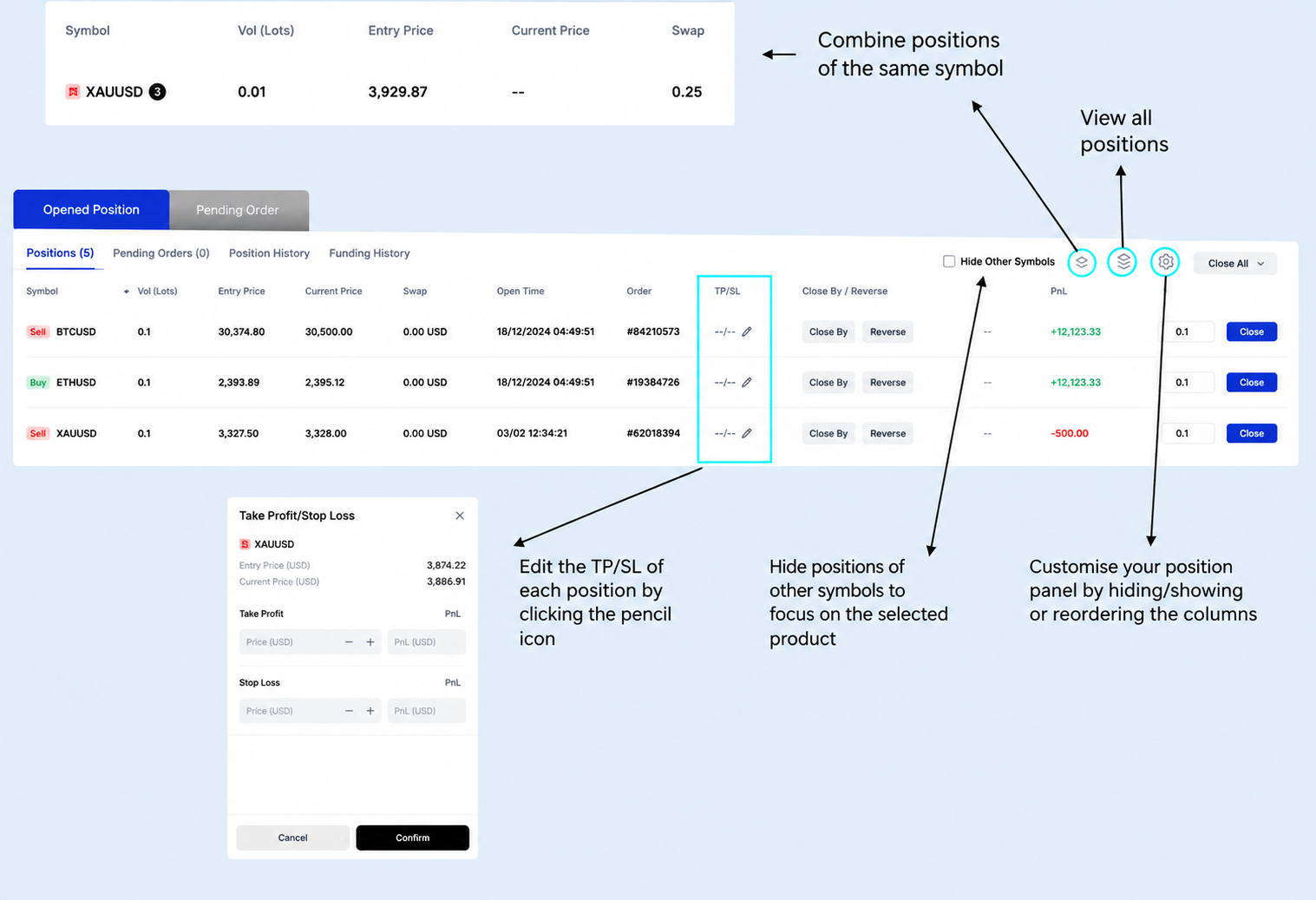
Once a trade is open, you can manage your positions directly from the Position & Order Panel.
Available actions include:
- Combine positions of the same symbol
- View all positions
- Edit TP/SL levels
- Hide positions of other symbols
- Customise the position panel by showing, hiding, or reordering columns
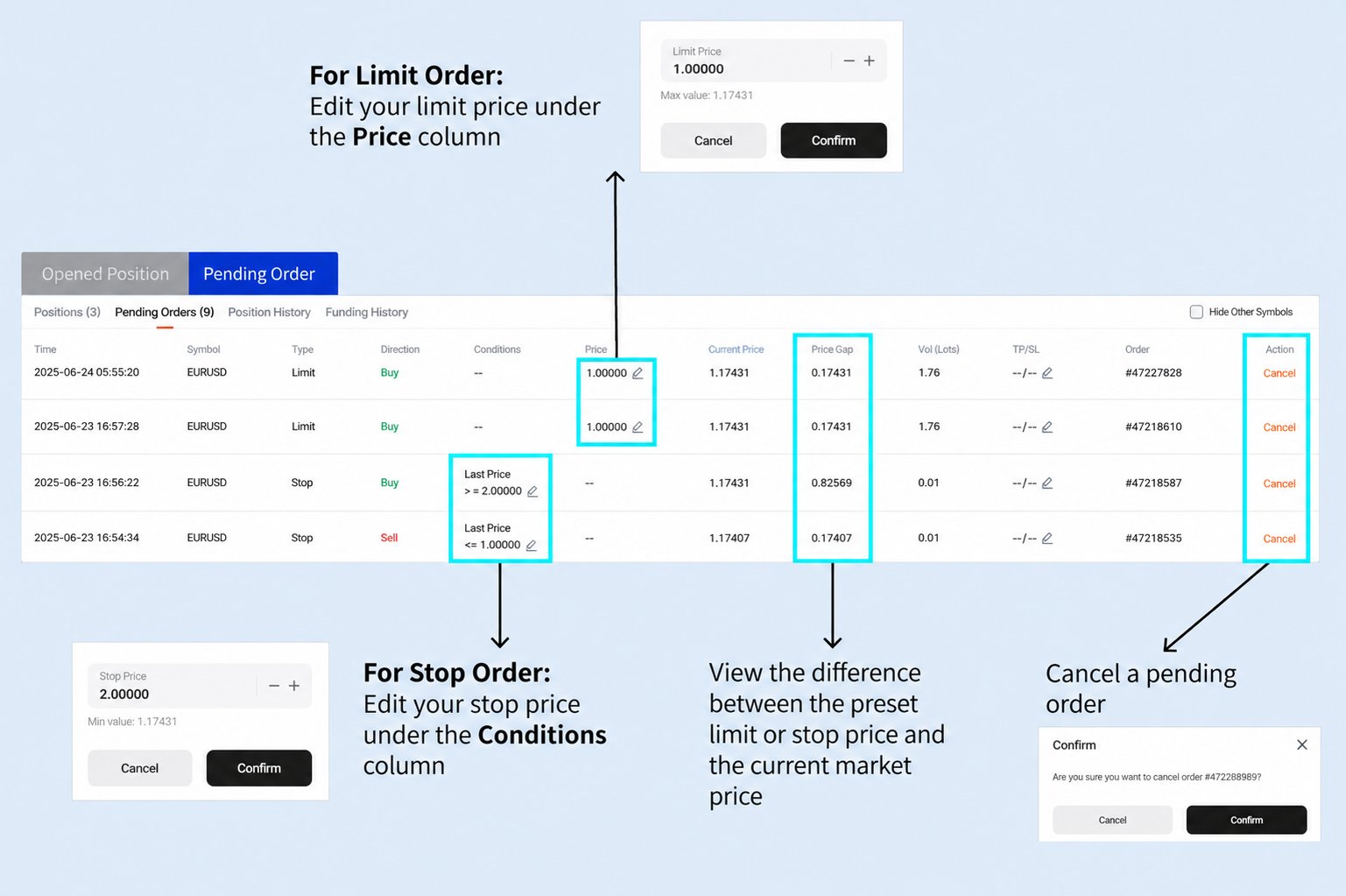
Manage Pending Orders
Pending orders can be modified or cancelled directly from the platform.
Available actions include:
- Edit limit order prices under the Price column
- Edit stop order prices under the Conditions column
- View the difference between preset order prices and current market prices
- Cancel pending orders
Step 5: Close Your Position
Web Trading provides multiple ways to close positions depending on your trading needs.
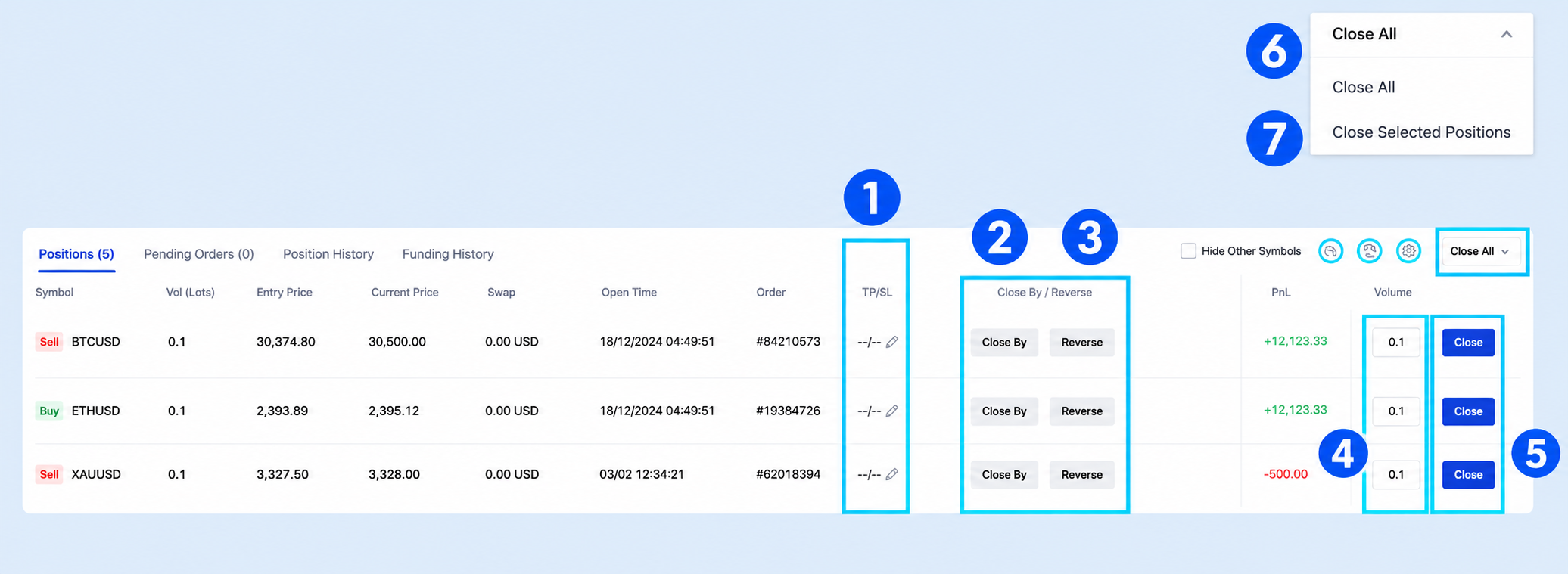
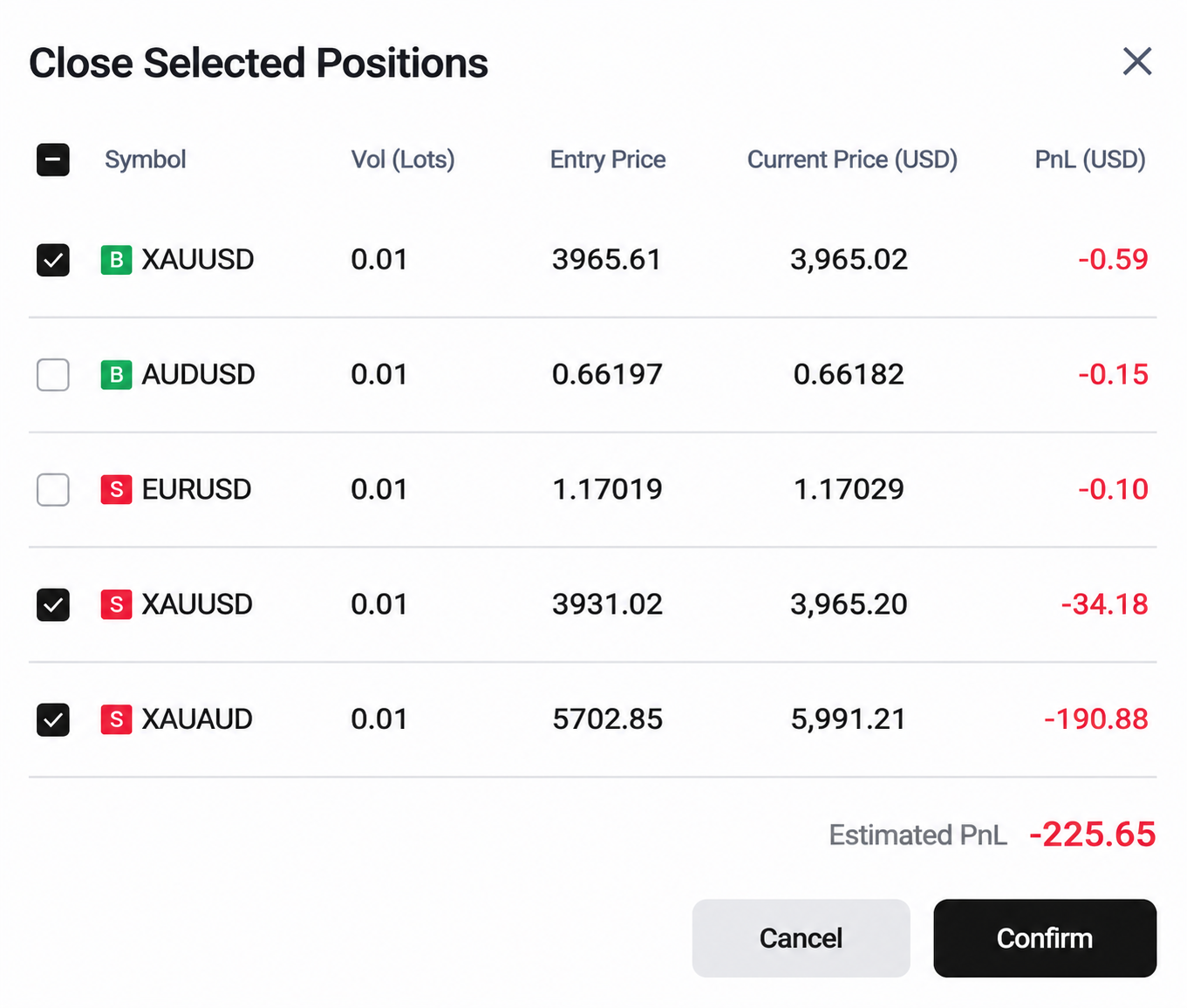
Available closing options include:
| Close Option | What It Does | Best Used When |
| TP/SL | Automatically closes a position at your preset TP or SL level. | You want to manage risk and lock in profits without constantly monitoring the market. |
| Close By | Closes two opposite positions on the same product by offsetting them. | You are hedging and want to close both positions at the same time. |
| Reverse | Closes your current position and opens a new one in the opposite direction with the same trade size. | Your market outlook has changed and you want to switch direction immediately. |
| Close by Volume Size | Closes part of an open position by specifying the trade size to exit. | You want to secure partial profits while keeping the rest of the position open. |
| Close / One-Click Close | Closes a position with or without a confirmation prompt. | You need to exit the market quickly, especially during fast-moving conditions. |
| Close All | Closes all open positions at once. | You want to reduce your overall market exposure immediately. |
| Close Selected Positions | Closes only the positions you select. | You want to close specific positions while keeping others open. |
Step 6: Manage Your Account Settings
Customise your Web Trading experience and manage account preferences directly from the platform.
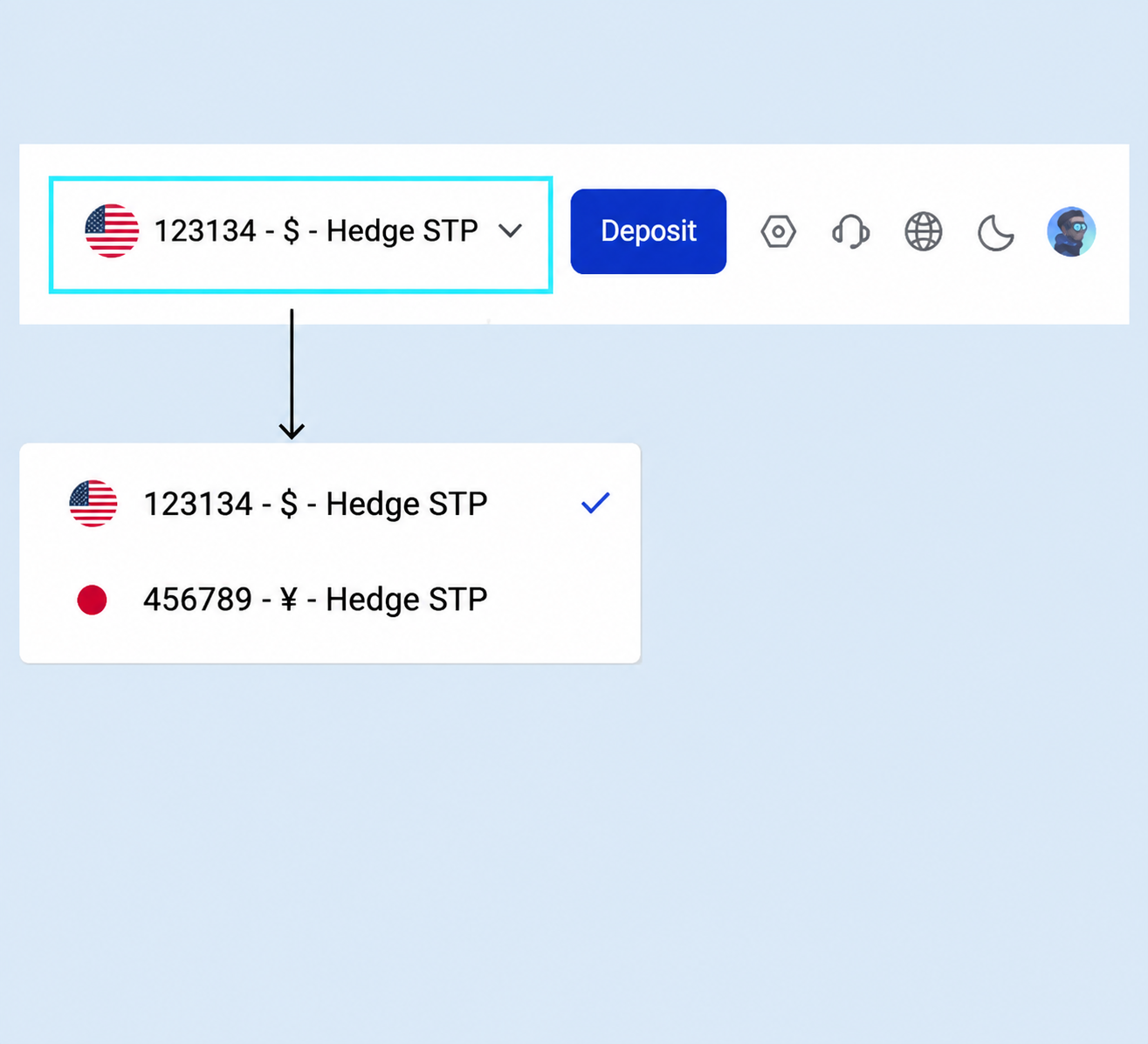
Switch Your Trading Account
Switch between available trading accounts from the top menu bar.
1. Click the drop-down list on the top-right corner.
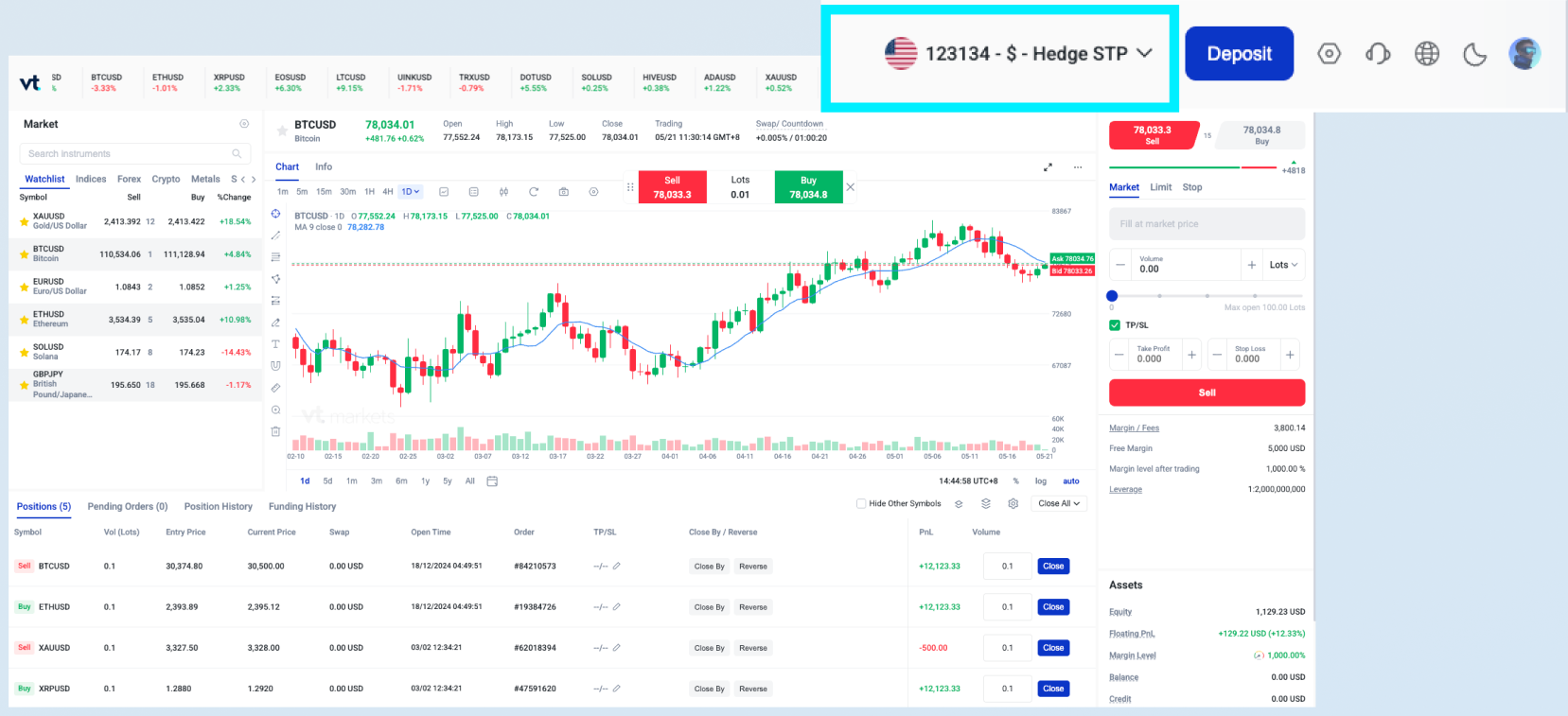
2. Choose the account you want to use.
Change Leverage Level
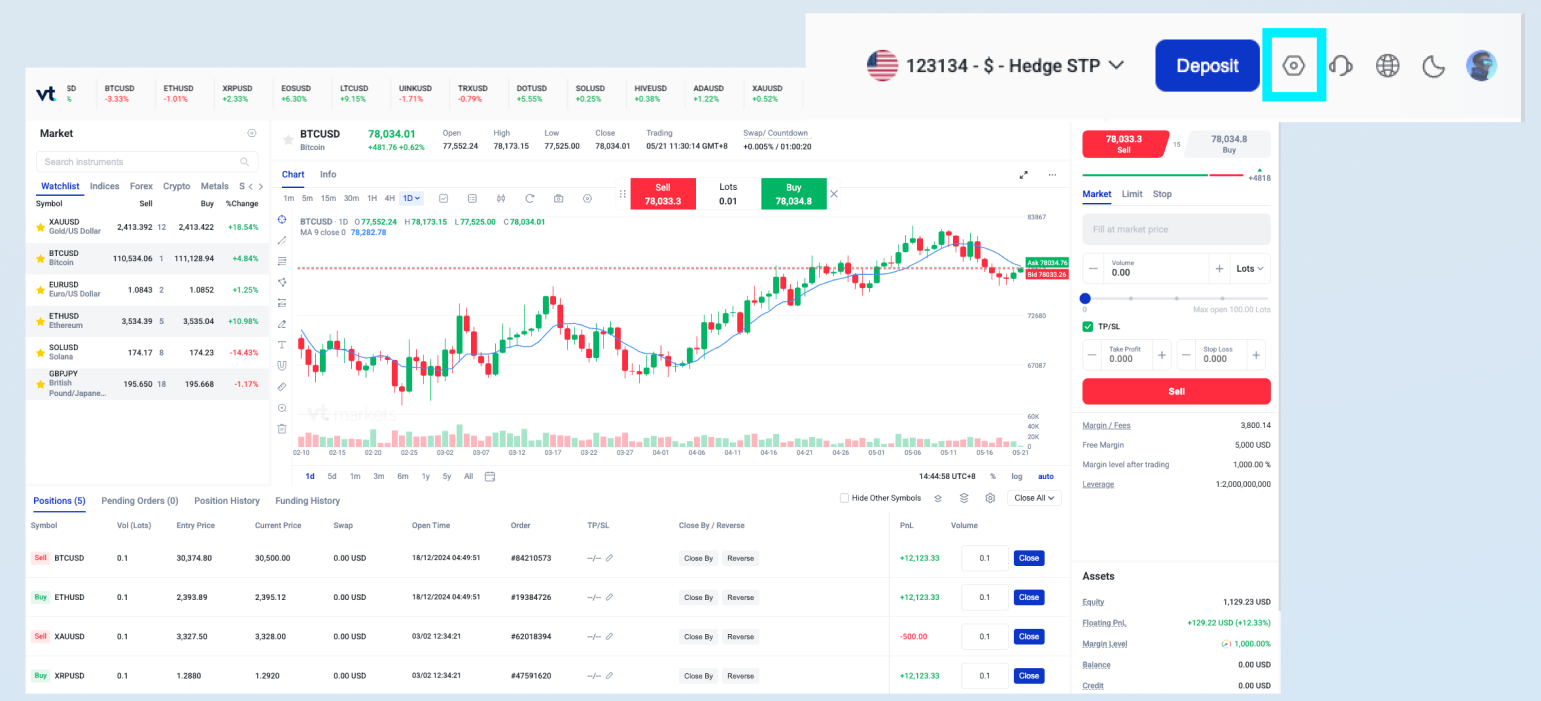
Adjust your leverage settings through the account settings.
1. Click the Settings icon on the top-right corner.
2. Select your preferred leverage level.
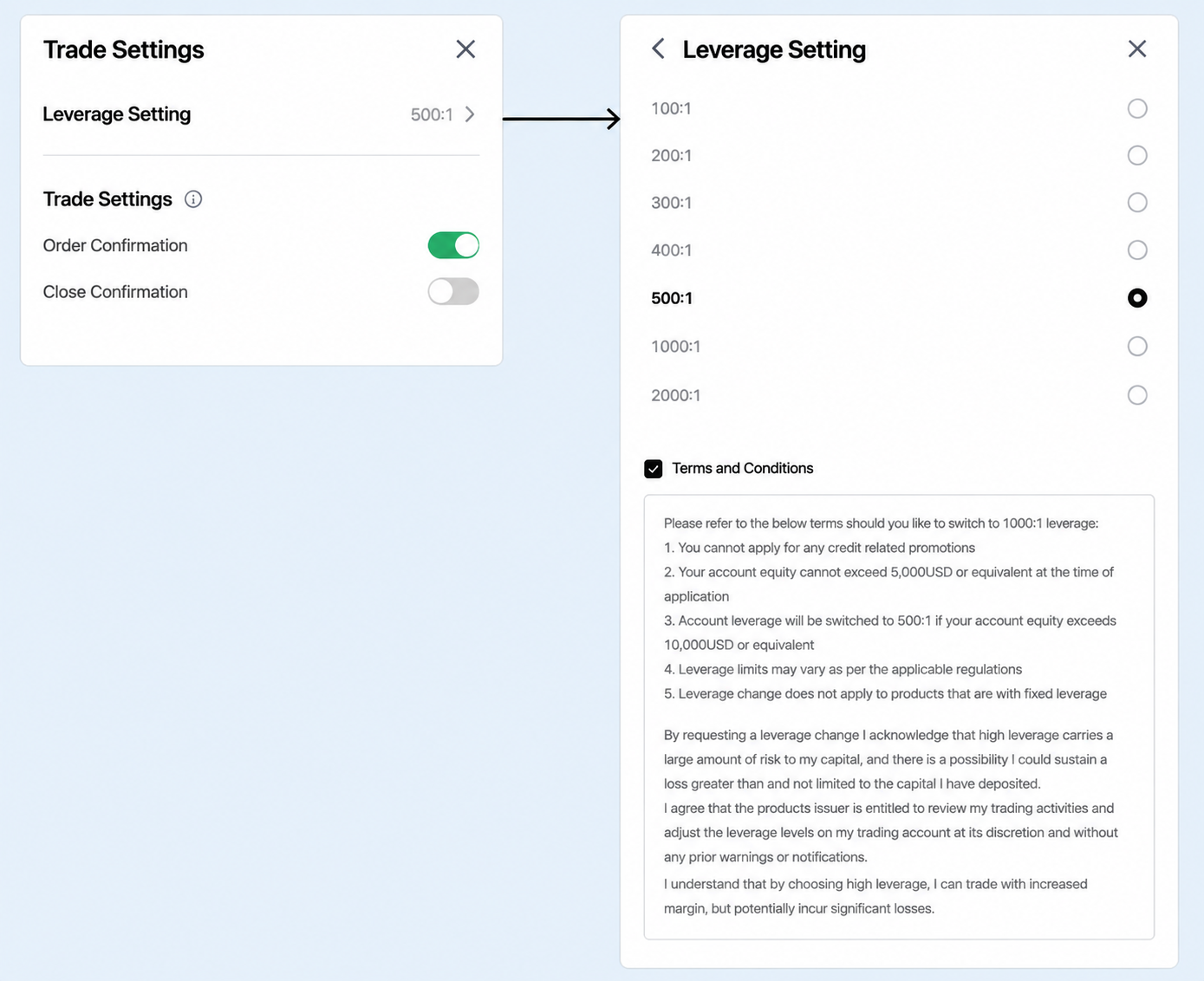
Note: Read the terms and conditions before setting your leverage.
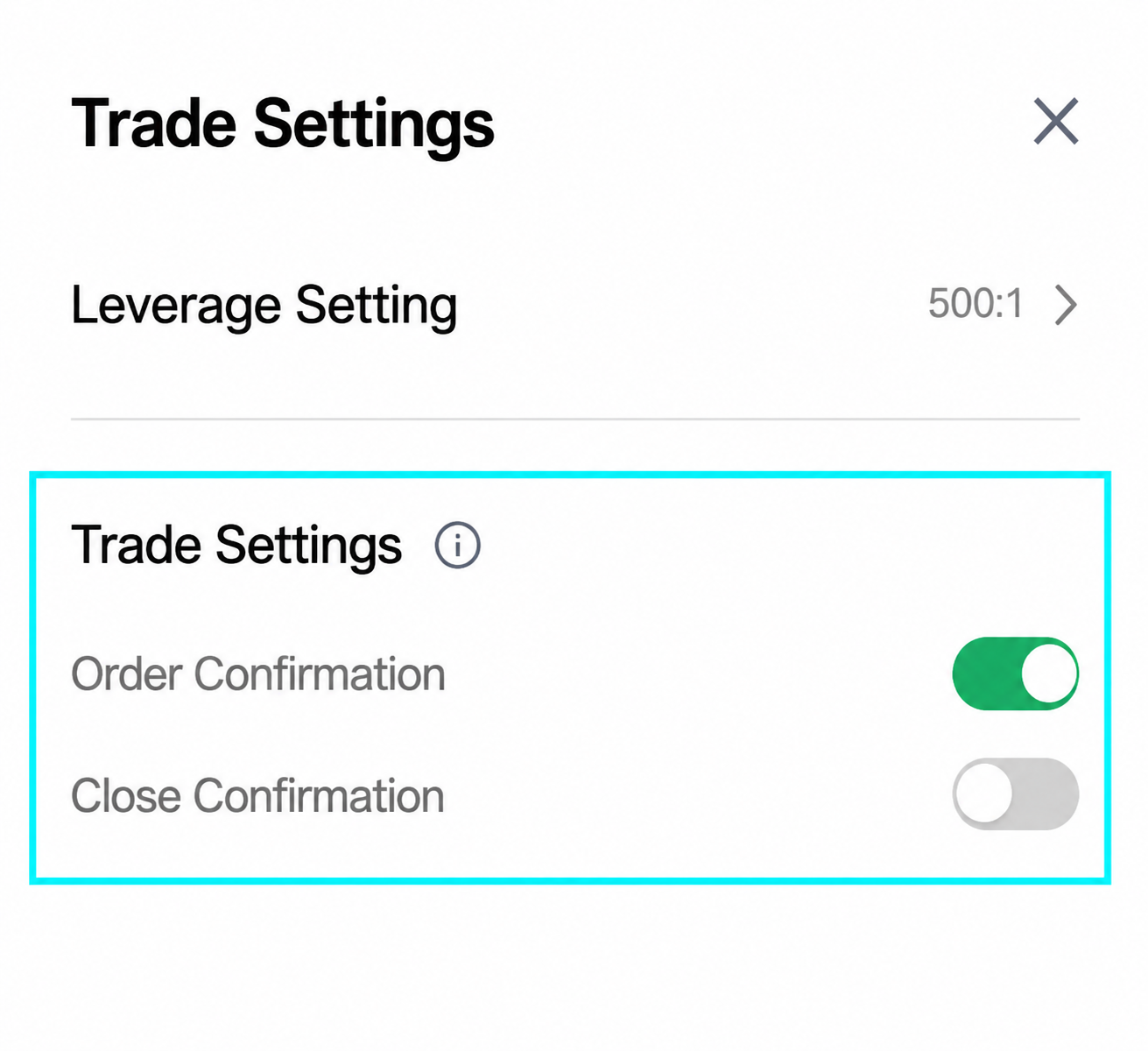
One-Click Open or Close Order
Customise your trade confirmation settings.
1. Click the Settings icon on the top-right corner.
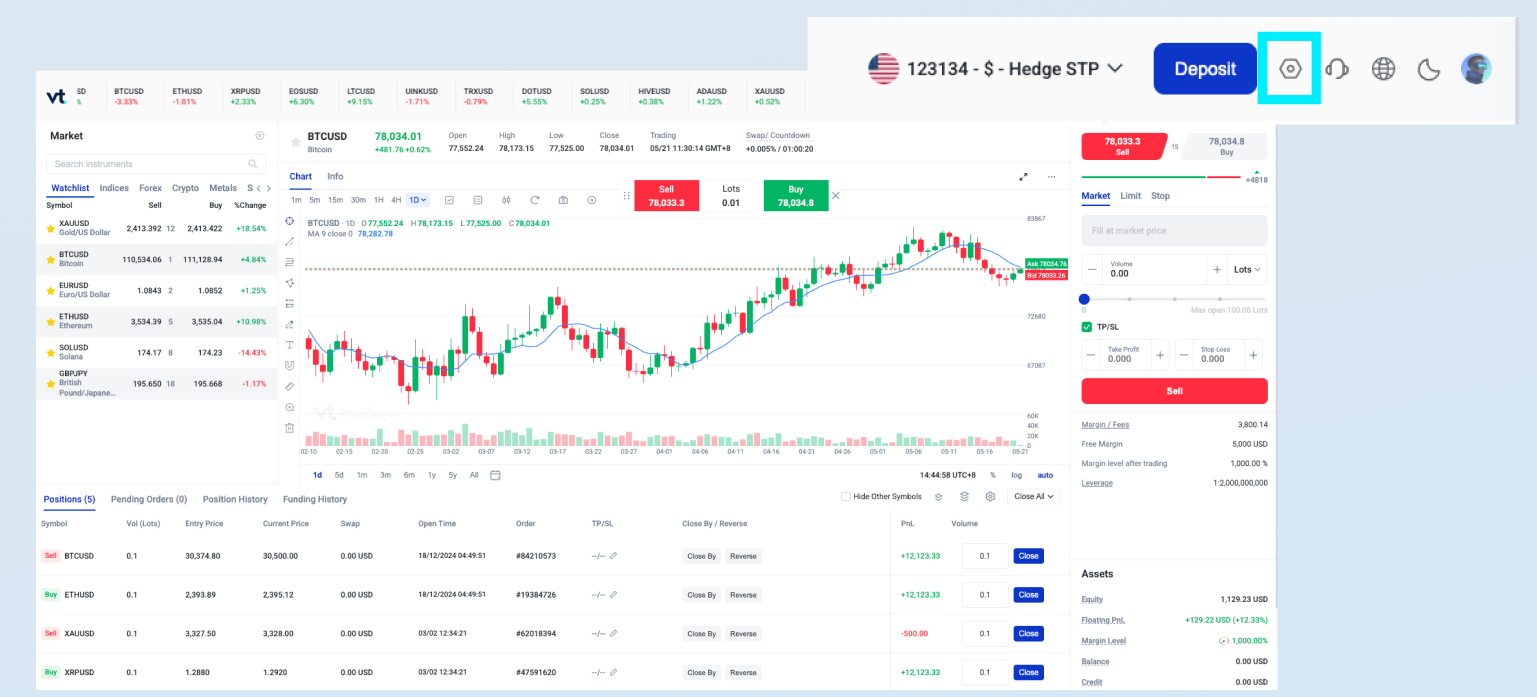
2. Turn Order Confirmation or Close Confirmation on or off to execute trades without an additional confirmation screen.
Contact Support Team
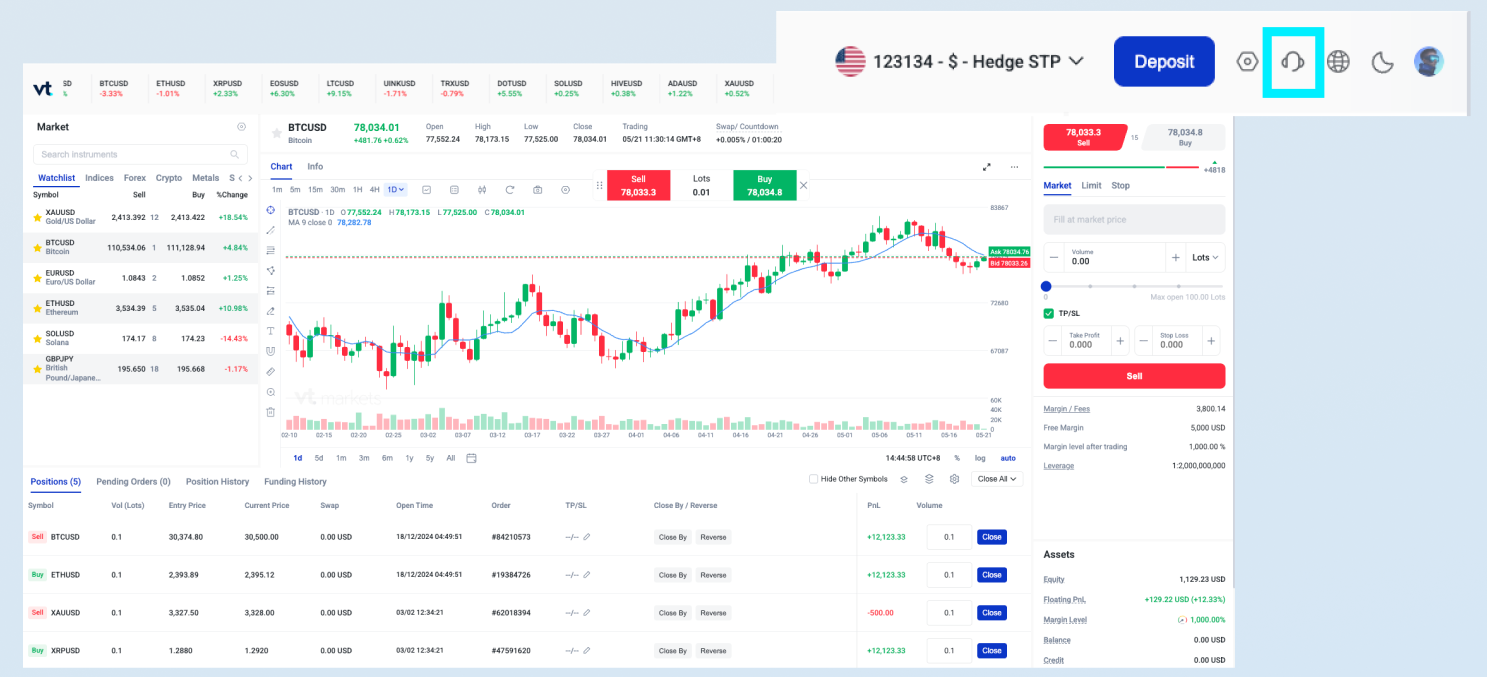
Access customer support directly from Web Trading.
Steps:
1. Click the Support icon on the top-right corner.
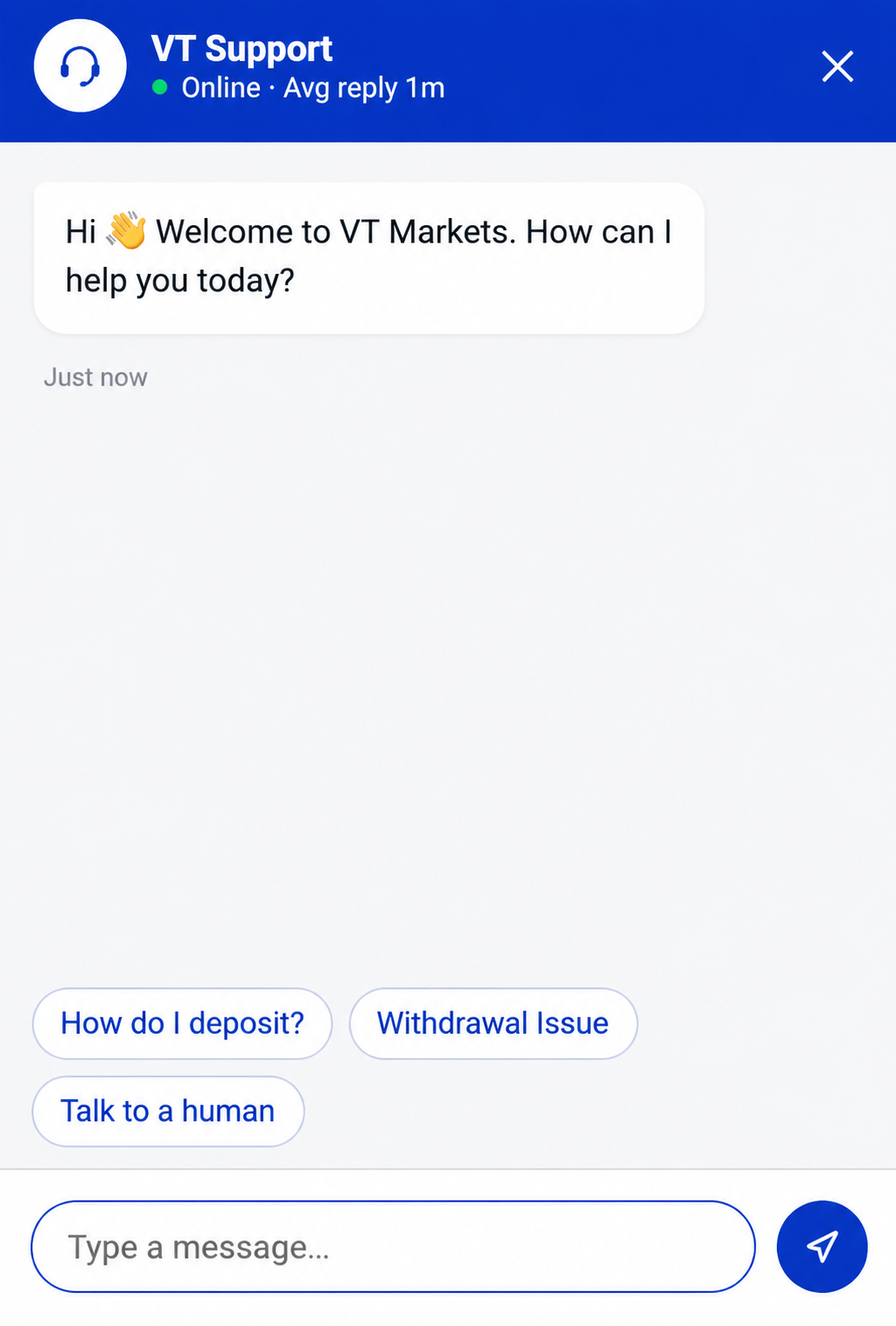
2. Type your inquiry and our live agent will assist you.
Trade Anywhere. Anytime. Across Devices.
Access your trading account from desktop, tablet or mobile using one secure login.
Start trading with VT Markets Web Trading today.
Frequently Asked Questions
What is VT Markets Web Trading?
VT Markets Web Trading is a browser-based trading platform that allows traders to analyse markets, place orders, and manage positions directly from their web browser without downloading additional software.
Do I need to download any app to access Web Trading?
No. Web Trading runs directly through supported browsers and does not require any app download or software installation.
Which devices support Web Trading?
Web Trading is compatible with desktop, tablet, and mobile browsers, allowing traders to access their accounts across different devices with one secure login.
Is VT Markets Web Trading free?
Yes. VT Markets Web Trading is available to eligible clients at no additional platform cost.
What is the difference between Web Trading and MetaTrader 5 (MT5)?
Web Trading runs entirely in your browser, making it ideal for instant access without installation. MT5 is a downloadable desktop platform that offers additional advanced features such as automated trading through Expert Advisors (EAs) and custom indicators.
What markets can I access through Web Trading?
VT Markets Web Trading provides access to 1,000+ assets across markets, including forex, gold, indices, commodities, shares, and ETFs, depending on your account type and region.
What is the minimum deposit to start trading with VT Markets?
The minimum deposit starts from $50, depending on your account type and region.
Specifications may vary by region, product, and account type.
What leverage is available on VT Markets Web Trading?
Traders can access leverage of up to 2000:1 across eligible products, depending on their account type, product, and region.
Specifications may vary by region, product, and account type.
Is Web Trading suitable for beginners?
Yes. Web Trading features an intuitive interface with essential trading tools for beginners, while advanced charting and order functions support more experienced traders.
Can I manage my positions from Web Trading?
Yes. Traders can monitor open positions, modify Take Profit and Stop Loss levels, manage pending orders, and close positions directly from the platform.