


Key Takeaways
- VT Markets provides several account security settings in the app, including two-factor authentication, Passkey, Safety Locks, login password, and funds password.
- Two-factor authentication, also known as 2FA, helps protect your account by requiring a time-sensitive verification code from an authenticator app.
- Safety Locks can add app-level protection by requiring Face ID, pattern unlock, or both before accessing selected app functions.
- Your Client Portal login password and funds password are managed separately because they are used for different account actions.
- If you have more than one trading account, each account may have a different funds password, so you should select the correct account before making changes.
- Some security changes may trigger temporary withdrawal restrictions as an added account protection measure.
Account security is an important part of managing your VT Markets profile. Whether you are logging in, protecting app access, or setting up additional verification, it is useful to know where each security feature is located and how it works.
This guide explains how to manage the main security settings in the VT Markets app, including two-factor authentication, passkey, Safety Locks, login password, and funds password.
Understanding VT Markets Security Settings
VT Markets provides different security tools for different purposes. Some settings help protect your login access, while others add extra checks for account security or fund-related actions.
The table below shows the main security settings covered in this guide.
| Security Setting | What It Does |
| Two-Factor Authentication (2FA) | Links your account to an authenticator app and requires a time-sensitive verification code |
| Passkey | Allows device-based verification, such as Face ID, fingerprint, or screen lock, where available |
| Safety Locks | Adds app-level protection using Face ID, pattern unlock, or both |
| Login Password | Used to log in to the VT Markets app and access your dashboard, profile, and account settings |
| Funds Password | Used as an additional password for fund-related actions where required |
How to Access Security Settings on the VT Markets App
To manage your security settings, open the VT Markets app and log in to your account.
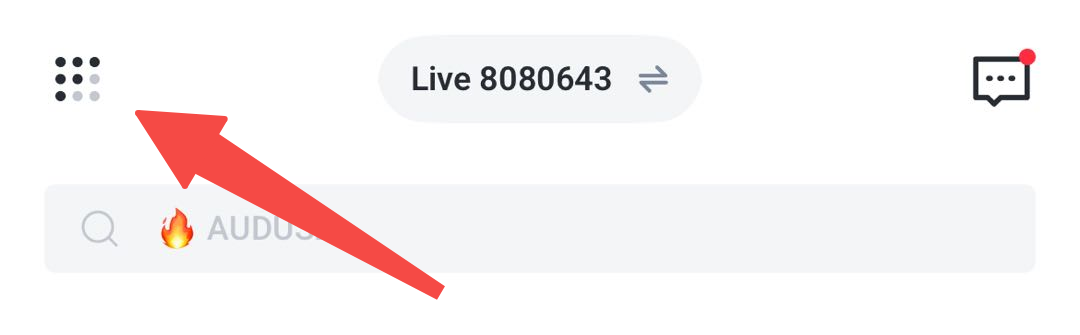
Step 1: Open the Menu from the Dashboard
From the main dashboard, tap the menu icon on the top-left side of the screen.
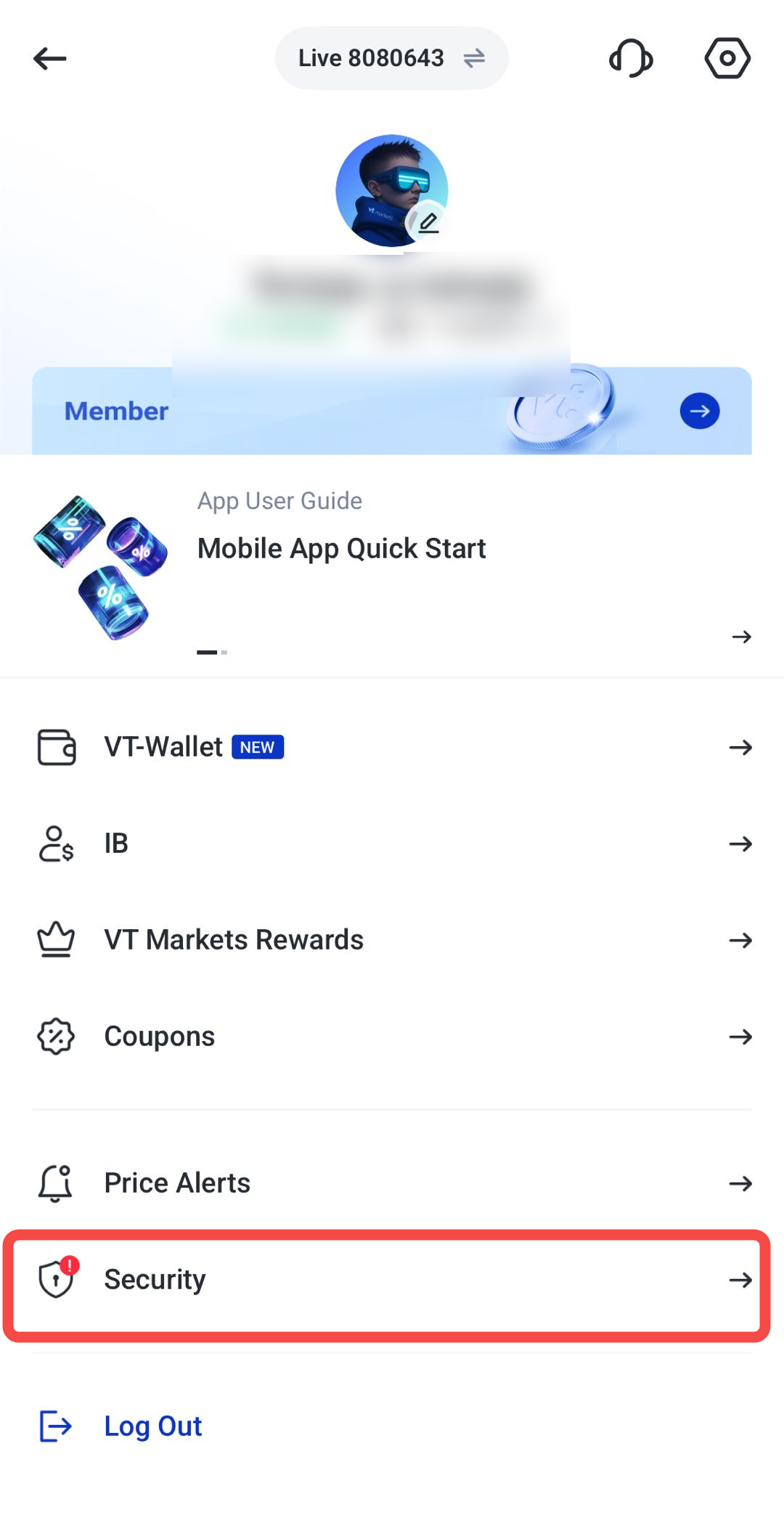
Step 2: Select Security
From the account menu, scroll down and tap Security.
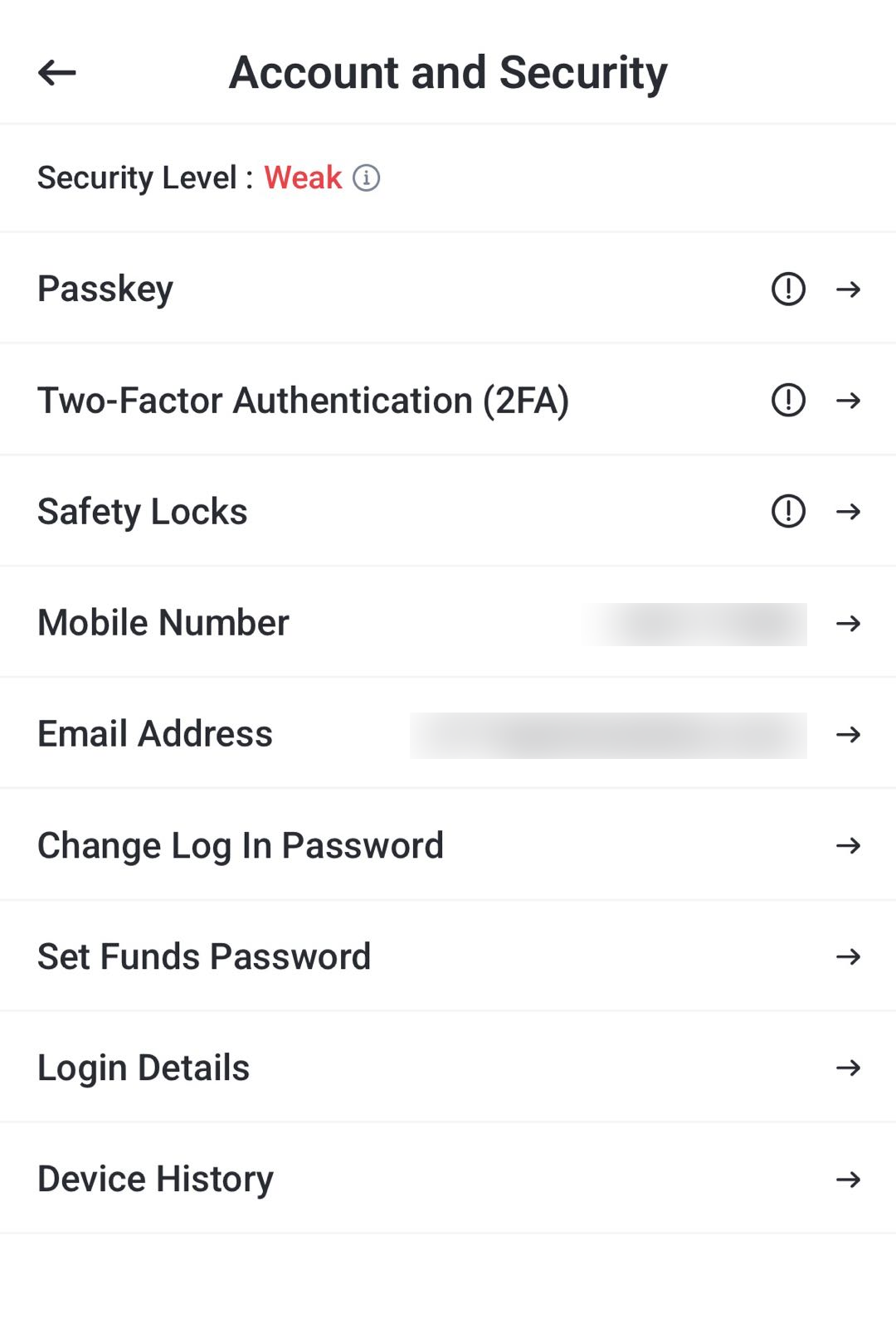
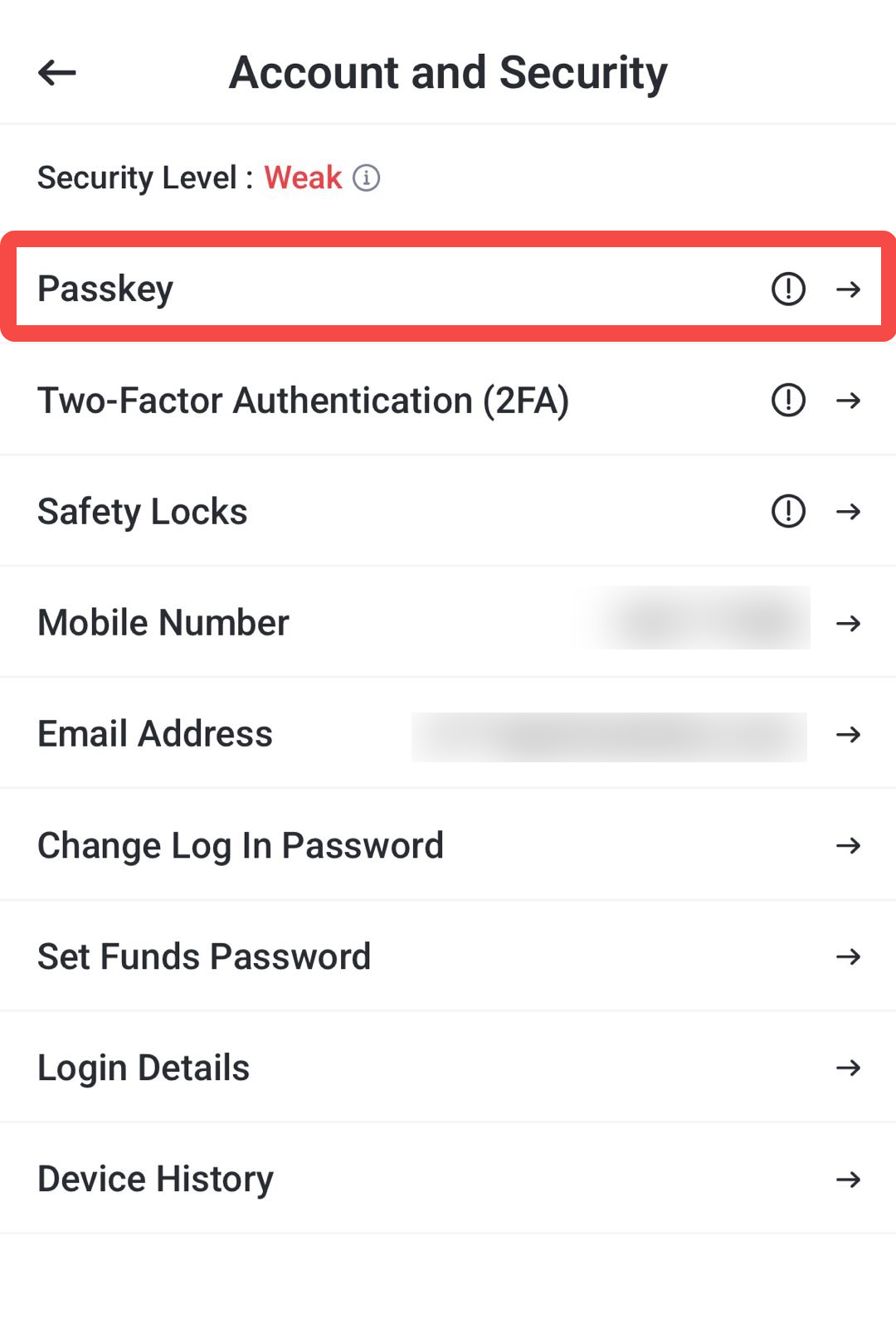
Step 3: View Account and Security Settings
You will be directed to the Account and Security page.
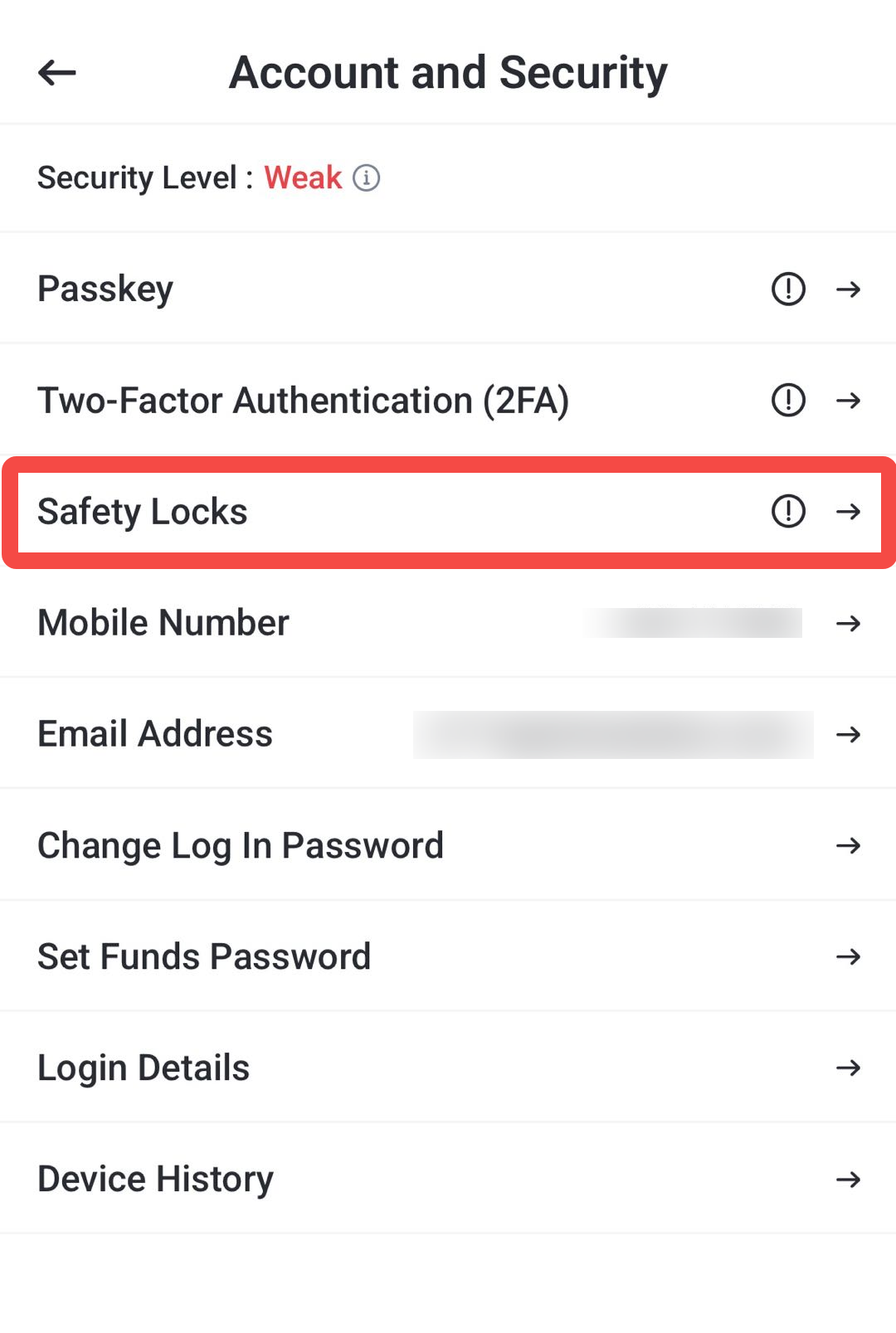
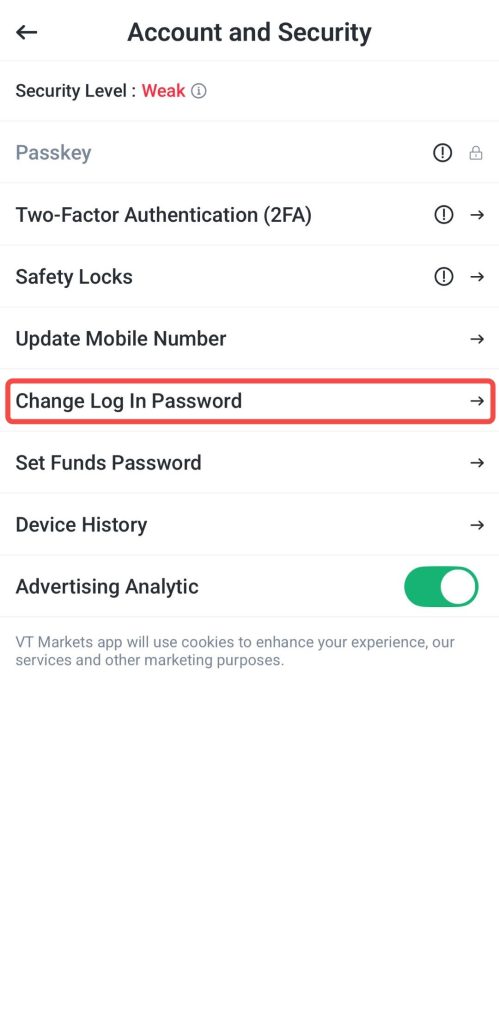
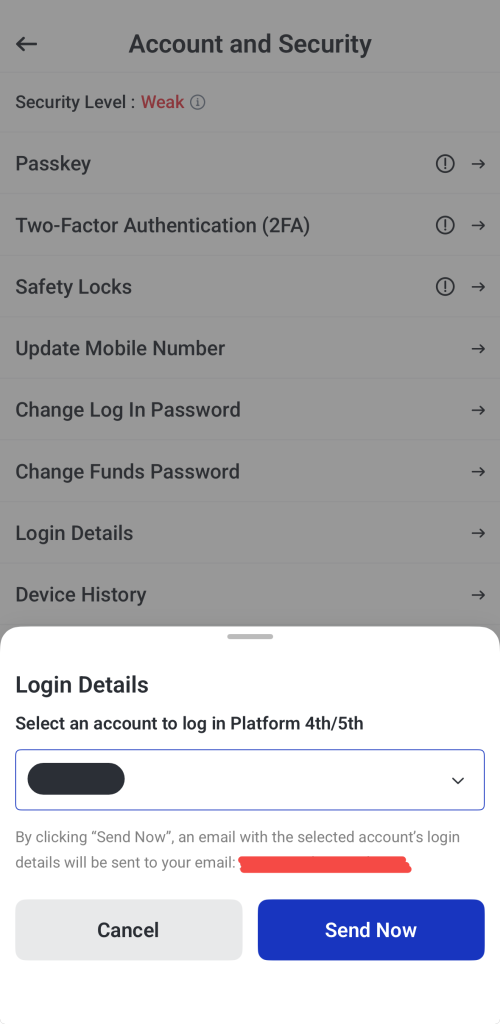
From this page, you can manage security features such as Passkey, Two-Factor Authentication (2FA), Safety Locks, Change Log In Password, and Set Funds Password.
How to Enable Two-Factor Authentication on VT Markets
Two-factor authentication, or 2FA, adds an extra layer of protection to your VT Markets account. Instead of relying only on your password, 2FA requires a time-sensitive verification code from an authenticator app.
Before you begin, make sure you have an authenticator app installed on your mobile device. Common examples include Google Authenticator, Microsoft Authenticator, and similar apps.
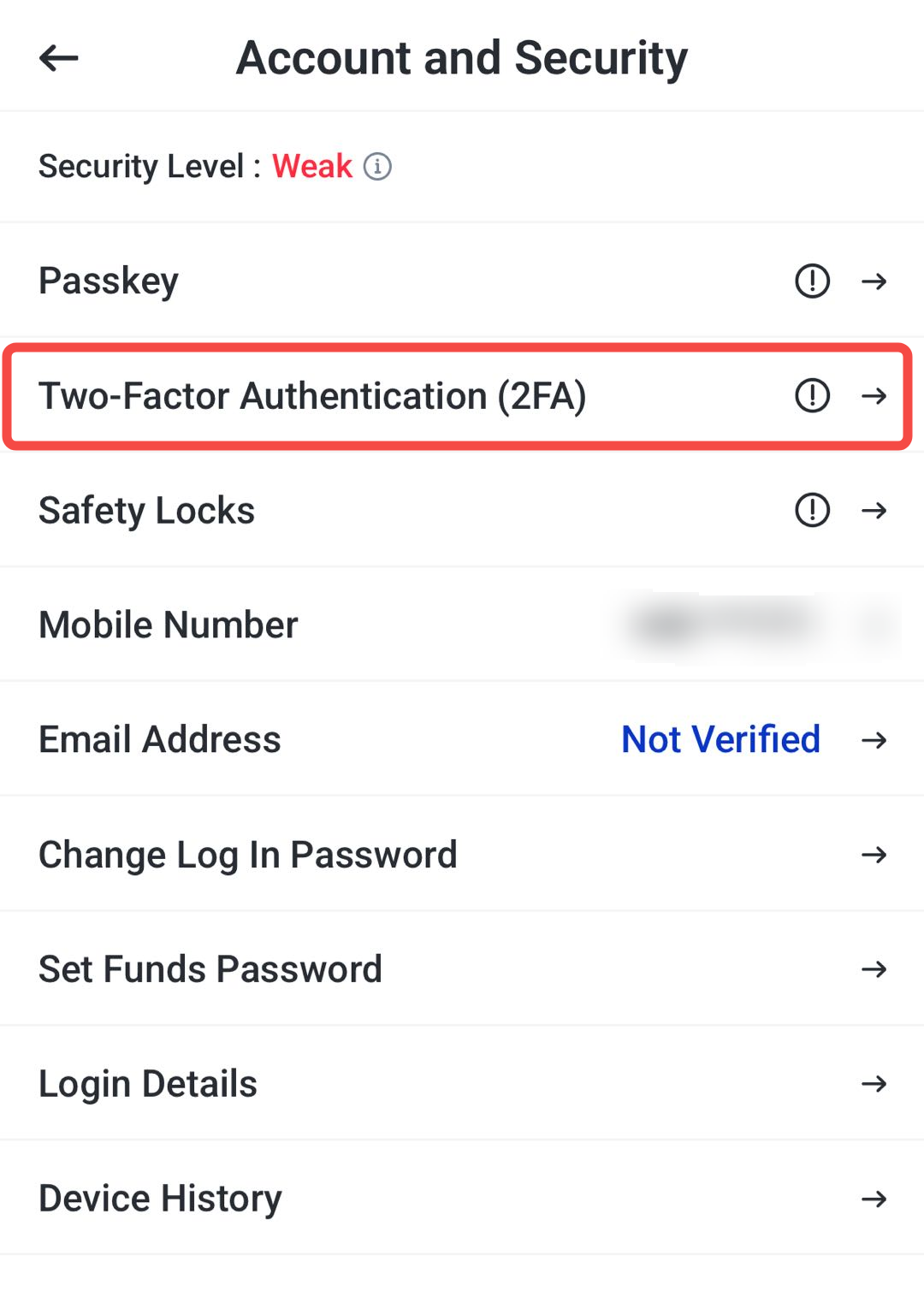
Step 1: Open the Two-Factor Authentication Settings
On the Account and Security page, find Two-Factor Authentication (2FA) and tap it.
This will open the 2FA settings page, where you can review or manage your authenticator setup.
Step 2: Start the 2FA Setup
On the Two-Factor Authentication page, tap Enable to proceed to the Link Authenticator setup page.
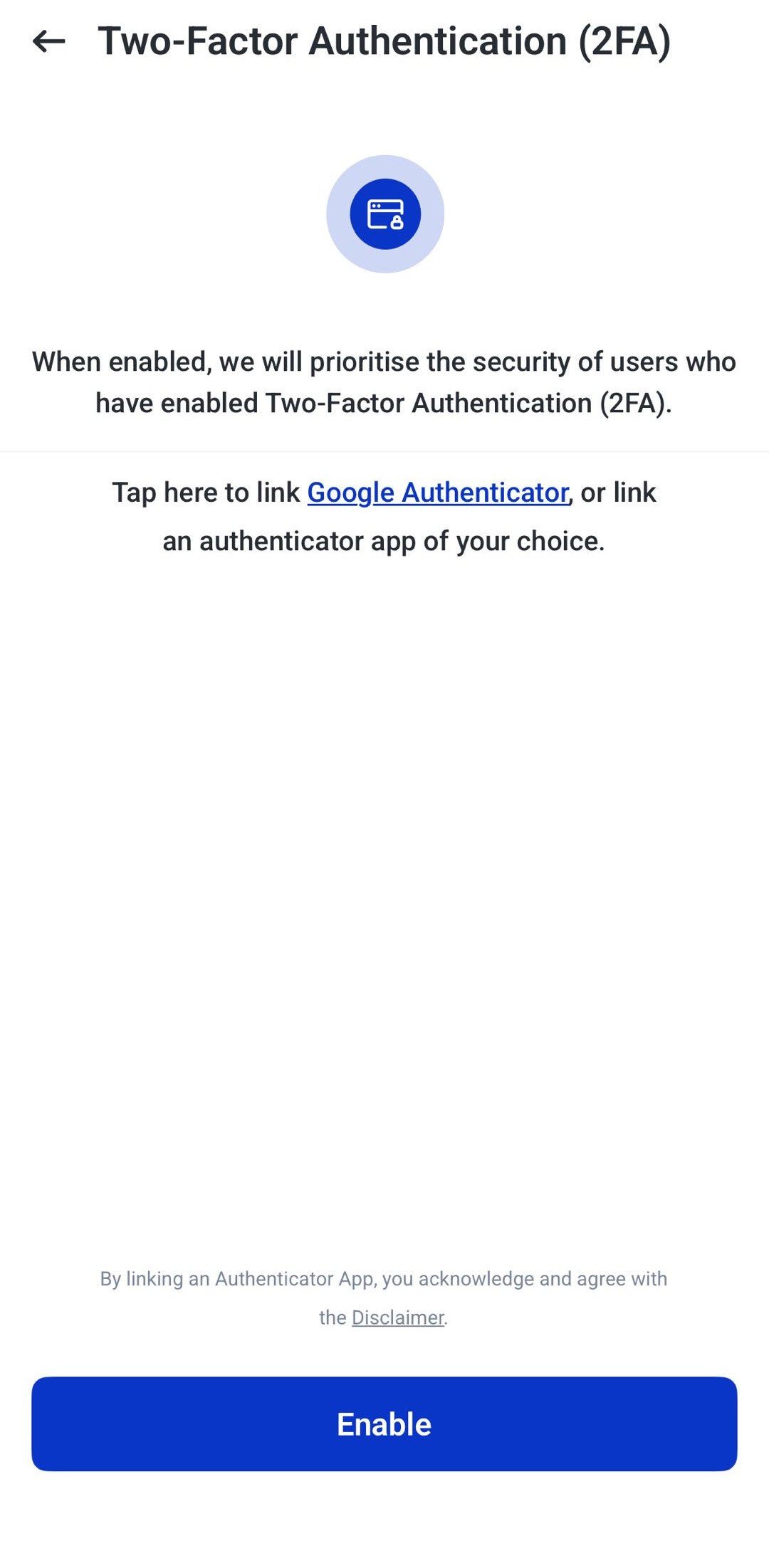
Step 3: Choose a Linking Method
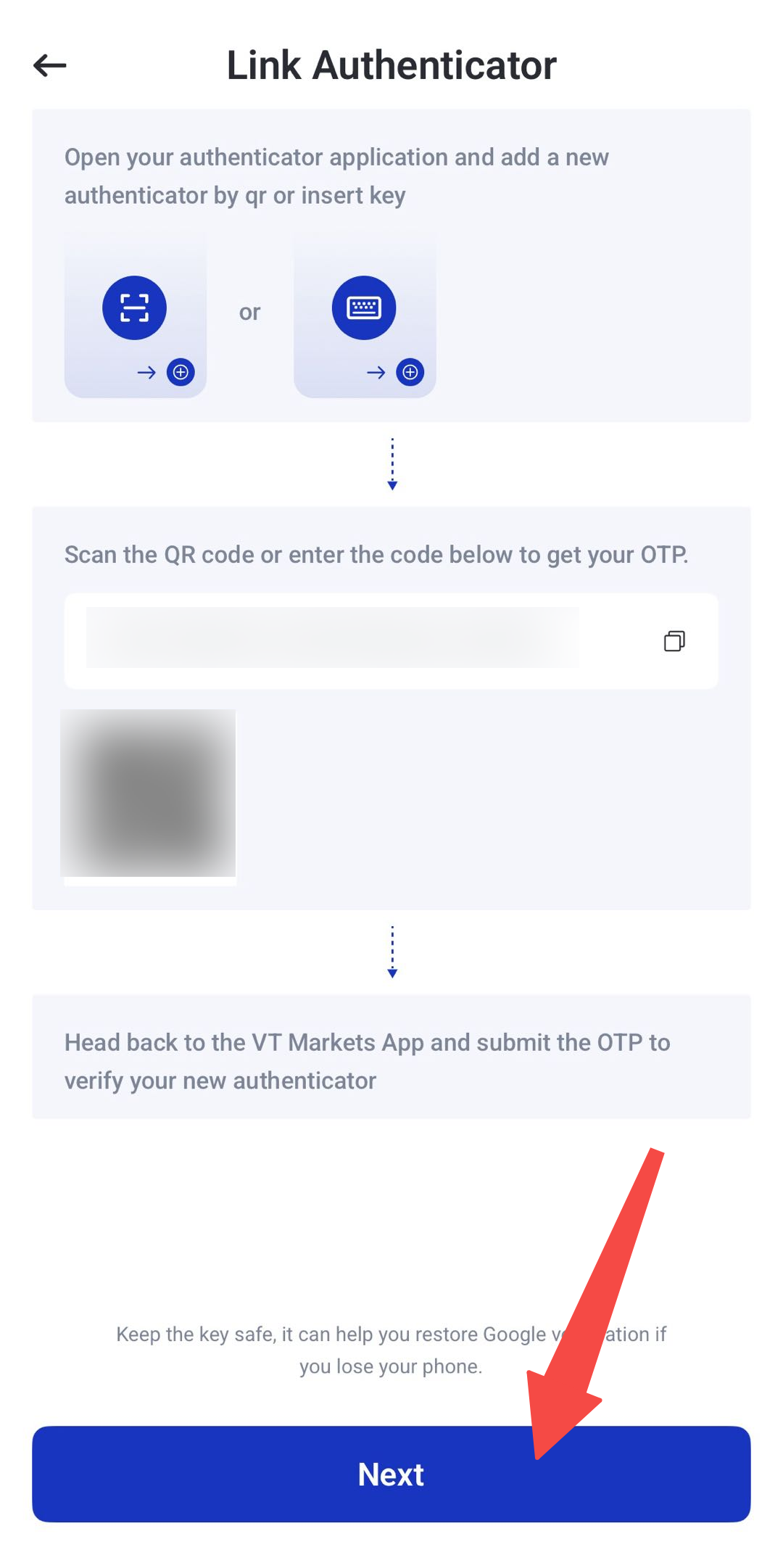
On the Link Authenticator page, you will see a QR code and a setup key.
You can link your authenticator app in one of two ways:
- Scan the QR code.
- Enter the setup key manually.
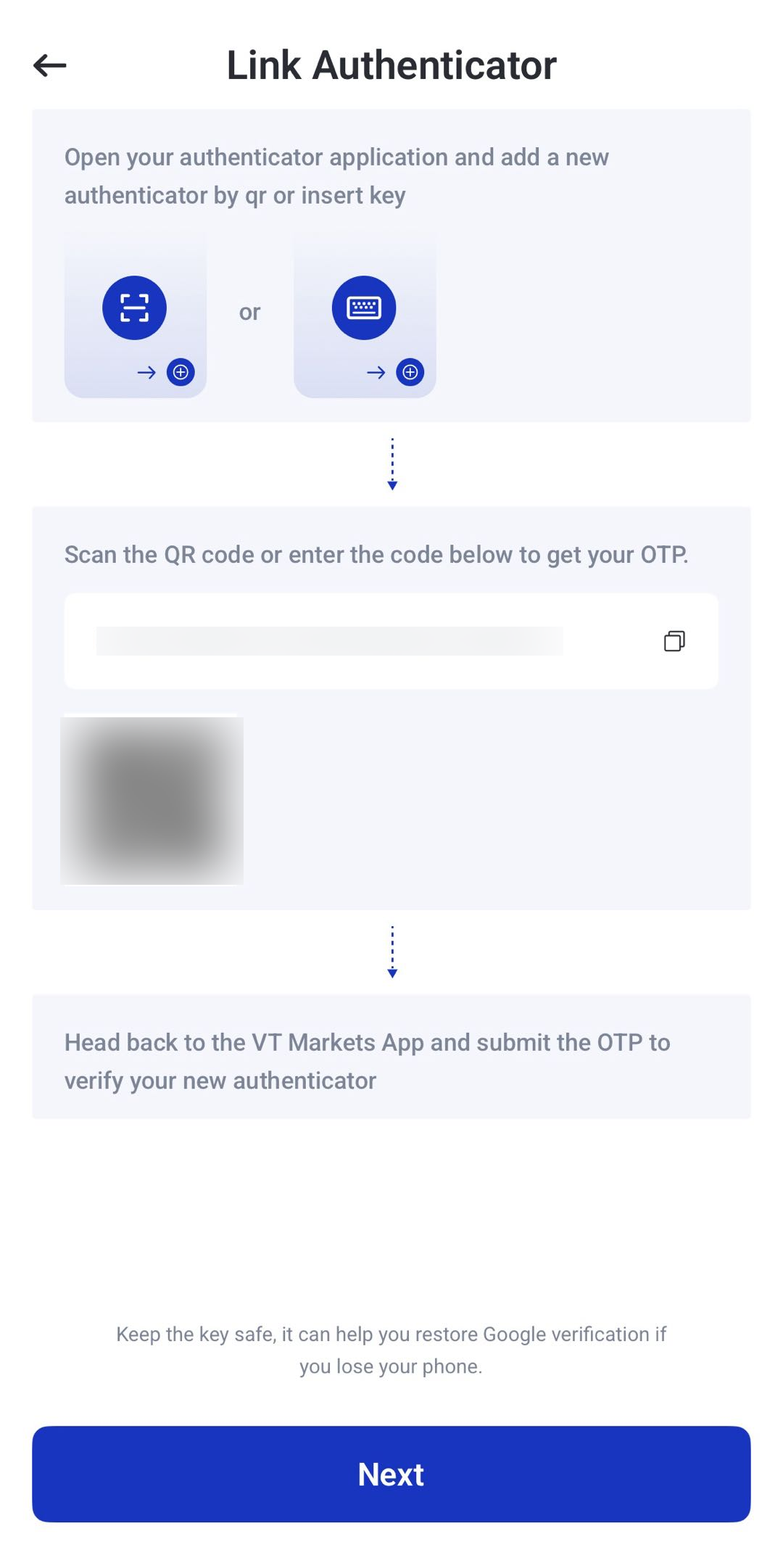
Note: If you choose the QR code method, scan the QR code with your authenticator app. Your VT Markets account should be added automatically. Then return to the VT Markets app and enter the verification code.
Manual Setup Using an Authenticator App
For this guide, we will use the manual setup method instead of scanning the QR code.
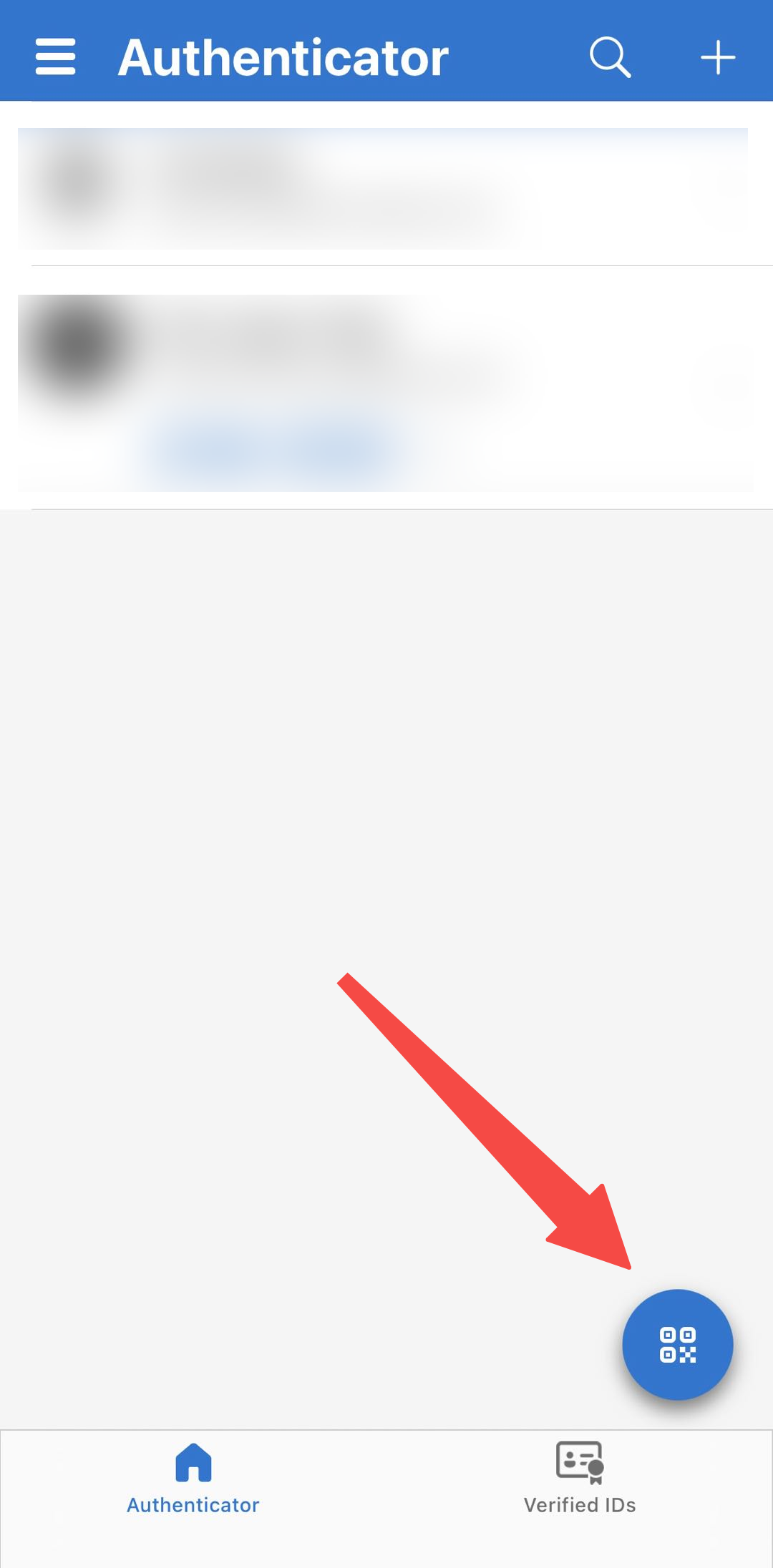
1. Open your authenticator app and add a new account.
If you are using Microsoft Authenticator, tap the barcode symbol. Then choose Enter Code Manually.
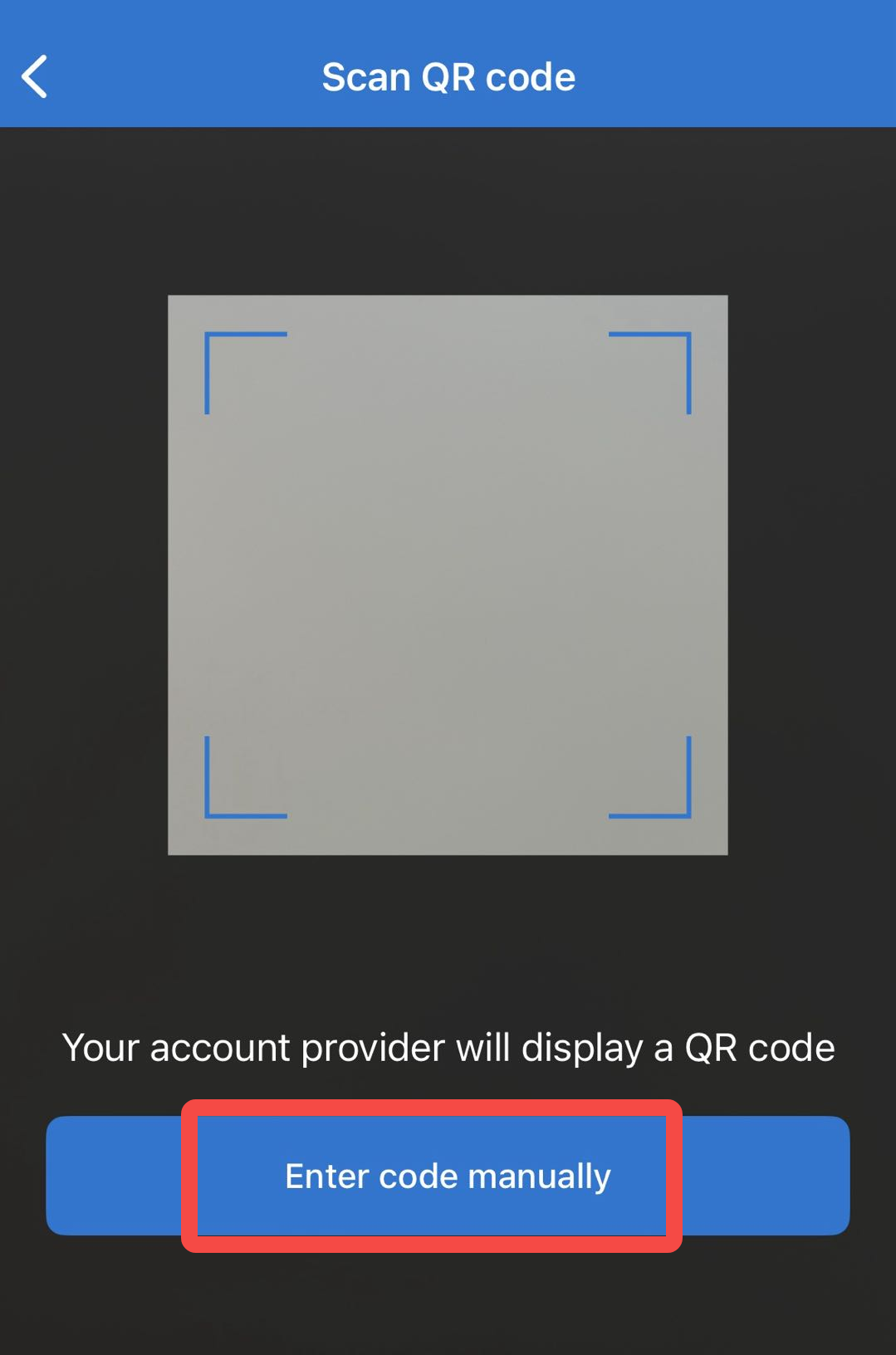
2. Select Other Account or a similar option, depending on the authenticator app you are using.
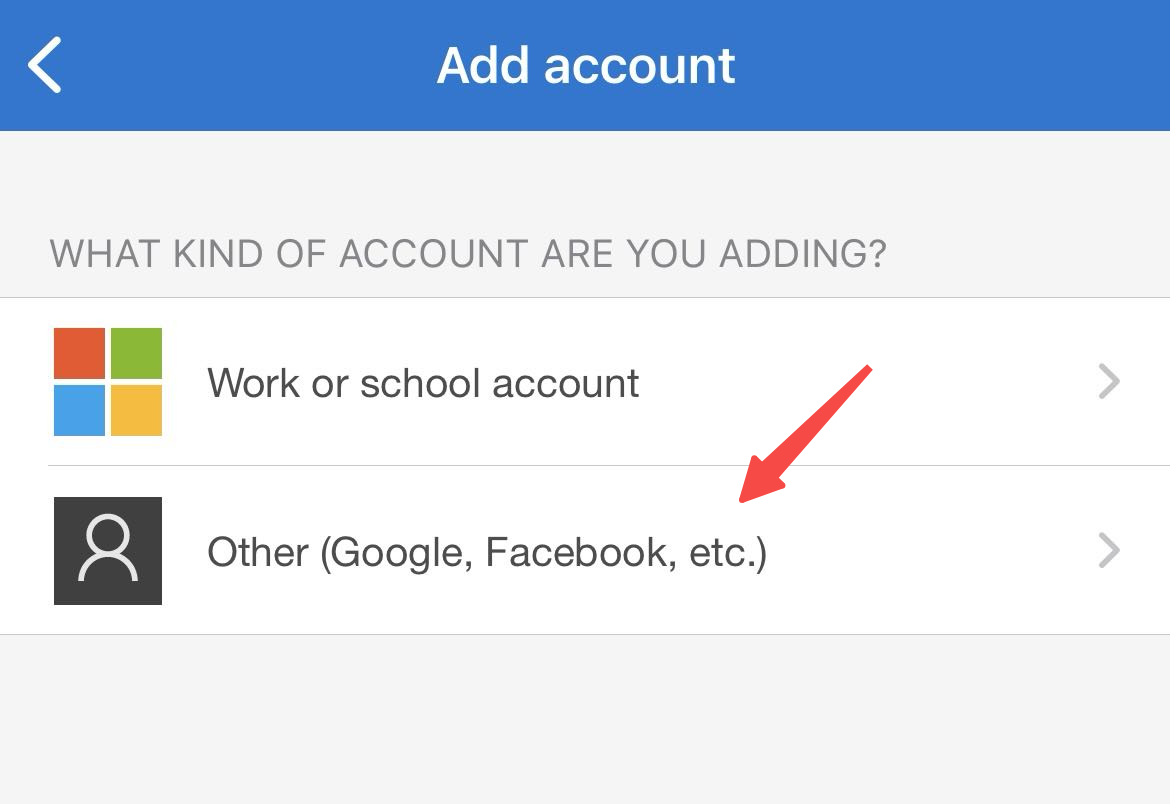
3. Return to the VT Markets app and copy the setup key shown on the Link Authenticator page.
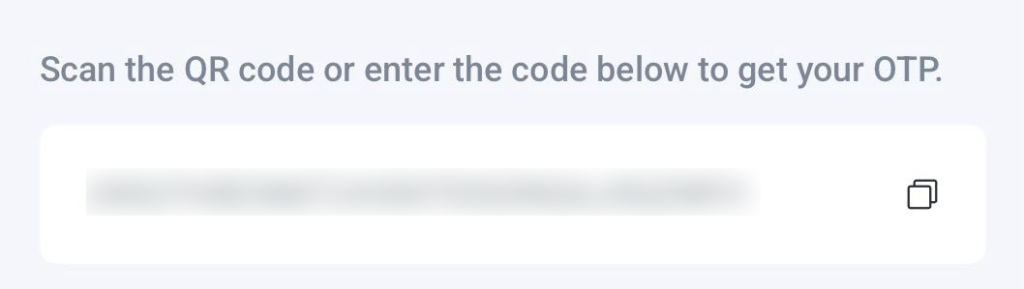
4. Go back to your authenticator app.
Enter an account name, such as VT Markets, then paste the setup key into the Secret Key field.
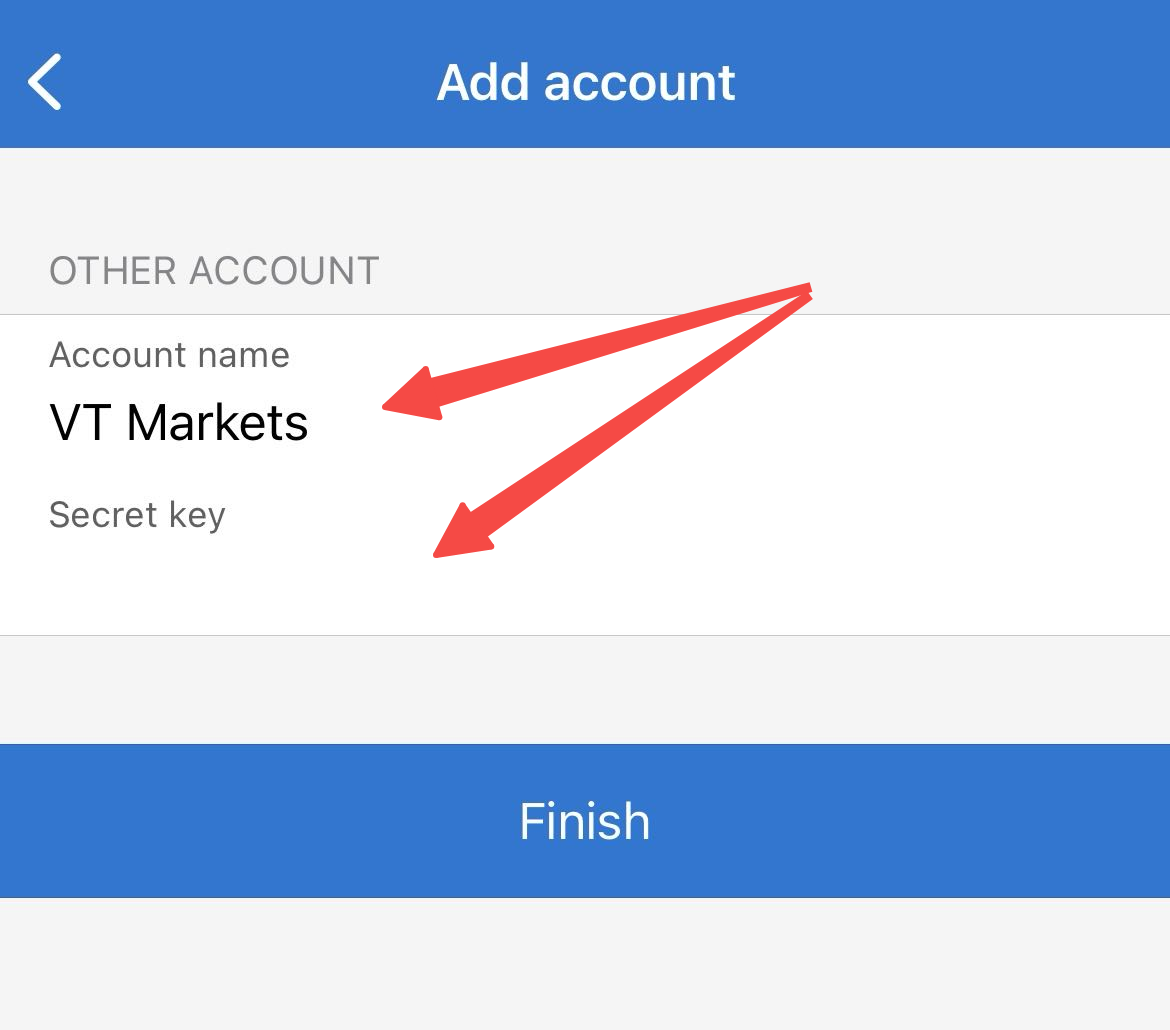
5. Tap Finish to complete the setup in your authenticator app.
6. Once added, VT Markets should appear in your authenticator app with a time-sensitive verification code.
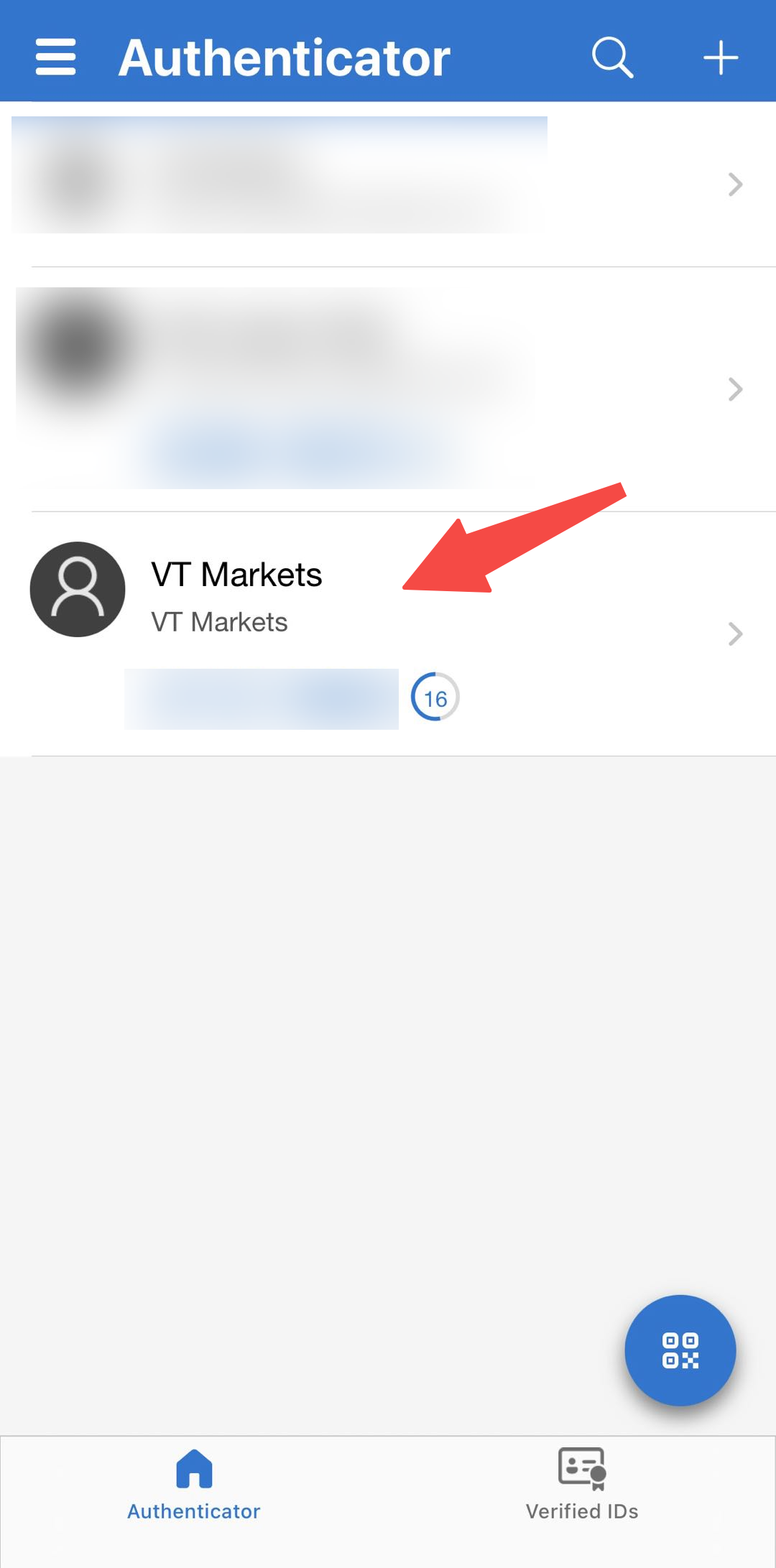
Step 4: Complete Verification in the VT Markets App
1. Return to the VT Markets app and tap Next.
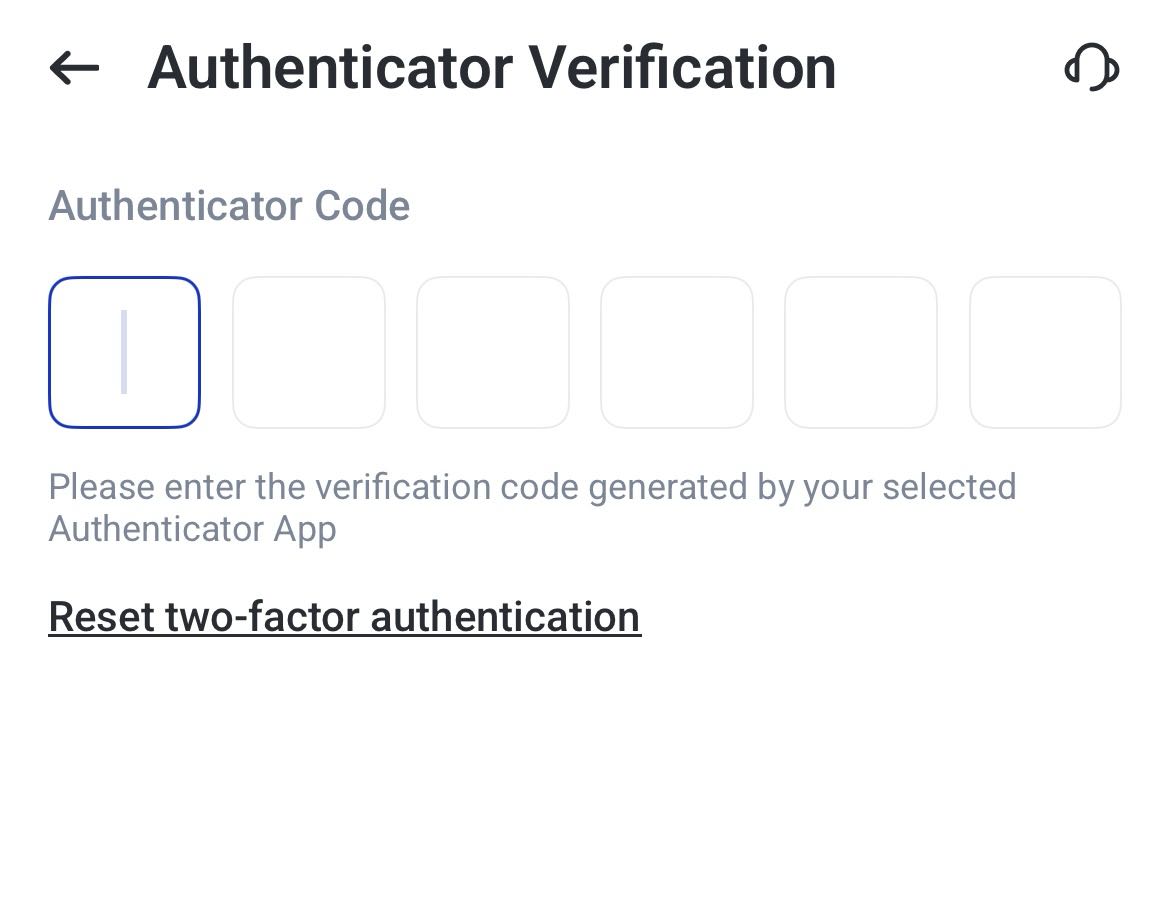
2. Enter the verification code generated by your authenticator app
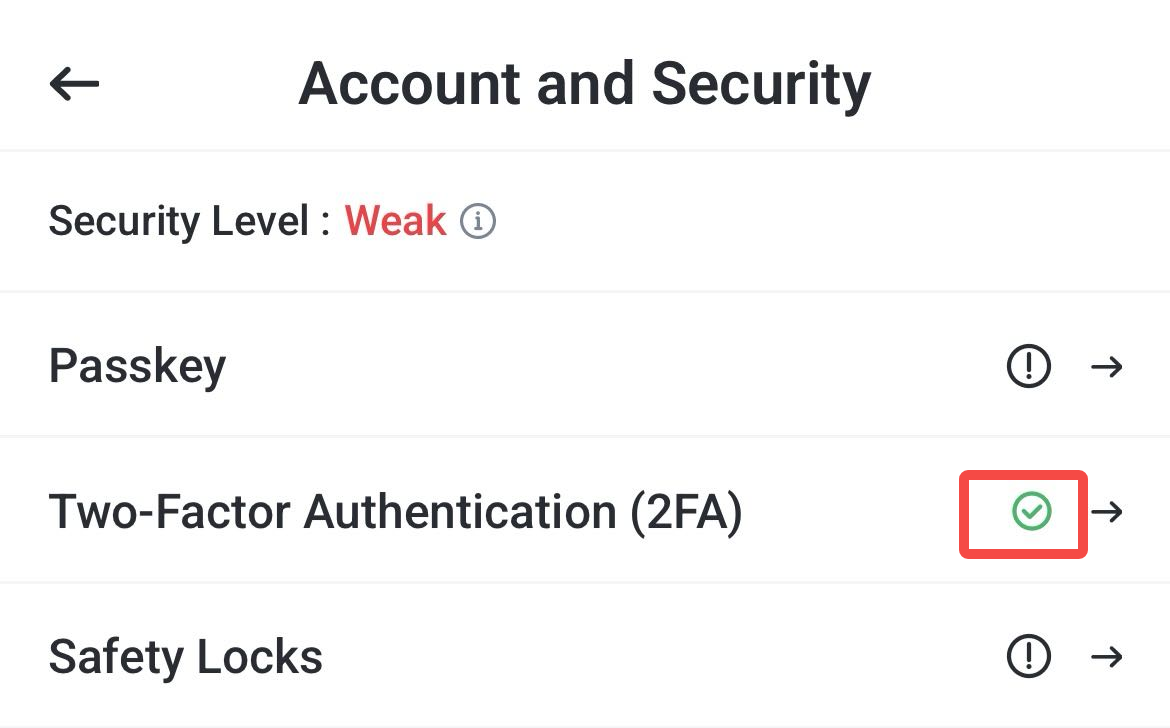
3. Once the setup is successful, you should see a green tick beside 2FA.
This means two-factor authentication has been enabled for your VT Markets account.
How to Change or Reset 2FA on VT Markets
You may need to change or reset your 2FA if you are switching to a new authenticator app, changing to a new device, or no longer have access to your current authenticator.
Choose the option that matches your situation:
| Action | When to Use It |
| Change 2FA | Use this if you still have access to your current authenticator app |
| Reset 2FA | Use this if you no longer have access to your current authenticator app |
Update Your Existing 2FA Setup
Changing 2FA allows you to replace your current authenticator setup with a new one while keeping your account protected during the process.
1. Log in to the VT Markets app and go to Account and Security.
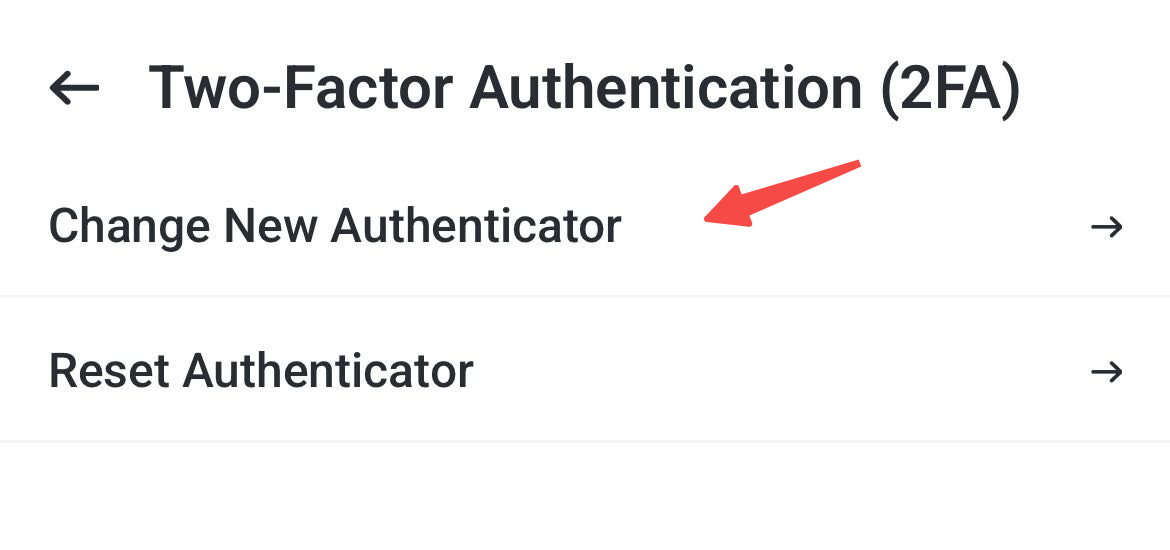
2. Tap Two-Factor Authentication (2FA) to open your 2FA settings.
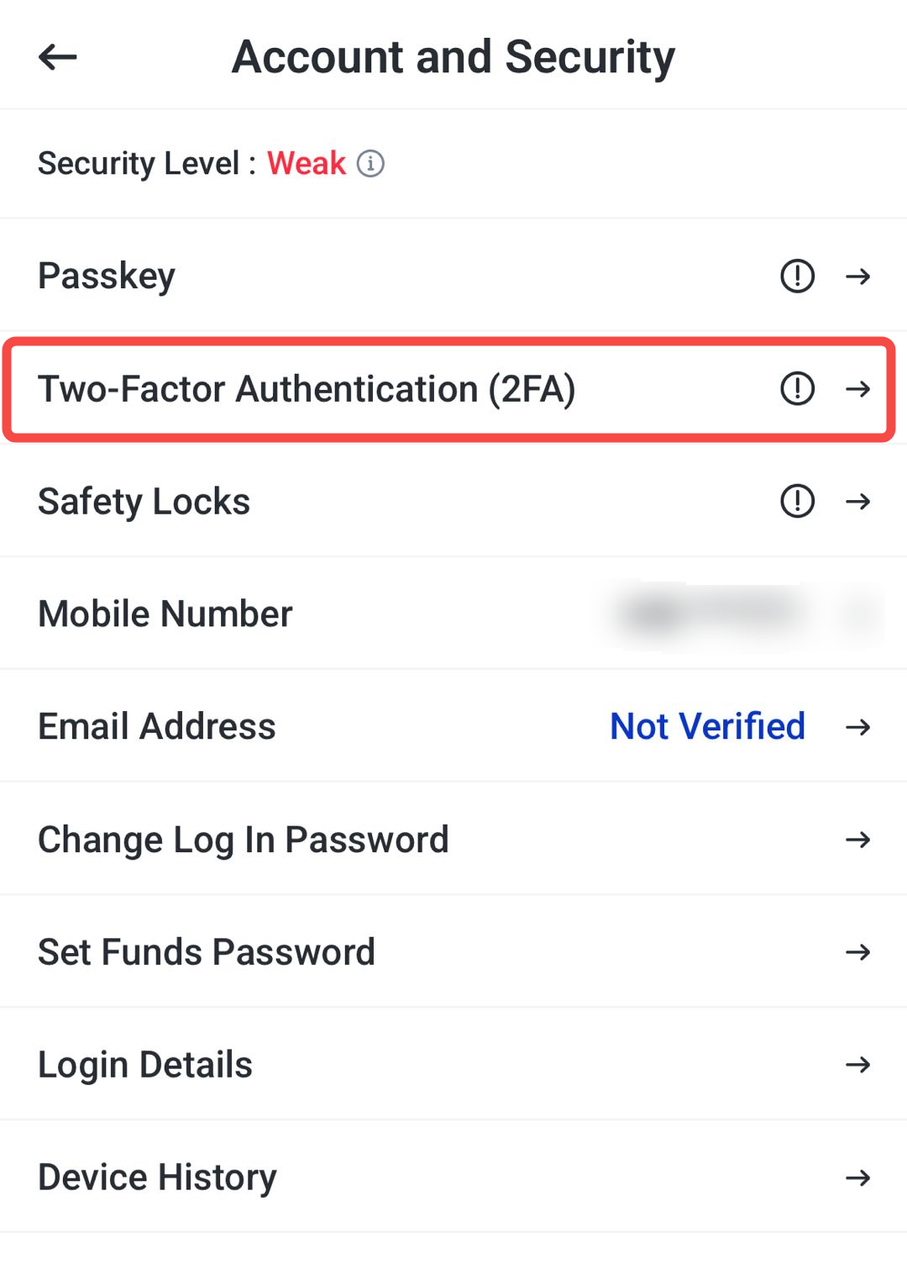
3. Click change new authenticator
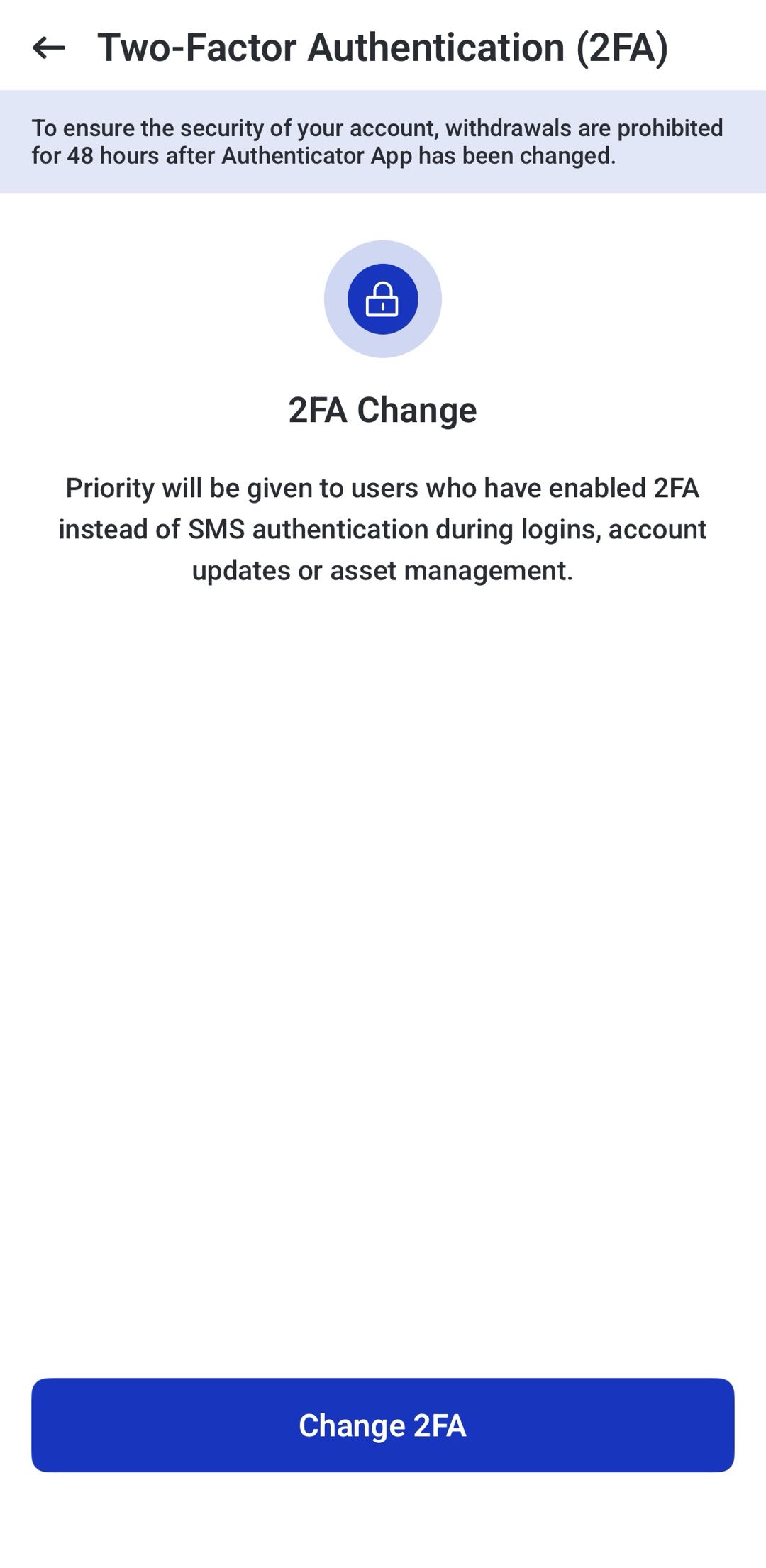
4. You will be directed to the 2FA Change page. Review the security notice, then tap Change 2FA to continue.
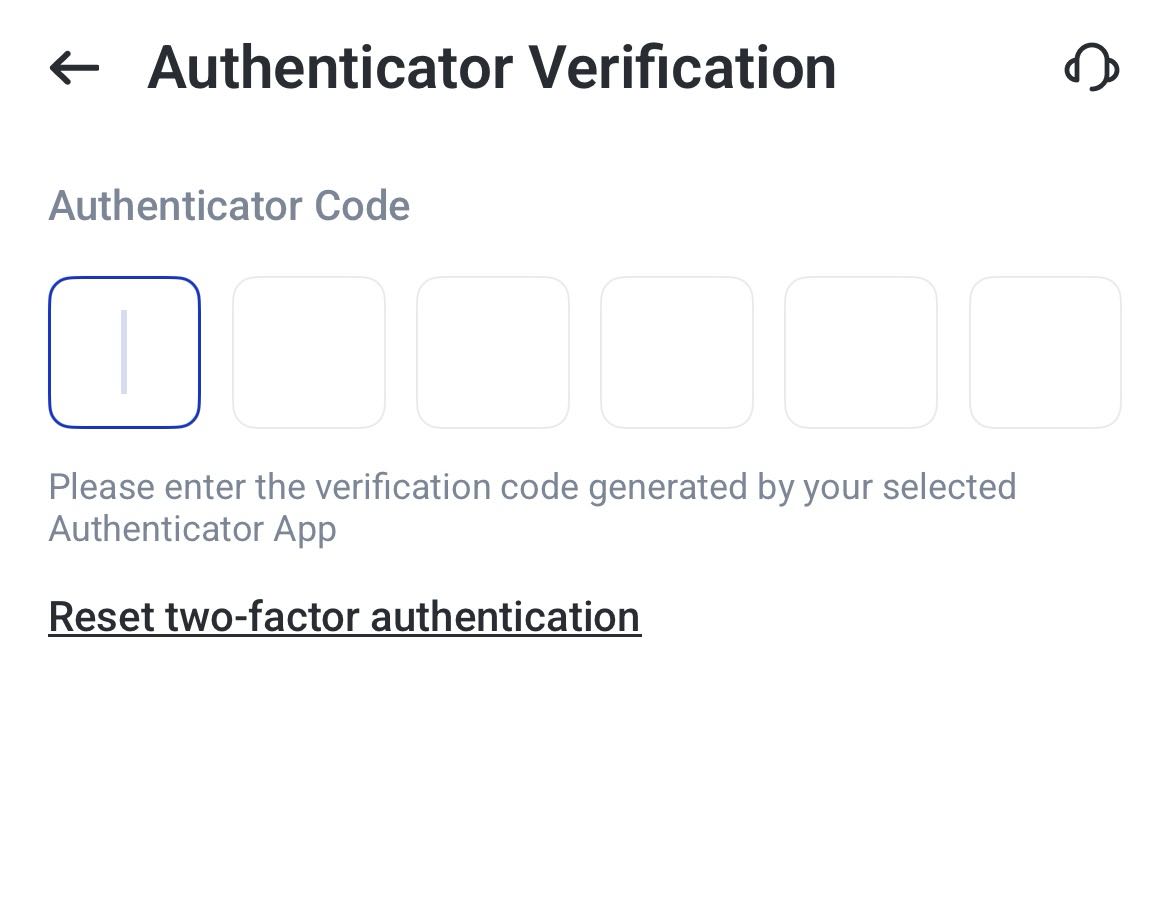
5. Enter the verification code generated by your current authenticator app.
This confirms that you still have access to your existing 2FA method before linking a new one.
6. You will be directed to the new authenticator setup page.
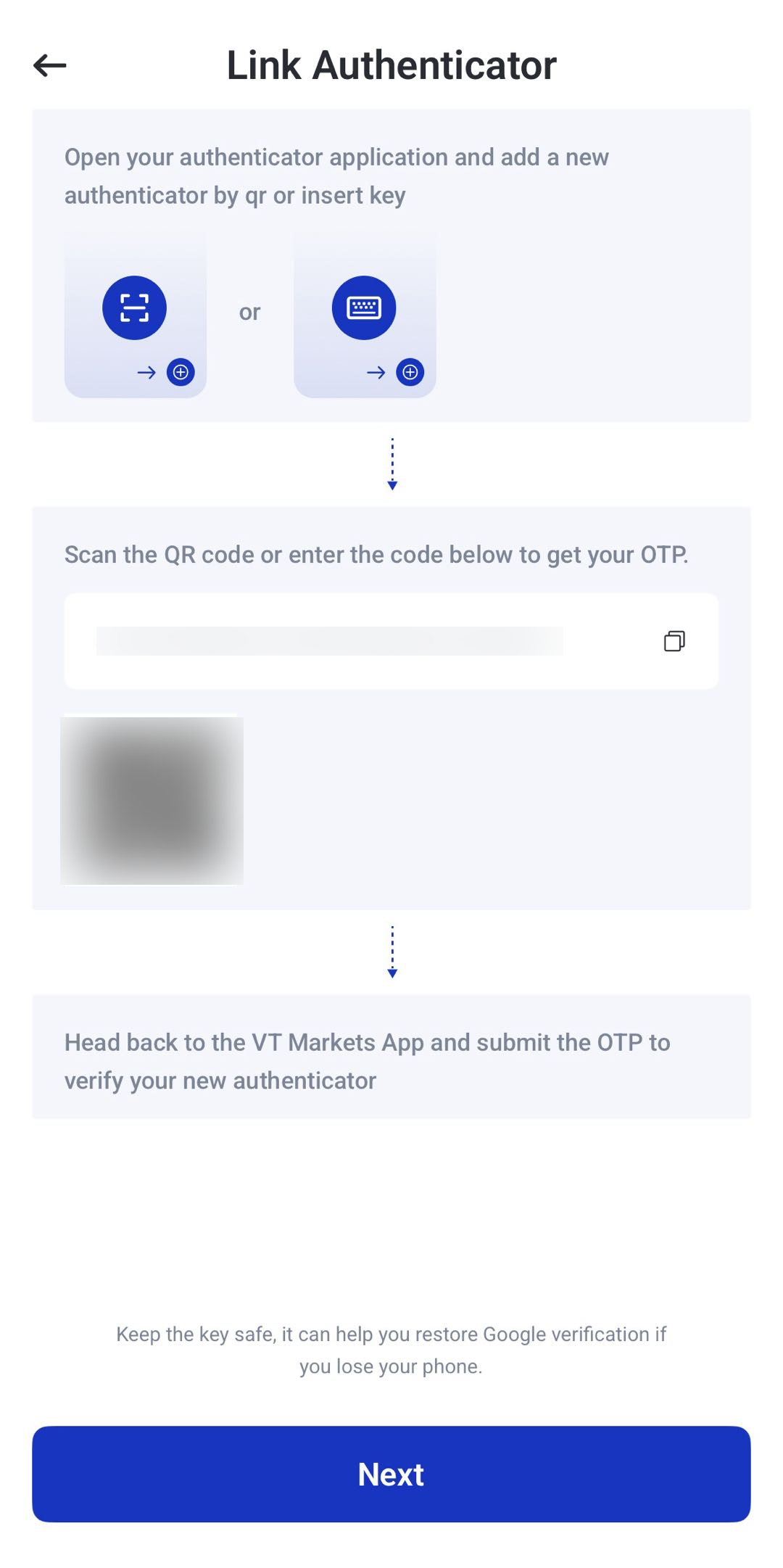
7. Link your new authenticator app using the same method as the first-time setup. You can either scan the QR code or copy the setup key into your new authenticator app.
8. Once the new authenticator app has been linked, a verification code may be sent to your registered email address.
9. Enter the email verification code, then enter the new verification code generated by your new authenticator app.
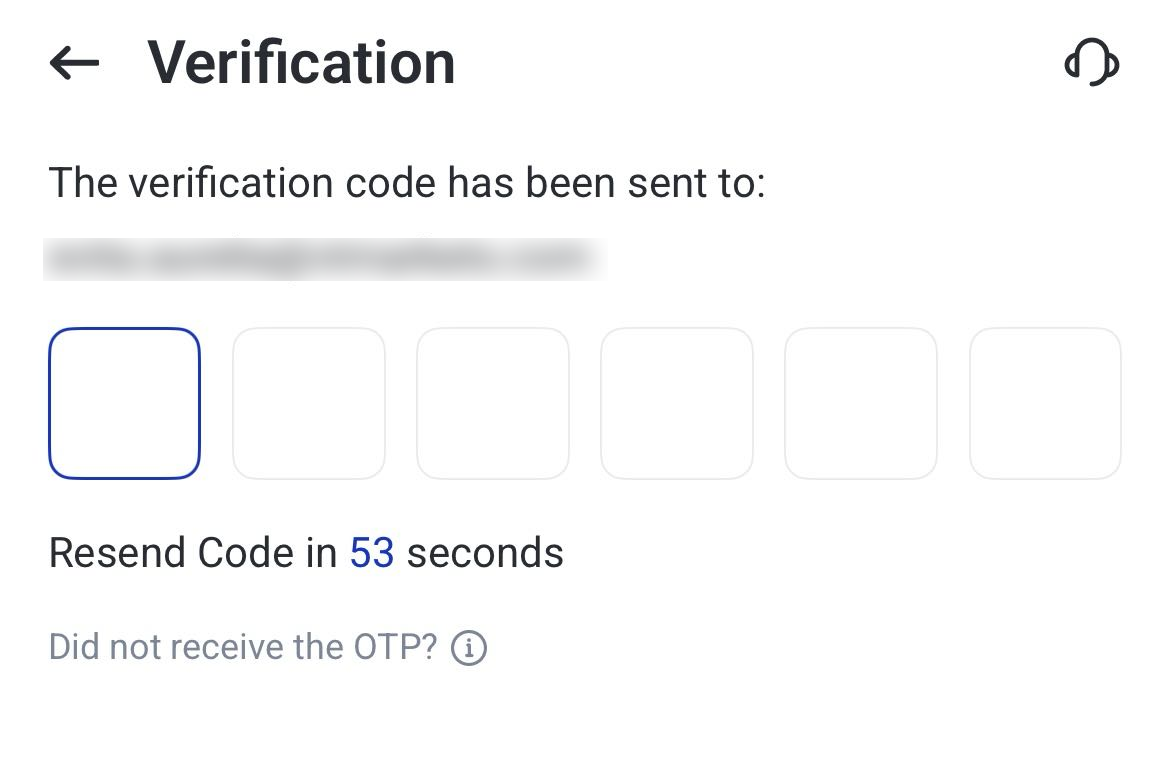
10. After the verification is complete, your 2FA will be changed successfully.
Reset Your Authenticator Access
Use this option if you no longer have access to your current authenticator app.
1. Go to Account and Security, then tap Two-Factor Authentication (2FA).
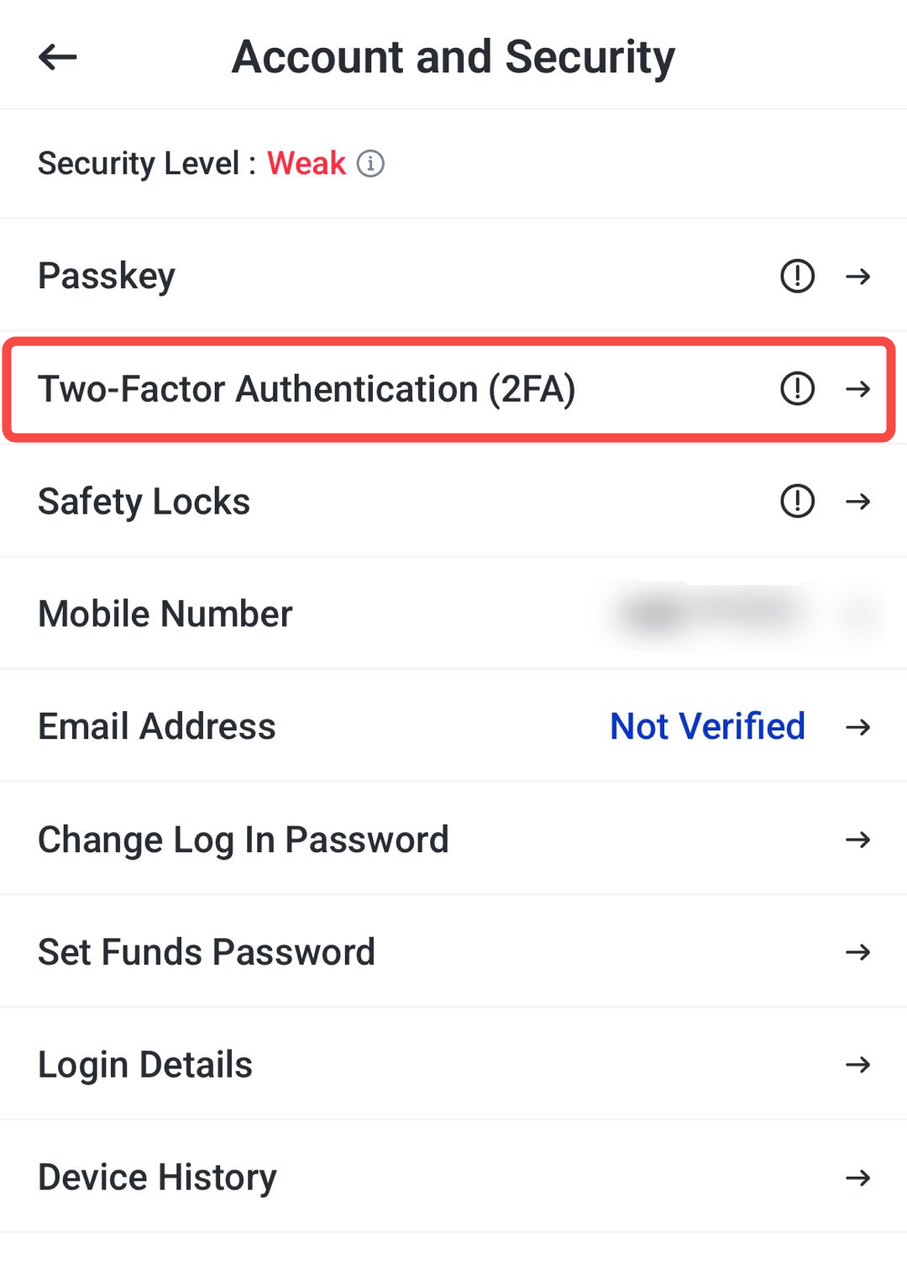
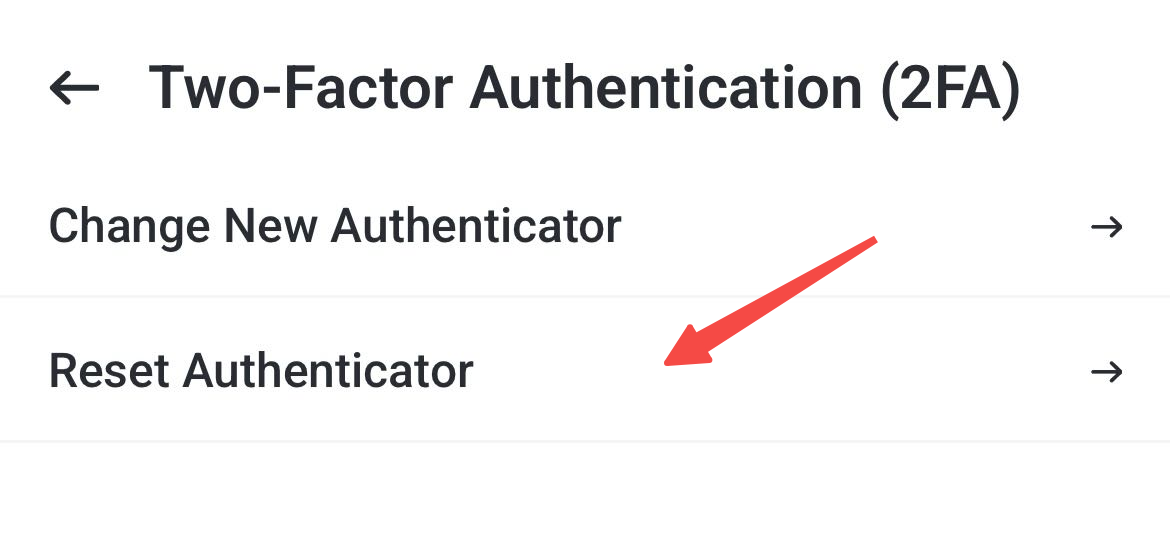
2. Click reset authenticator
3. Tap reset 2FA and submit the Required Information and follow the instructions on the reset page and send the required information to [email protected].
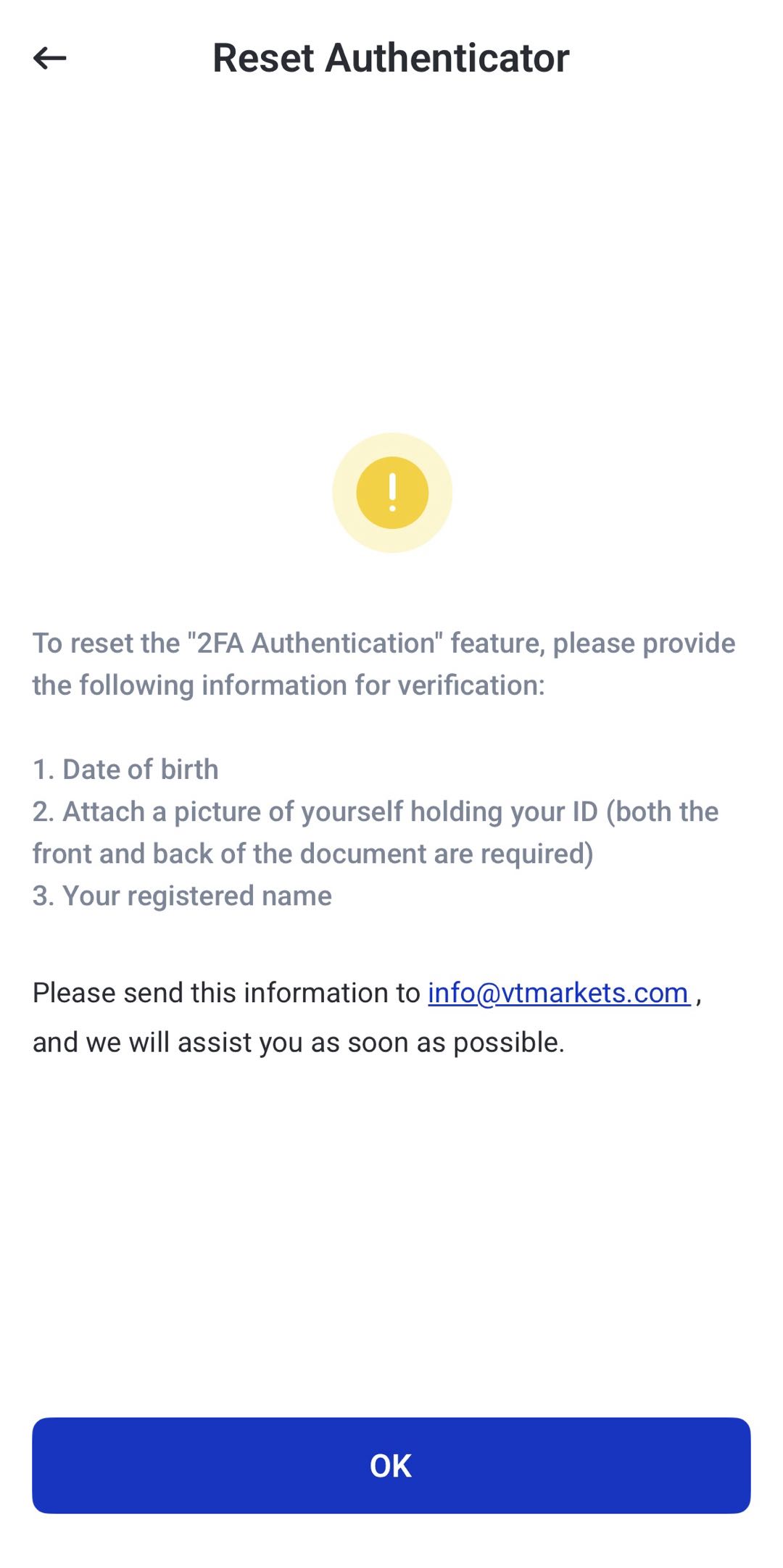
Once your request has been reviewed, the VT Markets team will assist with the 2FA reset process.
How to Set Up Passkey on VT Markets
Passkey is another security feature available in the VT Markets app. It allows you to use device-based authentication where supported, such as biometric verification or your device’s screen lock.
This can make account access more secure and convenient, as passkeys are tied to your device authentication method.
Step 1: Open the Passkey Settings
On the Account and Security page, find Passkey and tap it.
This will open the Passkey settings page, where you can add or manage device-based verification for your VT Markets account.
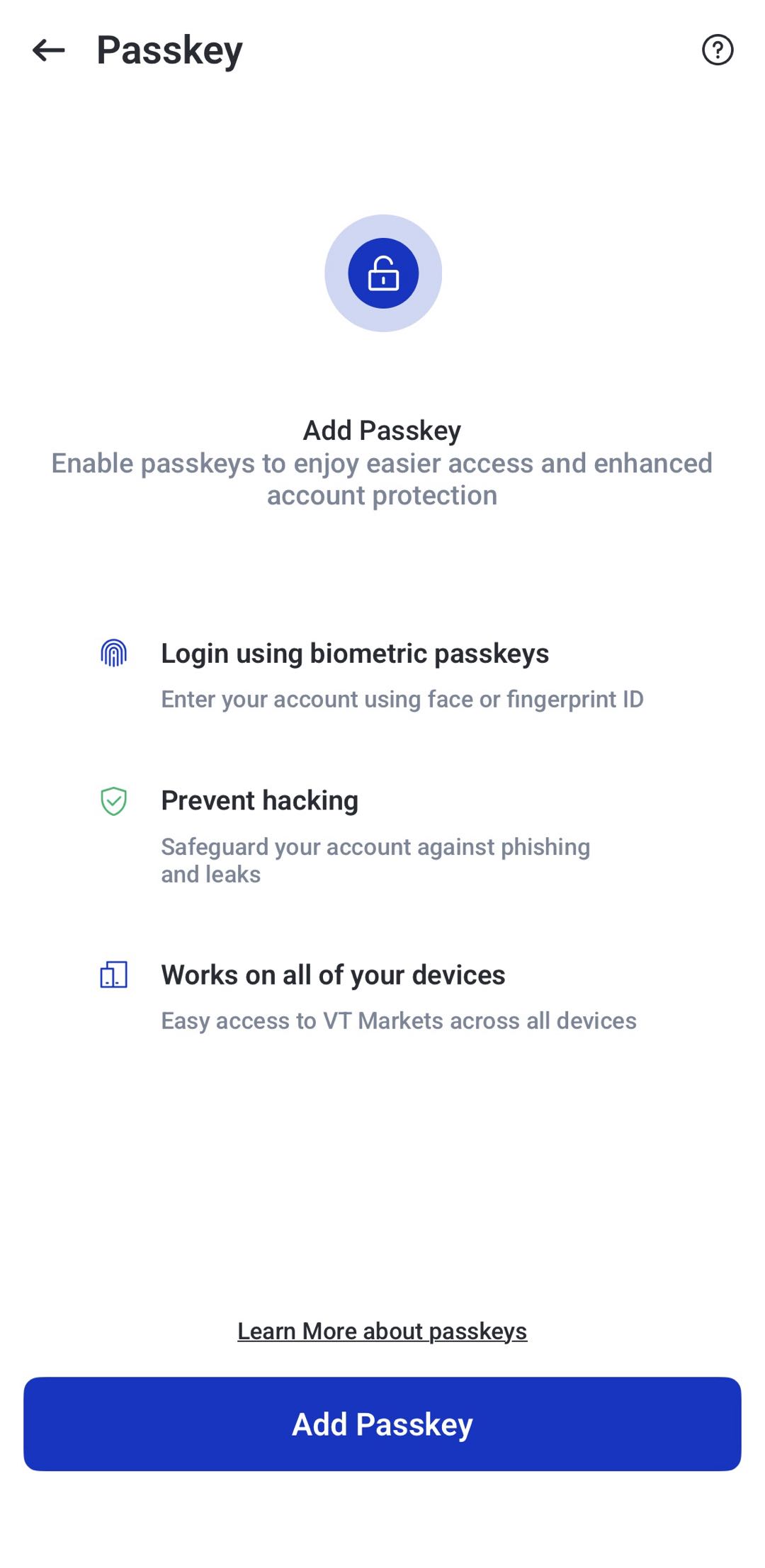
Step 2: Tap Add Passkey
Tap Add Passkey to begin the setup process.
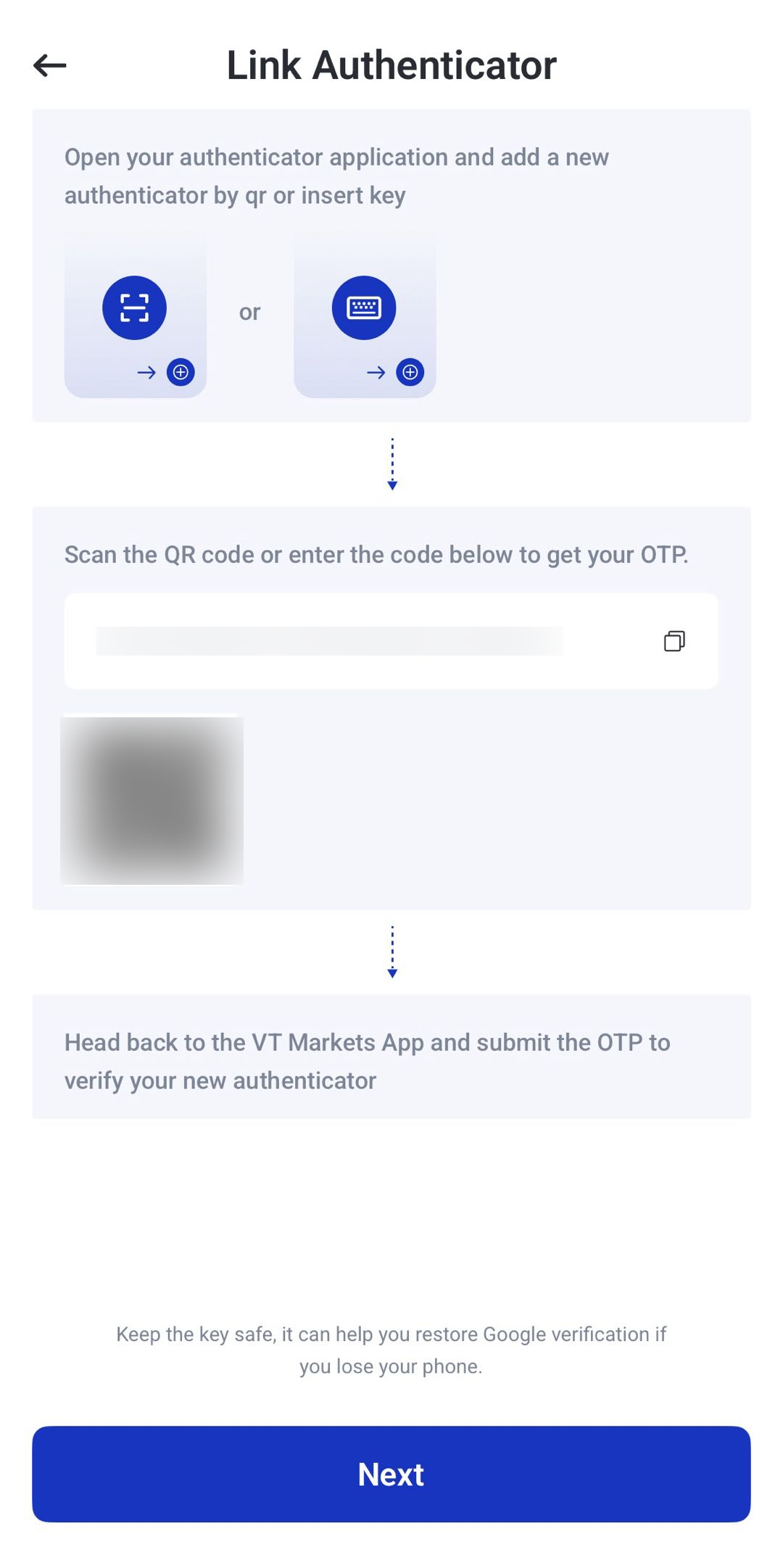
Step 3: Complete the Authenticator Linking Step
This step is similar to the 2FA setup process. You will need to link an authenticator app again by using either the QR code or the setup key shown in the VT Markets app.
You can complete this in one of two ways:
- Scan the QR code with your authenticator app.
- Copy the setup key and enter it manually in your authenticator app.
Once the authenticator app has been linked, return to the VT Markets app and tap Next.
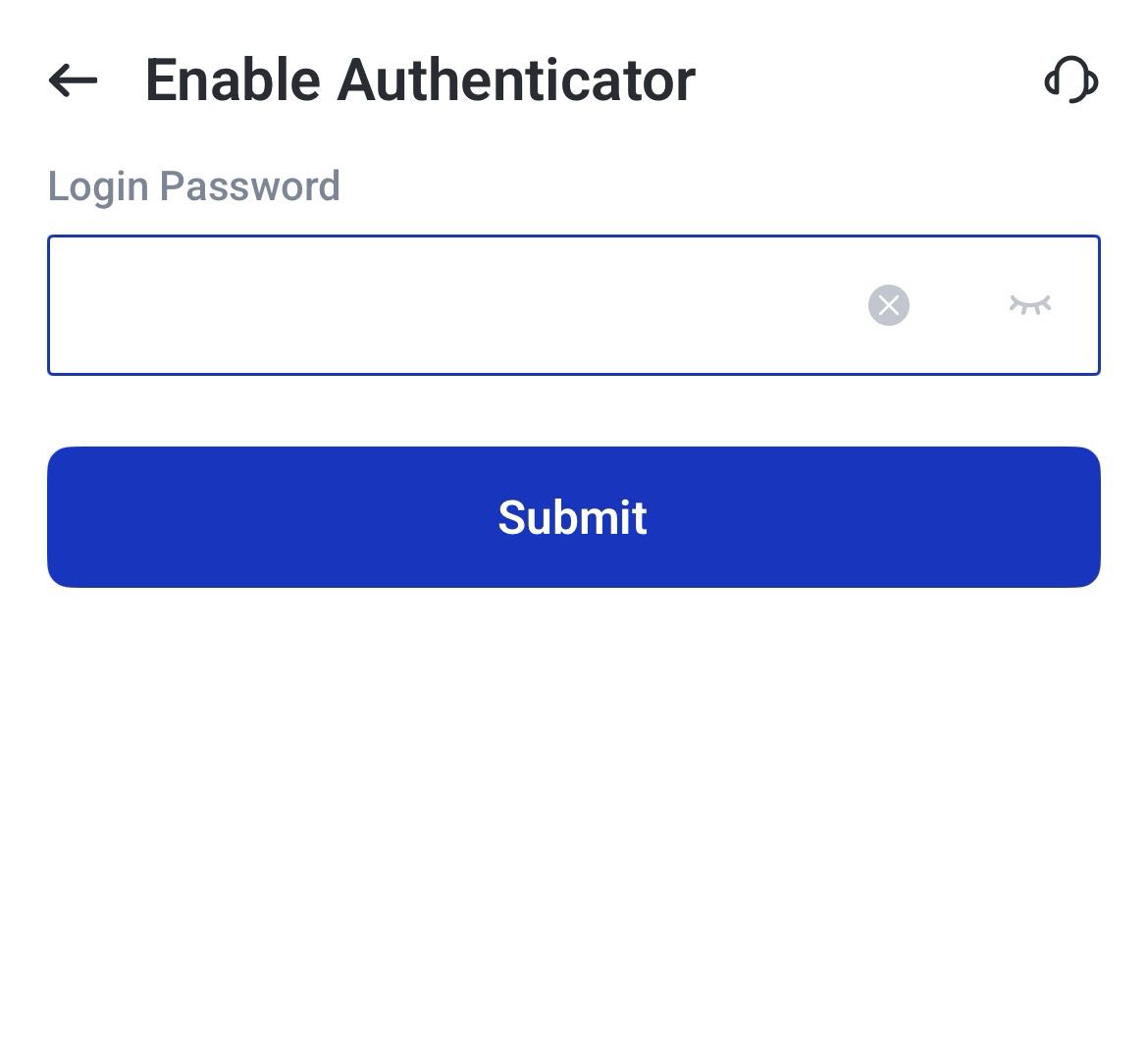
Step 4: Continue the Passkey Setup
Enter your Client Portal login password when prompted, then tap Submit.
Step 5: Confirm That Passkey Is Enabled
Once the setup is complete, the app should show that your passkey has been added successfully.
This means you can use passkey verification on your device where supported.
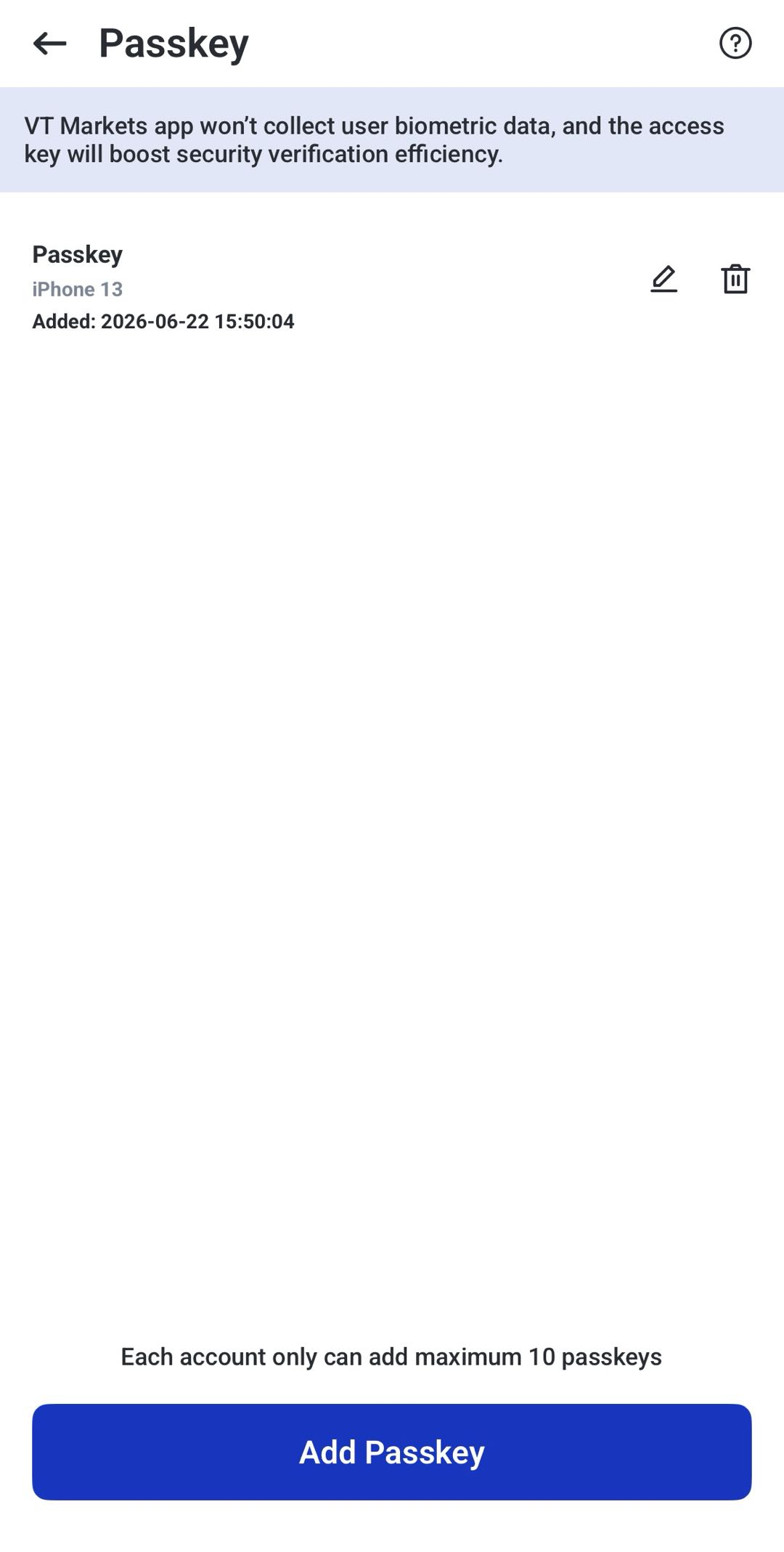
Note: Passkey and 2FA are not the same. Passkey uses your device authentication method, while 2FA uses a one-time verification code from an authenticator app. If the app asks for an authenticator code during passkey setup, this is used to verify the setup request.
How to Enable Safety Locks on VT Markets
Safety Locks help protect your VT Markets app by requiring Face ID, pattern unlock, or both before access is granted.
This feature can be useful if your device is left unattended or used by someone else, as they can open your VT Markets App , trades, orders, deposit, withdrawal.
Step 1: Go to Security
Log in to the VT Markets app, open the menu, and tap Security.
Step 2: Tap Safety Locks
On the Account and Security page, tap Safety Locks.
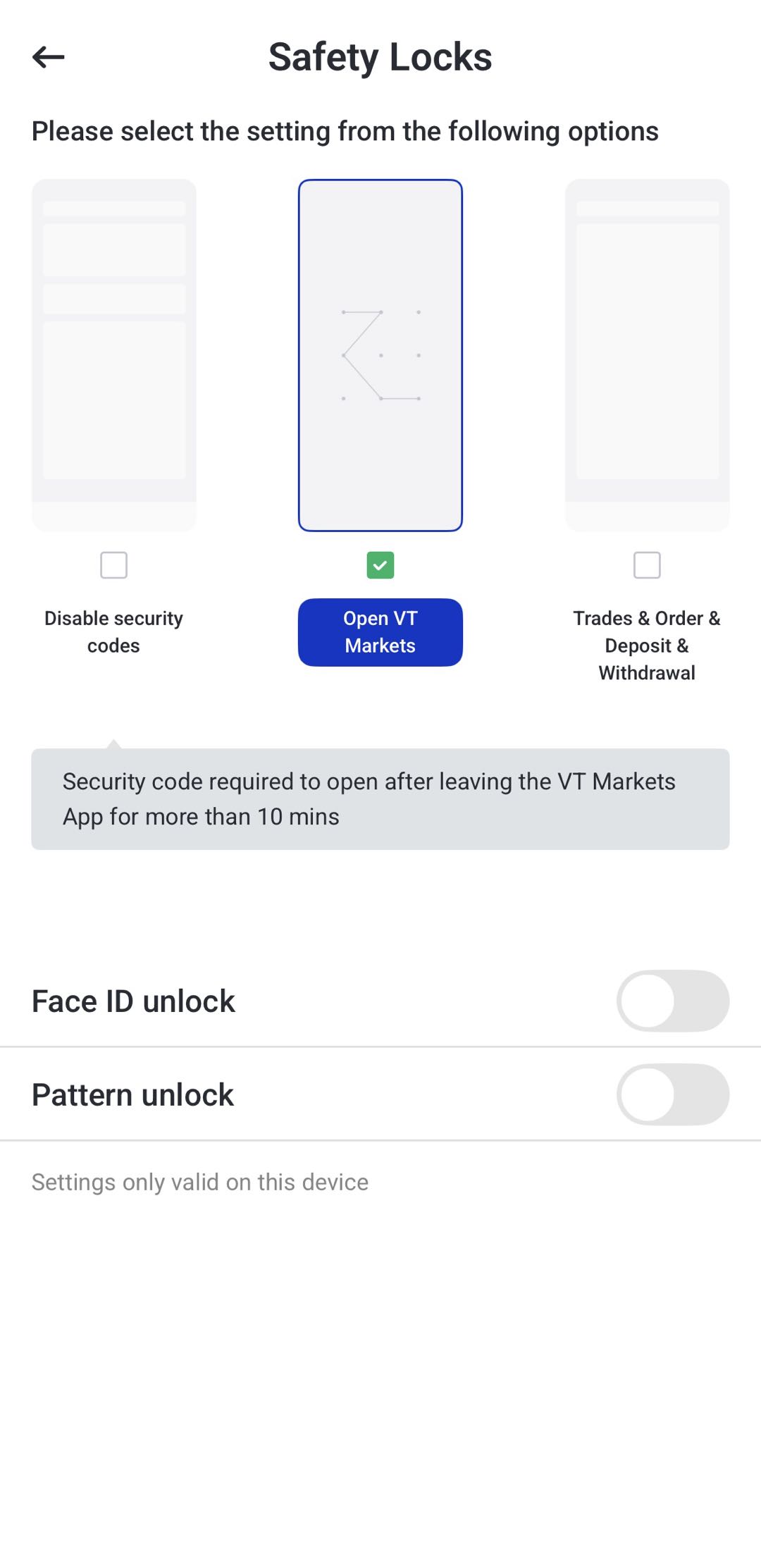
Step 3: Choose Your Preferred Lock Method
Select your preferred protection setting.
Depending on the options available in your app, you may be able to choose:
- Face ID unlock
- Pattern unlock
- Both Face ID and pattern unlock
Step 4: Confirm the Setup
Once enabled, the VT Markets app may require your selected lock method before allowing access.
Managing Your VT Markets Passwords
Your Client Portal password and funds password are managed separately. This helps keep account access organised because each password is used for a different purpose.
Your Client Portal password is used to log in to the VT Markets app, access your dashboard, manage your profile, and update account settings.
Your funds password is linked to a specific trading account and is used for fund-related actions where required.
How to Change Your Client Portal Password
You can change your Client Portal password from the Account and Security page.
Step 1: Select Change Log In Password
On the Account and Security page, tap Change Log In Password.
Step 2: Enter Your New Password
Enter your new password, then re-type the same password to confirm it.
Make sure both passwords match before continuing.
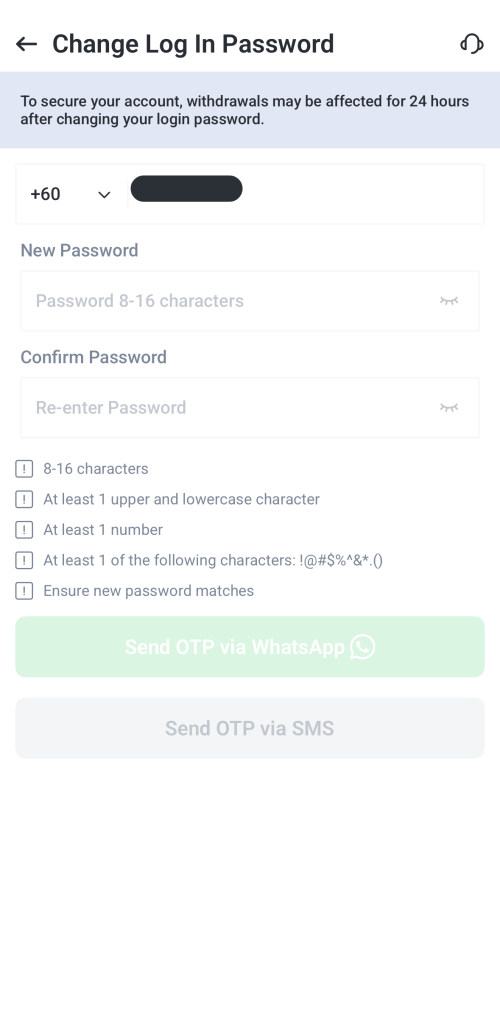
Step 3: Request an OTP
Tap Send OTP and choose the available verification method, such as WhatsApp or SMS.
Step 4: Confirm the Password Change
Enter the OTP you receive, then follow the on-screen instructions to confirm the change.
Once completed, your Client Portal password will be updated.
Note: If you have forgotten your password, click Forgot password on the login page and follow the reset instructions sent to your registered email address.
Security Reminder: As an added security measure, withdrawals will only become available again 24 hours after the Client Portal password has been successfully changed or reset.
How to Set or Change Your Funds Password
Your funds password is separate from your Client Portal password. It applies only to the selected trading account.
Set Your Funds Password for the First Time
Your funds password is separate from your Client Portal login password. It is used to help protect fund-related actions, such as transfers and withdrawals, where required.
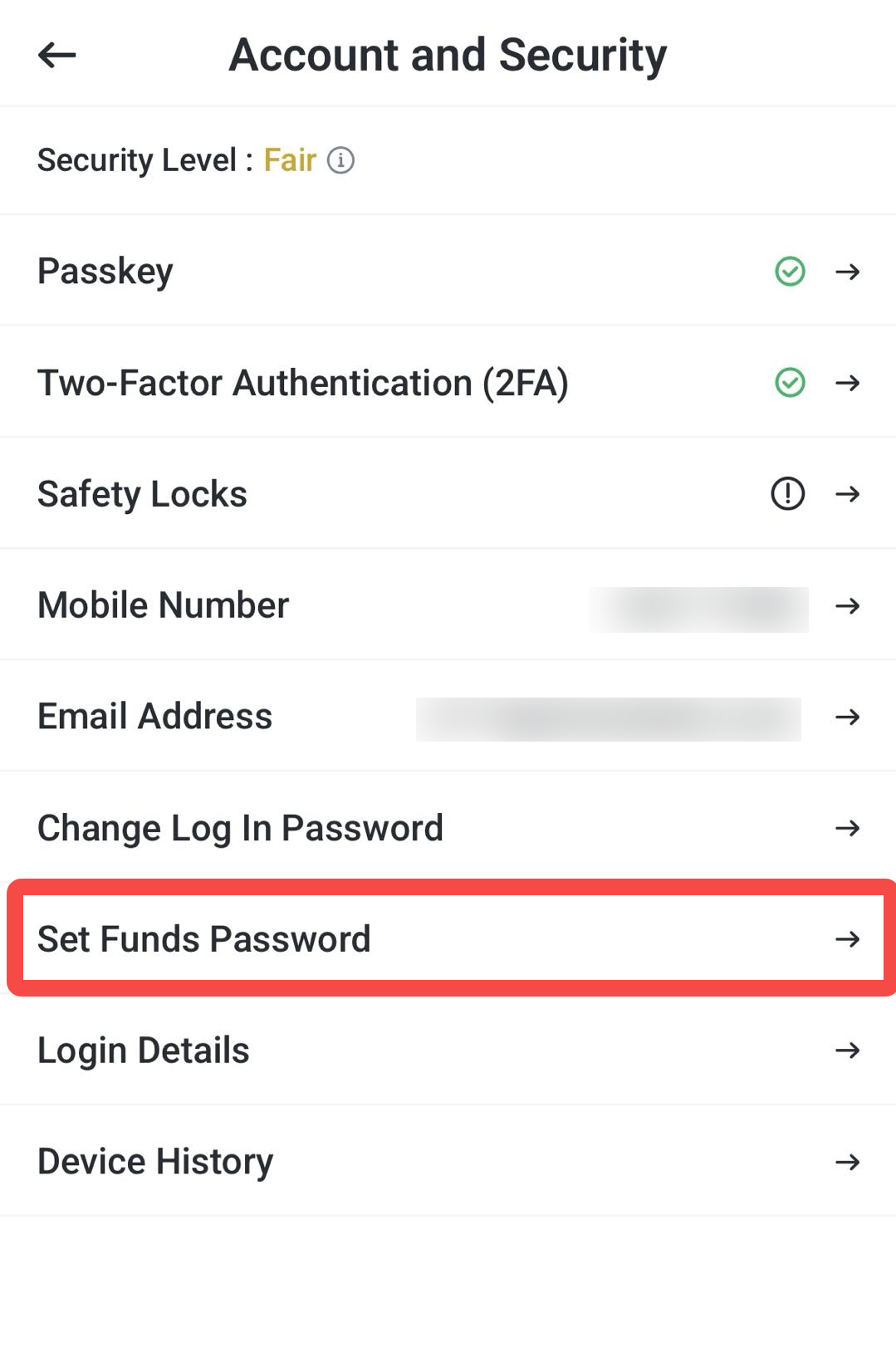
Step 1: Select Set Funds Password
On the Account and Security page, tap Set Funds Password.
Step 2: Create Your Funds Password
Enter a new funds password in the Funds Password field.
Then re-type the same password in the Confirm Your Funds Password field.
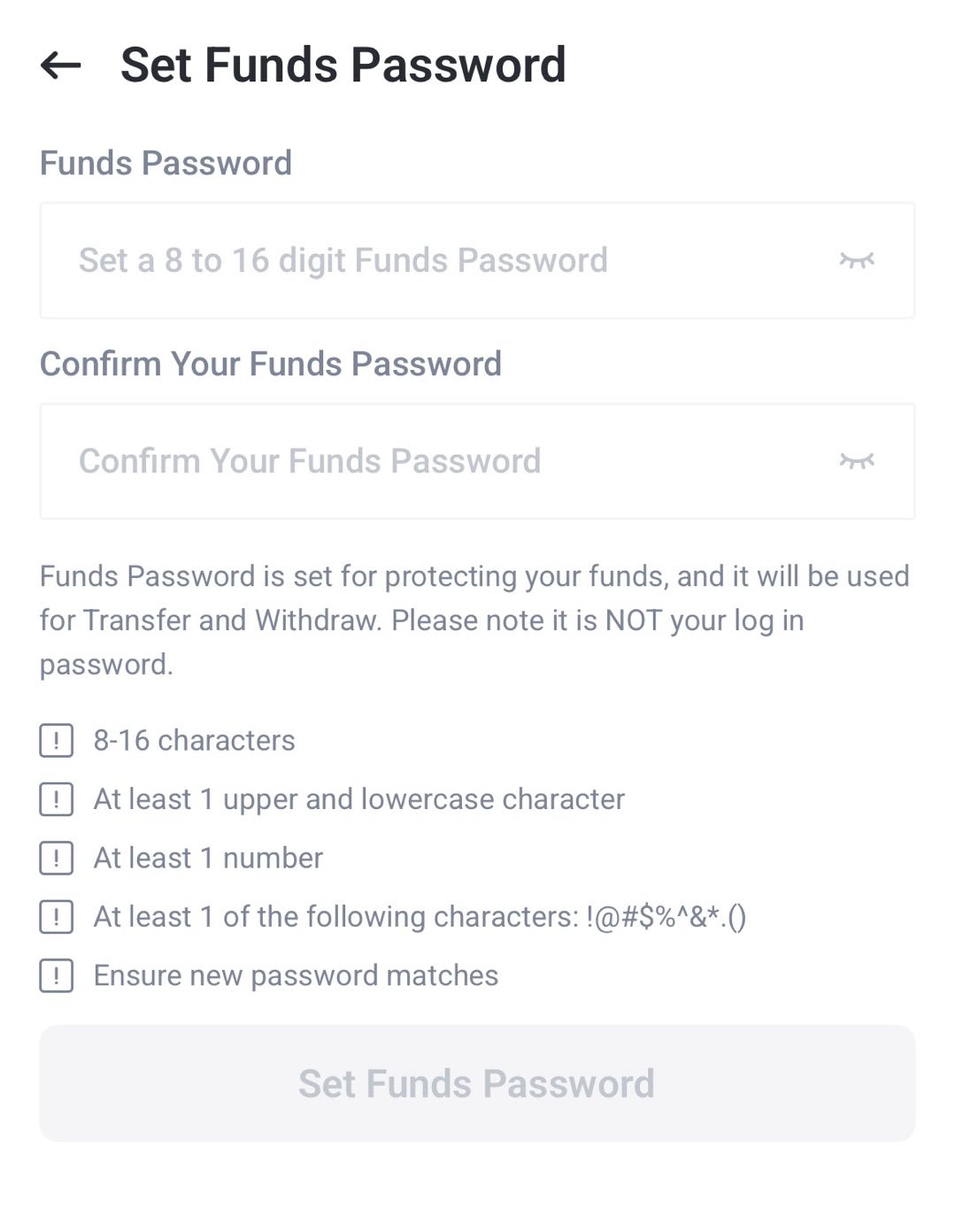
Step 3: Check the Password Requirements
Before continuing, make sure your funds password meets the requirements shown on the screen.
These may include:
- 8 to 16 characters
- At least one uppercase and one lowercase letter
- At least one number
- At least one supported special character
- Both password entries must match
Step 4: Confirm the Setup
Once all requirements are met, tap Set Funds Password to complete the setup.
After the setup is successful, your funds password will be active for the selected account functions.
Note: Your funds password is not your login password. It is used for fund-related actions only.
Change Your Funds Password
If you have already set a funds password, you can change it from the Account and Security page.
Your funds password is linked to a specific trading account. If you have more than one trading account, make sure you select the correct account before changing the password.
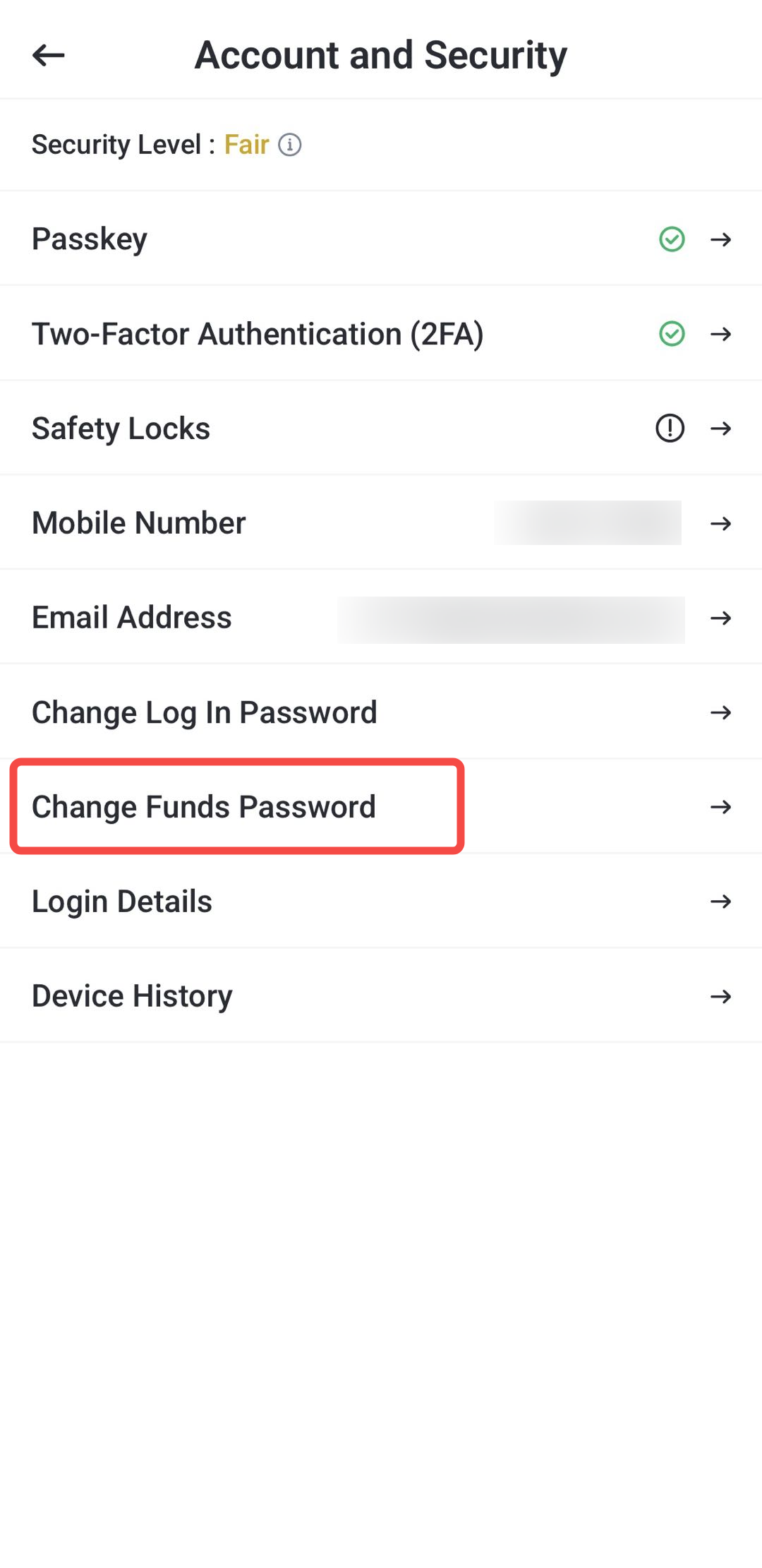
Step 1: Select Change Funds Password
On the Account and Security page, tap Change Funds Password.
Step 2: Select the Trading Account
A pop-up will appear asking you to select the trading account you want to manage. Choose the account linked to the funds password you want to change, then tap Send Now.
The login details for the selected trading account will be sent to your registered email address.
Step 3: Open the Change Funds Password Page
Return to the Account and Security page and tap Change Funds Password again, if prompted.
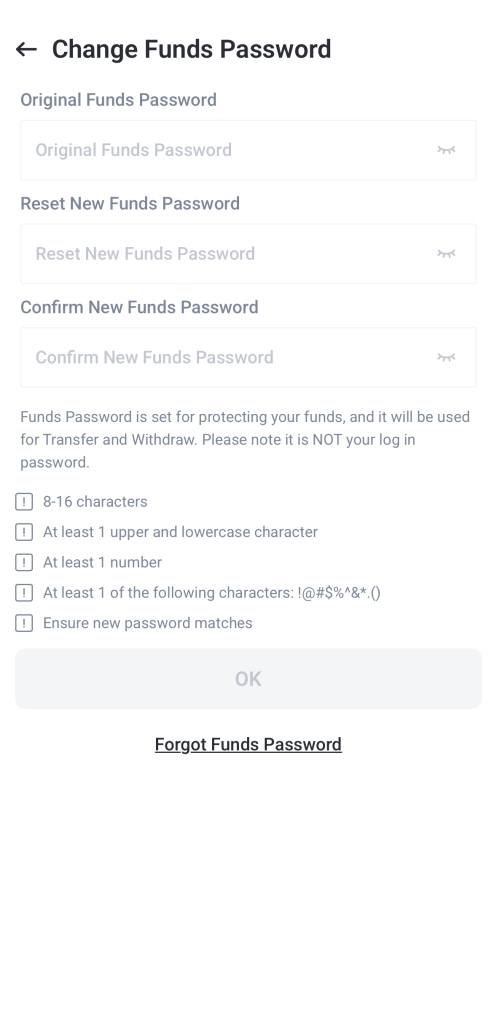
Step 5: Enter Your Password Details
Enter your old funds password, then new funds password and re-type the new password to confirm it.
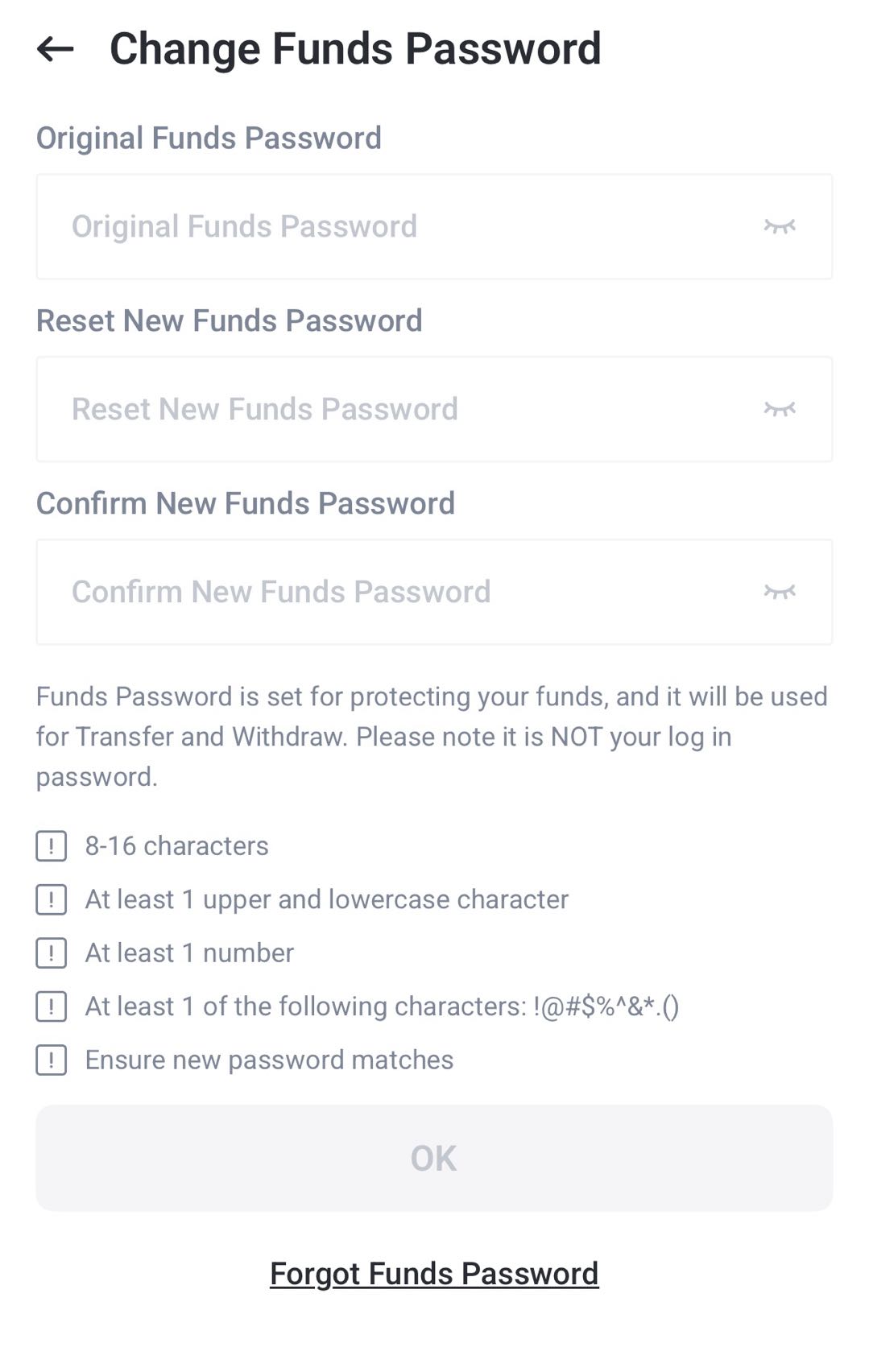
Step 6: Confirm the Change
Follow the on-screen instructions to complete the update.
Once confirmed, the funds password for the selected trading account will be changed.
Note: This only changes the funds password for the trading account you selected. It does not change your Client Portal login password or the funds password for other trading accounts.
Frequently Asked Questions
What is 2FA on VT Markets?
Two-factor authentication, or 2FA, is a security feature that adds an extra verification step to your VT Markets account. Once enabled, you may need to enter a time-sensitive code from your authenticator app when logging in or completing selected account actions.
Which authenticator app can I use for VT Markets 2FA?
You can use an authenticator app such as Google Authenticator, Microsoft Authenticator, or another similar app that supports time-sensitive verification codes.
Can I set up 2FA by scanning a QR code?
Yes. If you choose the QR code method, scan the QR code shown in the VT Markets app using your authenticator app. Your VT Markets account should be added automatically. You can then return to the VT Markets app and enter the verification code.
What should I do if I cannot scan the QR code?
You can use the manual setup method. Copy the setup key shown on the VT Markets Link Authenticator page, then enter it manually in your authenticator app. After that, the authenticator app should generate a verification code for VT Markets.
What is the difference between Passkey and 2FA?
Passkey and 2FA are separate security features. Passkey uses device-based verification, such as Face ID, fingerprint, or your device screen lock, where available. 2FA uses a one-time verification code from an authenticator app.
Why do I need to link an authenticator app when setting up Passkey?
During Passkey setup, VT Markets may ask you to complete an authenticator step to verify that the setup request is authorised. This does not mean Passkey and 2FA are the same. The authenticator step is used as part of the security verification process.
What are Safety Locks used for?
Safety Locks help protect access to the VT Markets app. Depending on your selected setting, the app may require Face ID, pattern unlock, or both before allowing access to selected app functions such as app opening, trades, orders, deposits, or withdrawals.
Is my Client Portal password the same as my funds password?
No. Your Client Portal login password is used to log in to the VT Markets app and access your dashboard, profile, and account settings. Your funds password is used for fund-related actions where required.
Can different trading accounts have different funds passwords?
Yes. If you have more than one trading account, each account may have its own funds password. Make sure you select the correct trading account before setting or changing the funds password.
What happens if I forget my Client Portal password?
If you forget your Client Portal password, tap Forgot Password on the login page and follow the reset instructions sent to your registered email address.
Will withdrawals be affected after changing my password or authenticator?
For security reasons, withdrawals may be temporarily restricted after certain security changes. For example, withdrawals may only become available again 24 hours after the Client Portal password has been changed or reset. The app may also show a security notice when the authenticator app is changed.